


To add an electron app license key check, put all licensing code in the Electron main process. On first run, the customer pastes the key from their order email; the main process sends it to POST /wp-json/lmfwc/v1/public/activate on your WooCommerce store with your Application’s public key and a random per-install device ID. Save the key with safeStorage, then call /validate on every start and open the app only when the key is activated on this device, not expired, and not disabled.
License Manager for WooCommerce Pro generates the key, emails it on the order and enforces the activation limit, so you sell from your own store without a separate licensing SaaS. The full working code is below.
Disclosure: we own License Manager for WooCommerce Pro. Every endpoint, field and error code in this guide was checked against the v2.0.1 plugin source. The Electron code was syntax-checked and run against a mock of these responses, not against a live store, so test it on staging before you ship.
Sell your Electron app from your own store
WooCommerce checkout, generated keys in the order email, activation limits and a public API that needs no secret in your app.
Live DemoView PricingAdding License Keys to an Electron App: What Do You Need Before You Start?
- A WordPress site with WooCommerce and License Manager for WooCommerce plugin. The public client API and Applications are Pro features.
- An Electron app on a release that ships Node 18 or newer, because the code uses the built-in
fetchandAbortSignal.timeout. No npm packages are needed. - HTTPS on the store. The key travels in the request body, so do not run this over plain HTTP.
How Does Electron App Licensing Flow Work?
There are two halves. WooCommerce sells and delivers the key. Your Electron app activates it once and checks it at startup.
- A customer buys your app on a WooCommerce product that is linked to a generator and an Application.
- When the order reaches your delivery status, License Manager generates the key and adds it to the order email and the customer’s My Account › License keys page.
- The customer pastes the key into your app. The main process calls
/activate, which takes one seat for this device or reuses the seat if the device is already activated. - The app saves the key locally, encrypted with Electron
safeStoragewhere the OS supports it. - On every start, the app calls
/validateand opens the main window only if the key is still good.
| Action | Endpoint (POST, JSON body) | Route ID in settings |
|---|---|---|
| Activate | /wp-json/lmfwc/v1/public/activate | 030 |
| Reactivate | /wp-json/lmfwc/v1/public/reactivate | 031 |
| Deactivate | /wp-json/lmfwc/v1/public/deactivate | 032 |
| Validate | /wp-json/lmfwc/v1/public/validate | 033 |
public_key, license_key and domain (required), plus optional application_id and plugin_version.For a desktop app, domain is just the activation label. License Manager has no hardware fingerprinting, so you choose the device identity. The example uses a random ID stored once per install.
Note that the server lowercases the value, strips http://, www. and anything after a /, so keep it to letters, digits and dashes.
Step 1: Create a Generator for Your App’s Keys
In License Manager, open Generators › Add Generator. Set the character map, the number of chunks and the chunk length, and add an optional prefix such as APP-. Two fields decide your licensing model:
- Max activations: how many computers one key can run on. Use 1 for a single-seat license or 3 for “use it on your laptop and desktop”.
- Expires in (days): leave empty for a perpetual license, or set 365 for yearly. Activate and validate both refuse expired keys on the server.

Step 2: Create an Application & Copy its Public Key
Open Applications › Add Application, name it after your Electron app, and pick the non-WordPress type. License Manager creates a public key for the Application (it starts with lm_live_ in the admin). This key goes into your app. It identifies the Application; it cannot create or edit licenses.
See the Create an Application docs for every field.
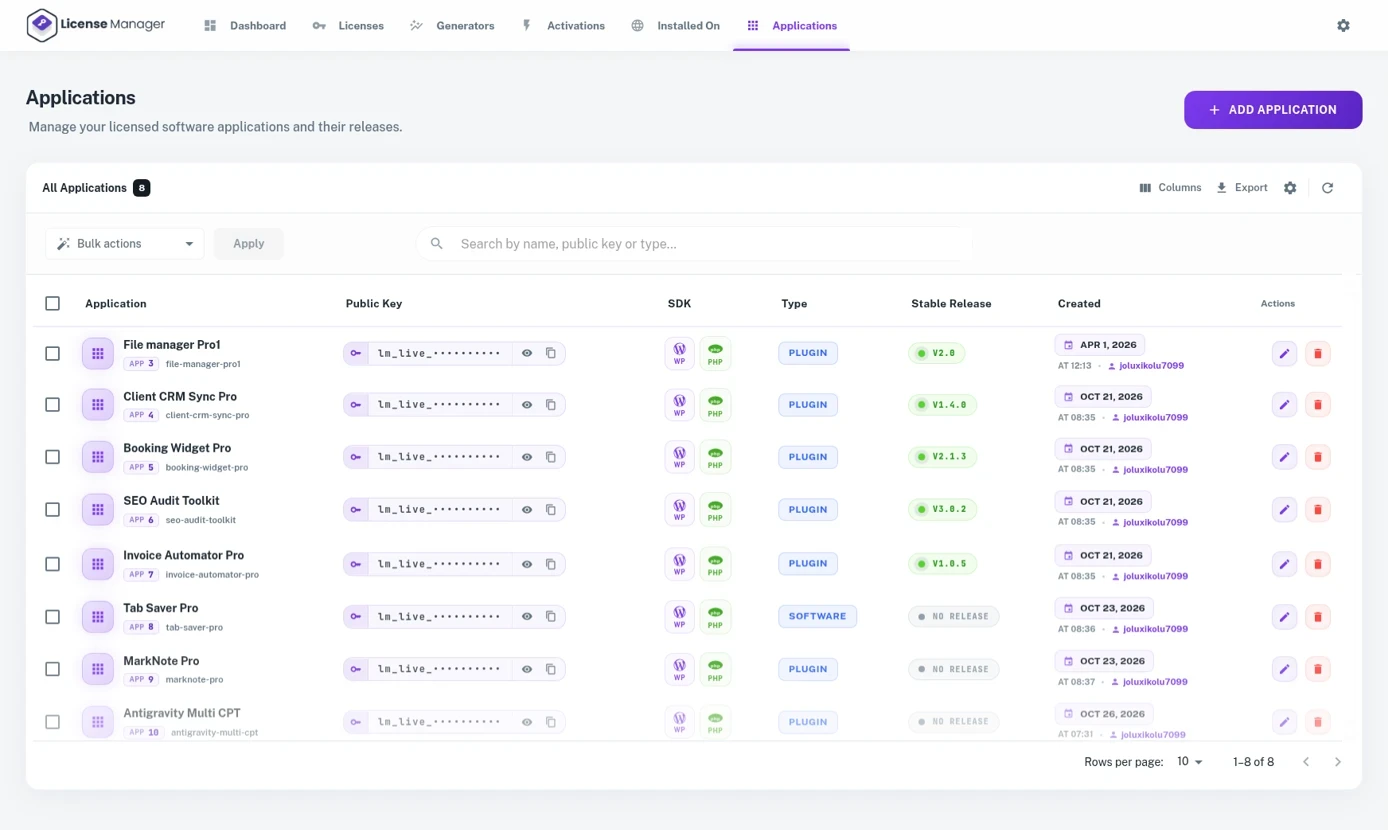
You can also attach releases to the Application. Customers then see the downloads on their My Account page, which is a simple way to deliver your installers to paying users only.
Step 3: Link the WooCommerce product to the generator and Application
Create a simple, virtual WooCommerce product for your app. In Product data › License Manager:
- Set Select Application to the Application from Step 2. This link is required: the public API rejects a key whose product is not linked to the Application that owns the public key (
lmfwc_license_app_mismatch). - Tick Sell license keys and keep Delivered quantity at 1.
- Tick Generate license keys and pick your generator. To sell keys you imported instead, use Sell from stock.
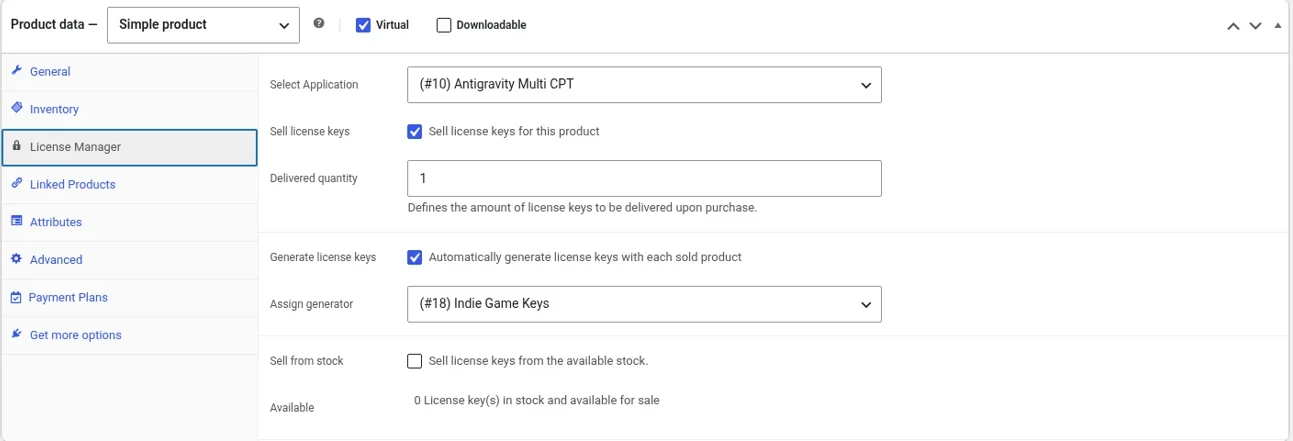
Step 4: Enable the public API routes
Open the License Manager settings, go to REST API › Enable/disable API routes, and turn on v1/public/activate, v1/public/validate and v1/public/deactivate (route IDs 030, 033 and 032).
If a route is switched off, the store answers with lmfwc_rest_route_disabled or lmfwc_rest_api_route_disabled and your app cannot activate anything.
The same screen has Rate Limiting. If you turn it on, a burst of calls from one IP gets HTTP 429, so the app should treat 429 like a temporary network problem, as the code below does.

Step 5: Place a Test Order and Find the Key
Buy the product once yourself, or create a manual order, and move it to the status you deliver on. The key shows up in the order email, in Licenses in the admin, and on the customer’s My Account page.
If you are new to order delivery, our guide on generating WooCommerce order license keys covers the settings.
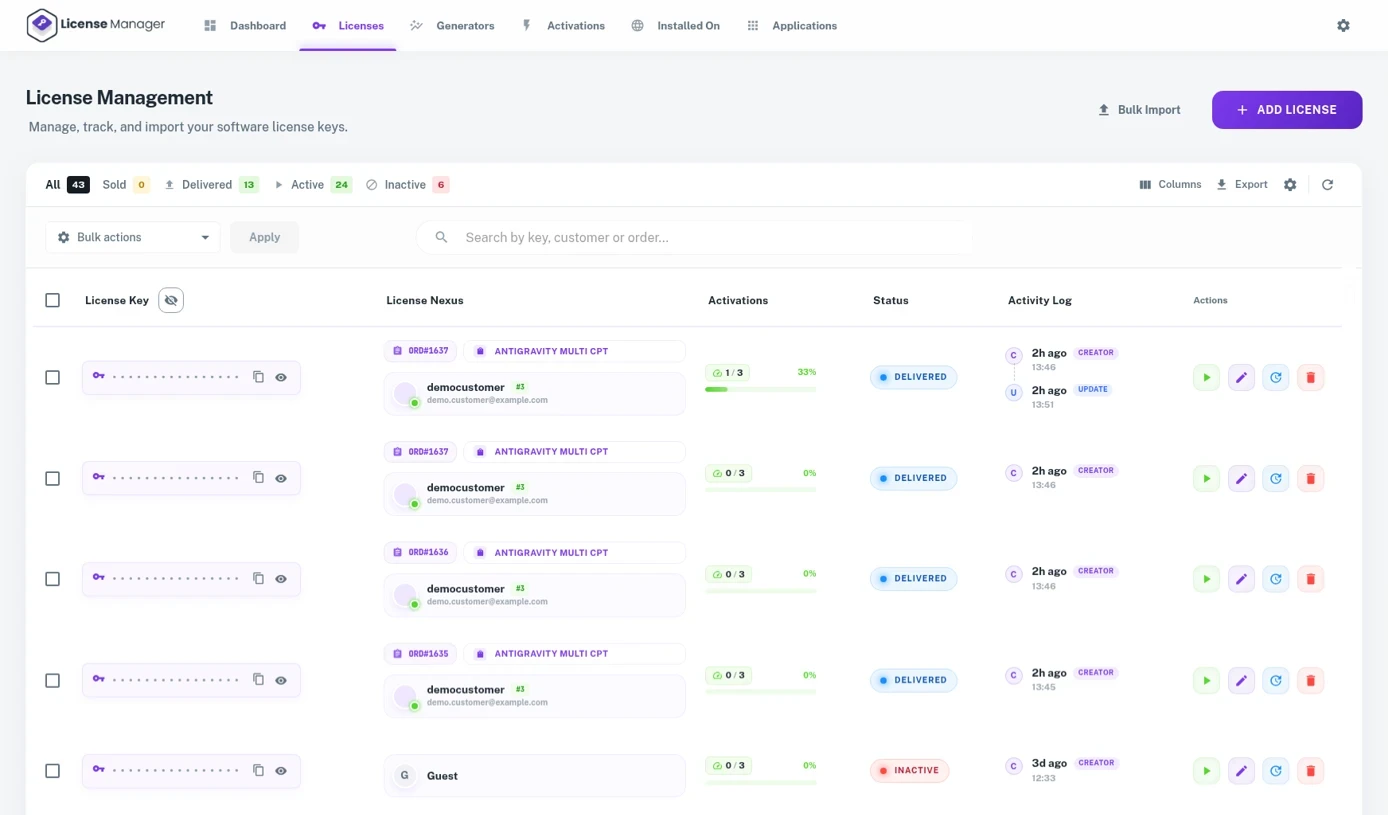
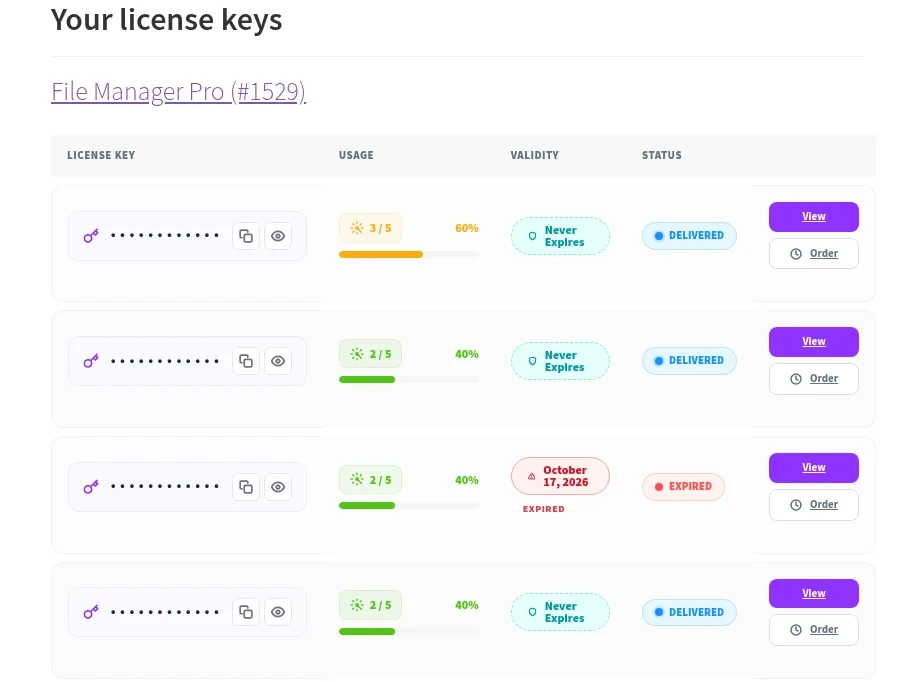
Want to click through this admin before you write code? Open the Live Demo and look at Generators, Applications and Activations, or compare plans on the pricing page.
Step 6: Add the license module to the Electron main process
Save this as license.js next to main.js. It runs only in the main process, so the renderer never sees the key or the network calls. It uses Electron’s safeStorage to encrypt the saved key and app.getPath(‘userData’) for the file location.
// license.js — load this from the Electron main process only.
const { app, safeStorage } = require('electron');
const fs = require('node:fs');
const path = require('node:path');
const crypto = require('node:crypto');

const STORE_URL = 'https://your-store.com';        // your WooCommerce site
const PUBLIC_KEY = 'lm_live_xxxxxxxxxxxxxxxx';     // Application public key (safe to ship)
const APPLICATION_ID = 12;                         // optional: the Application's ID
const OFFLINE_DAYS = 3;                            // YOUR offline policy (LM has no grace period)

const dataDir = () => app.getPath('userData');
const LICENSE_FILE = () => path.join(dataDir(), 'license.dat');
const DEVICE_FILE = () => path.join(dataDir(), 'device-id');

// One random ID per install. LM stores it as the activation "domain"/label.
function deviceId() {
  try {
    return fs.readFileSync(DEVICE_FILE(), 'utf8').trim();
  } catch {
    const id = 'desktop-' + crypto.randomUUID();
    fs.mkdirSync(dataDir(), { recursive: true });
    fs.writeFileSync(DEVICE_FILE(), id);
    return id;
  }
}

function readState() {
  try {
    const raw = fs.readFileSync(LICENSE_FILE());
    const json = safeStorage.isEncryptionAvailable()
      ? safeStorage.decryptString(raw)
      : raw.toString('utf8');
    return JSON.parse(json);
  } catch {
    return null;
  }
}

function writeState(state) {
  const json = JSON.stringify(state);
  const data = safeStorage.isEncryptionAvailable()
    ? safeStorage.encryptString(json)
    : Buffer.from(json, 'utf8');
  fs.mkdirSync(dataDir(), { recursive: true });
  fs.writeFileSync(LICENSE_FILE(), data);
}

function clearState() {
  fs.rmSync(LICENSE_FILE(), { force: true });
}

// POST /wp-json/lmfwc/v1/public/{activate|validate|deactivate}
async function callLM(action, licenseKey) {
  let res;
  try {
    res = await fetch(`${STORE_URL}/wp-json/lmfwc/v1/public/${action}`, {
      method: 'POST',
      headers: { 'Content-Type': 'application/json', Accept: 'application/json' },
      body: JSON.stringify({
        public_key: PUBLIC_KEY,
        application_id: APPLICATION_ID,
        license_key: licenseKey,
        domain: deviceId(),
        plugin_version: app.getVersion(),
      }),
      signal: AbortSignal.timeout(15000),
    });
  } catch (cause) {
    throw Object.assign(new Error('Store not reachable'), { code: 'network', cause });
  }

  let body = null;
  try { body = await res.json(); } catch { /* non-JSON error page */ }

  if (!res.ok) {
    // WordPress REST errors look like { code, message, data: { status } }
    throw Object.assign(new Error(body?.message || `HTTP ${res.status}`), {
      code: body?.code || 'http_' + res.status,
      status: res.status,
    });
  }
  return body.data; // success shape: { success: true, data: { ... } }
}

// Status labels as returned by an English-language store.
const BLOCKED_STATUSES = ['Inactive', 'Disabled'];

function verdict(d) {
  if (d.is_expired) return { ok: false, reason: 'lmfwc_license_expired' };
  if (BLOCKED_STATUSES.includes(d.status)) return { ok: false, reason: 'blocked' };
  if (!d.is_activated_here) return { ok: false, reason: 'not_activated' };
  return { ok: true };
}

// Called from the activation window (via IPC).
async function activate(licenseKey) {
  await callLM('activate', licenseKey);           // new activation, or reuses this device's
  const d = await callLM('validate', licenseKey); // read status, expiry, seat use
  const v = verdict(d);
  if (v.ok) {
    writeState({ licenseKey, lastOkAt: Date.now(), expiresAt: d.expires_at || null });
  }
  return { ...v, data: d };
}

// Called on every app start.
async function checkAtStartup() {
  const saved = readState();
  if (!saved?.licenseKey) return { ok: false, reason: 'missing' };

  try {
    const d = await callLM('validate', saved.licenseKey);
    const v = verdict(d);
    if (v.ok) {
      writeState({ ...saved, lastOkAt: Date.now(), expiresAt: d.expires_at || null });
    } else if (v.reason === 'not_activated') {
      clearState(); // seat was removed in the admin or from My Account
    }
    return { ...v, data: d };
  } catch (err) {
    const transient = err.code === 'network' || err.status === 429 || err.status >= 500;
    if (!transient) {
      if (['lmfwc_license_not_found', 'lmfwc_license_app_mismatch'].includes(err.code)) clearState();
      return { ok: false, reason: err.code };
    }
    // App-side offline policy: allow a short window since the last good check.
    const expired = saved.expiresAt && Date.parse(saved.expiresAt.replace(' ', 'T')) < Date.now();
    const recent = Date.now() - (saved.lastOkAt || 0) < OFFLINE_DAYS * 86400000;
    return !expired && recent ? { ok: true, offline: true } : { ok: false, reason: 'network' };
  }
}

// "Move to another computer" button: frees this device's seat.
async function deactivate() {
  const saved = readState();
  if (!saved?.licenseKey) return { ok: true };
  try {
    await callLM('deactivate', saved.licenseKey);
  } catch (err) {
    if (err.code !== 'lmfwc_not_activated') throw err;
  }
  clearState();
  return { ok: true };
}

module.exports = { activate, checkAtStartup, deactivate };
What the module does:
callLM()posts JSON to the public route. Success responses look like{ success: true, data: {...} }; errors are standard WordPress REST errors withcode,messageanddata.status.activate()calls/activateand then/validate, and saves the key only if the result is usable.checkAtStartup()calls/validate. If the store says the key is gone or belongs to another product, it clears the saved key. If the store cannot be reached, it applies your offline rule.deactivate()frees this device’s seat for a “Move to another computer” button.
Step 7: Wire it into main.js, the preload script and an activation window
The renderer gets exactly two functions through contextBridge, which follows Electron’s context isolation guidance. main.js checks the license before it decides which page to load.
// main.js
const { app, BrowserWindow, ipcMain } = require('electron');
const path = require('node:path');
const license = require('./license');

let win;

function show(page) {
  if (!win) {
    win = new BrowserWindow({
      width: 960,
      height: 640,
      webPreferences: {
        preload: path.join(__dirname, 'preload.js'),
        contextIsolation: true,
        nodeIntegration: false,
      },
    });
  }
  win.loadFile(page);
}

app.whenReady().then(async () => {
  ipcMain.handle('license:activate', async (_event, key) => {
    try {
      const result = await license.activate(String(key || '').trim());
      if (result.ok) show('index.html');
      return { ok: result.ok, reason: result.reason };
    } catch (err) {
      return { ok: false, reason: err.code || 'error', message: err.message };
    }
  });

  ipcMain.handle('license:deactivate', async () => {
    try {
      await license.deactivate();
      show('activate.html');
      return { ok: true };
    } catch (err) {
      return { ok: false, reason: err.code || 'error', message: err.message };
    }
  });

  const state = await license.checkAtStartup();
  show(state.ok ? 'index.html' : 'activate.html');
});

app.on('window-all-closed', () => app.quit());
// preload.js — the renderer only gets these two functions
const { contextBridge, ipcRenderer } = require('electron');
contextBridge.exposeInMainWorld('license', {
activate: (key) => ipcRenderer.invoke('license:activate', key),
deactivate: () => ipcRenderer.invoke('license:deactivate'),
});A minimal activation page and its script:
<!doctype html>
<html>
<head>
  <meta charset="utf-8">
  <meta http-equiv="Content-Security-Policy" content="default-src 'self'; script-src 'self'">
  <title>Activate</title>
</head>
<body>
  <form id="gate">
    <label for="key">License key</label>
    <input id="key" autocomplete="off" required>
    <button type="submit">Activate</button>
  </form>
  <p id="msg"></p>
  <script src="activate.js"></script>
</body>
</html>
// activate.js — renderer script for activate.html
const MESSAGES = {
lmfwc_license_not_found: 'That key was not found. Check it against your order email.',
lmfwc_license_app_mismatch: 'This key belongs to a different product.',
lmfwc_activation_limit_reached: 'All seats are in use. Deactivate another computer from My Account.',
lmfwc_license_expired: 'This license has expired. Renew it to keep using the app.',
lmfwc_license_inactive: 'This license is not active. Contact support.',
blocked: 'This license is disabled. Contact support.',
network: 'Could not reach the license server. Check your connection.',
lmfwc_rate_limit_exceeded: 'Too many attempts. Wait a minute and try again.',
};
document.getElementById('gate').addEventListener('submit', async (event) => {
event.preventDefault();
const msg = document.getElementById('msg');
msg.textContent = 'Checking…';
const result = await window.license.activate(document.getElementById('key').value);
if (!result.ok) {
msg.textContent = MESSAGES[result.reason] || result.message || 'Activation failed.';
}
});Step 8: Check the Key at Startup and Handle Every Error
These are the error codes the public routes return in v2.0.1. Show a clear message for each one instead of a generic failure:
| Code | HTTP | When | What the app should do |
|---|---|---|---|
lmfwc_license_not_found | 404 | Key does not exist | Ask the customer to re-check the key; clear any saved key |
lmfwc_license_app_mismatch | 403 | Key is for a product not linked to this Application | Explain it is a key for another product |
lmfwc_activation_limit_reached | 403 | All seats are used | Point to My Account to deactivate an old device |
lmfwc_license_expired | 403 | Past expires_at | Show a renew link |
lmfwc_license_inactive | 403 | Status is Inactive | Contact support |
lmfwc_invalid_public_key | 401 | Wrong public key in the build | Fix your build config |
lmfwc_not_activated | 404 | Deactivate on a device with no active seat | Treat as already deactivated |
lmfwc_rate_limit_exceeded | 429 | Rate limiting is on and the IP made too many calls | Retry later |
includes/Api/V1/External/Activate.php and includes/Api/RateLimiter.php.Step 9: Watch Activations and Free Seats from the Admin
Each successful activation appears in Activations with the device ID you sent as its label, the IP, the user agent and the app version you passed as plugin_version. You can deactivate or delete an activation there. On the next start, /validate returns is_activated_here: false and the app asks for the key again.
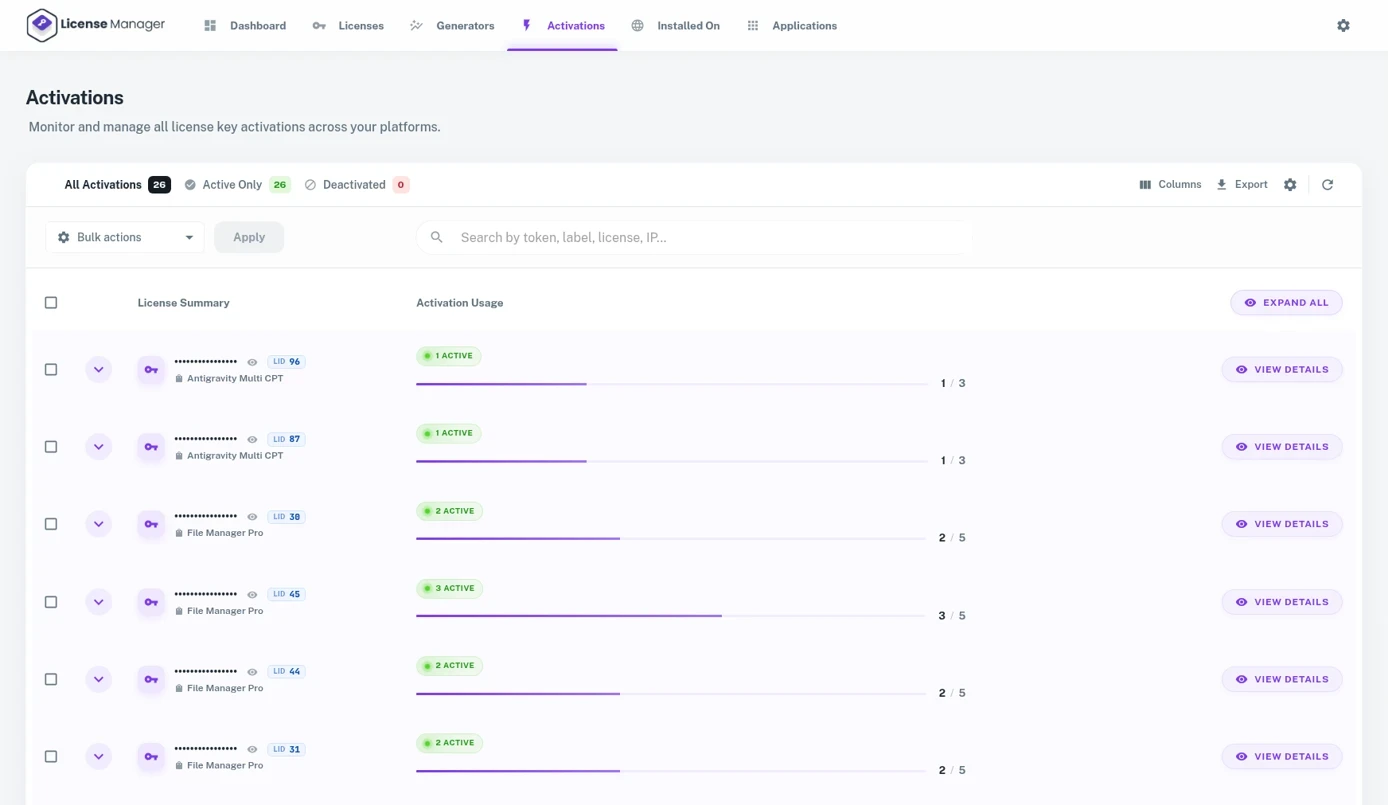
If you want customers to manage their own seats, turn on the My Account activate/deactivate settings. To learn more about tying seats to devices, read our guide to node-locked software licenses.
Gotchas we found in the plugin code
- The
validflag is strict./validatereturnsvalid: trueonly when the license status is Active and it has not expired. Keys from orders are usually Sold or Delivered, so the example checksis_activated_here,is_expiredandstatusinstead. - Disabled keys can still activate.
/activaterefuses Inactive and expired keys, but not Disabled ones. That is whyverdict()also blocks the Disabled status. Status labels are translated on non-English stores, so adjustBLOCKED_STATUSESif your store language differs. - Activating again is safe. The same device ID reuses its activation record instead of taking a second seat, so a reinstall that keeps
userDatadoes not burn a seat. A wipeduserDatacreates a new device ID and a new seat. - Never ship admin credentials. The v2 admin API uses WooCommerce consumer keys. Those belong on a server, never inside an Electron bundle.
What License Manager does not do for Electron apps
We would rather you know this before you buy. Hosted licensing services such as Keygen and Cryptlex build their Electron flows around signed activation tokens that can be checked offline. License Manager v2.0.1 does not:
- Online checks only. There are no signed offline license files, no floating or concurrent seats, and no hardware fingerprinting.
- No enforced grace period. A Grace Period setting exists, but the API does not read it. Expiry is hard. The
OFFLINE_DAYSwindow in the example is app-side logic and is only as strong as your app’s code. - No renewal reminder emails and no automatic “expired” status. Expiry is computed from
expires_atwhen a call is made.
If offline-first activation is a hard requirement, one of those services is a better fit. If you want to sell from your own WooCommerce store, keep the customer and order data, and use a simple online activation check, License Manager covers it.
Game makers can follow the same flow in our indie game license keys guide. If you are leaving a marketplace, see our CodeCanyon alternative guide.
| Need | License Manager Pro on WooCommerce | Hosted licensing API (Keygen, Cryptlex, etc.) |
|---|---|---|
| Where you sell | Your WooCommerce checkout | Separate payment integration or their store |
| Key delivery | Order email and My Account, generated per order | Their email or your webhook code |
| Activation limit per key | Yes (max activations) | Yes |
| Secret-free client API | Yes (public key) | Yes |
| Offline signed tokens | No | Yes, per their docs |
| Customer data | In your WordPress database | On the vendor’s servers |
Put your Electron app on your own checkout
Generators, seat limits, key emails and a public activate/validate API. Plans cover 1, 3 or 15 store sites, with a 14-day money-back guarantee.
Live DemoView Pricing