Documentation
Getting Started
- Introduction
- Setup
- General Settings
- WooCommerce
- Tools
- Analytics Reports
- Dashboard
- License
- Generator
- Activations
- Applications
- Installed On
- API Logs
- WooCommerce Products
- Customer License Manager Flow
Integrations
For Developer
License Keys
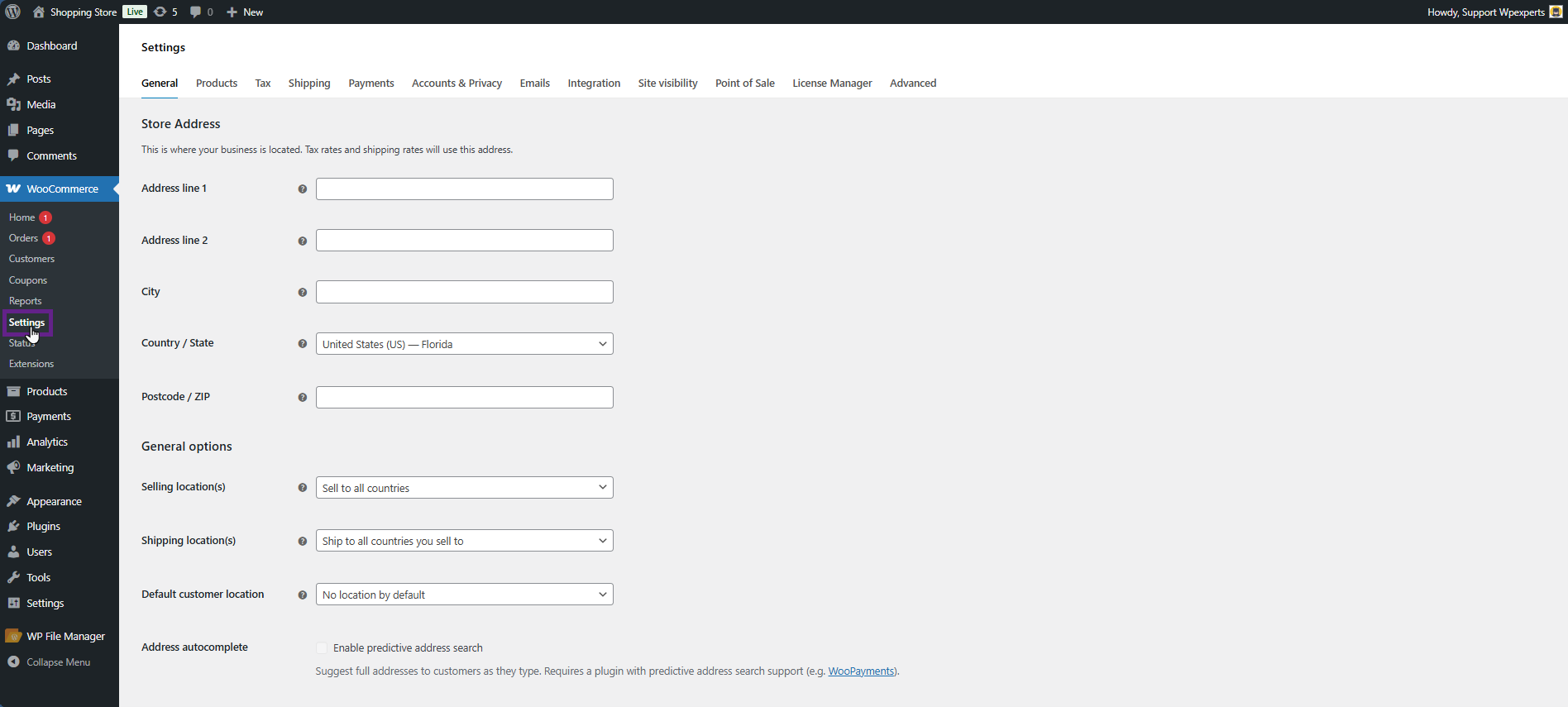
- Before exploring the plugin in more detail, you’ll first need to configure a few essential settings. To get started, go to the Admin Dashboard > WooCommerce > Settings.
- Navigate to the License Manager tab.
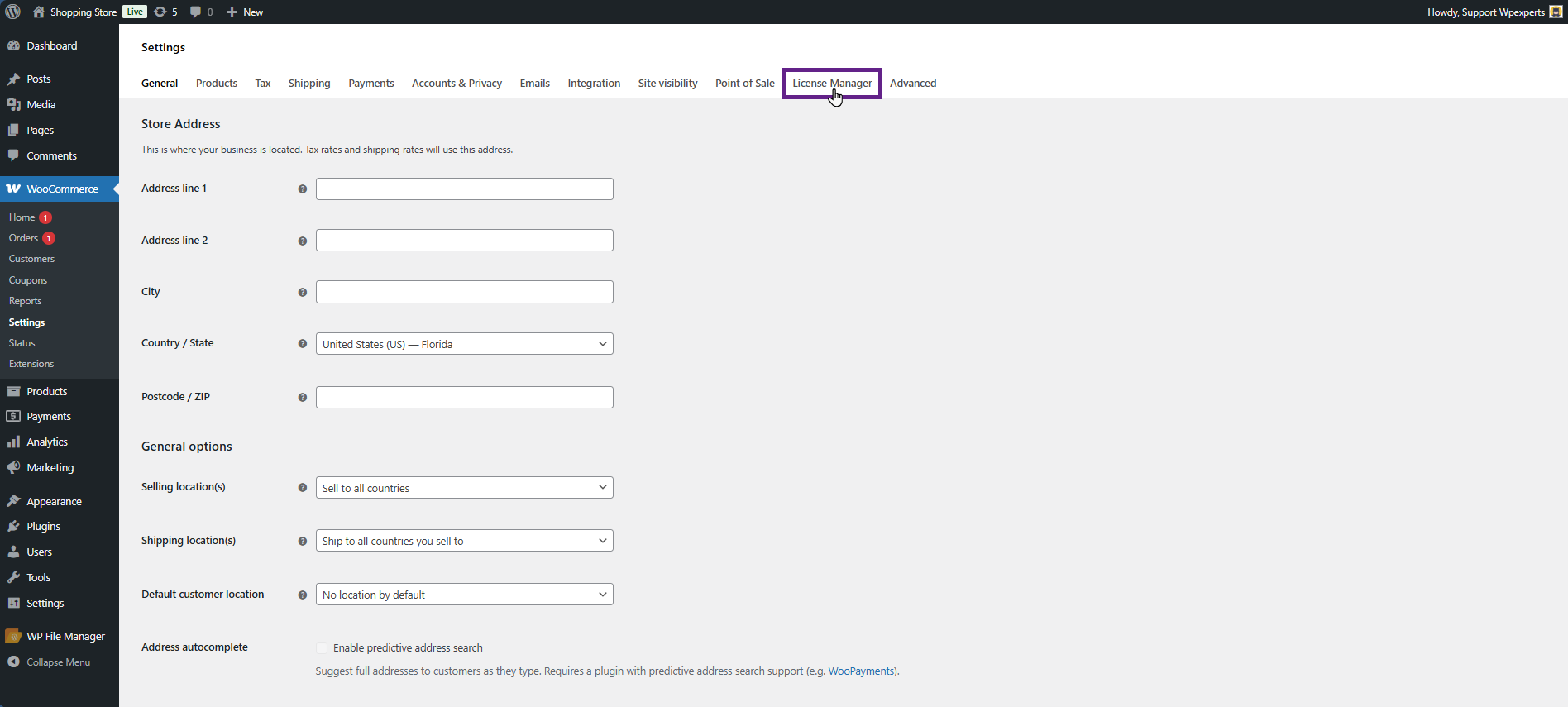
- The License Manager tab is divided into five sub-tabs: General, WooCommerce, REST API, Tools, and AppSumo.
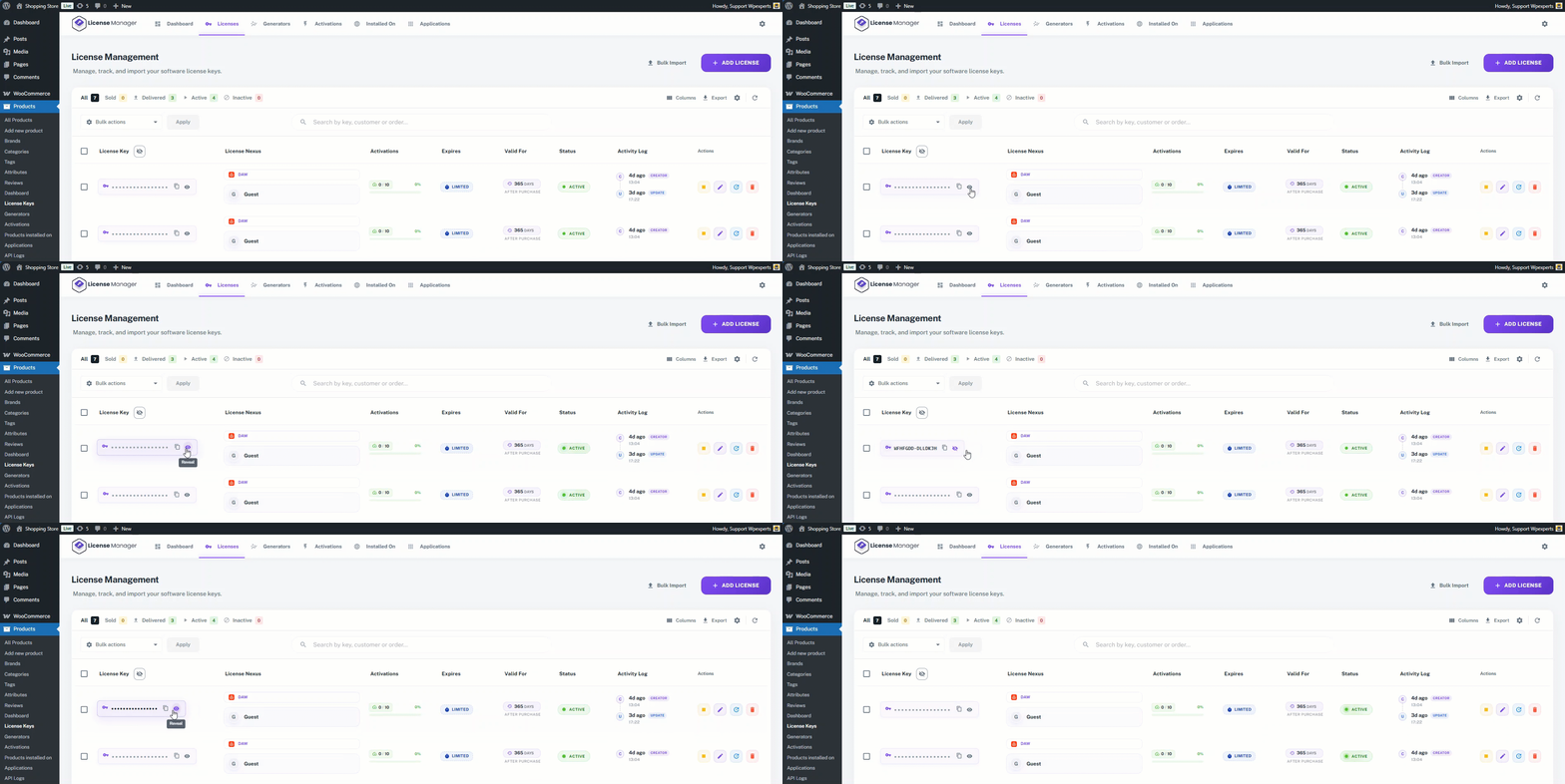
- In the General sub-tab, the first section is License Keys. If the admin wants to hide license keys in the admin dashboard and display them only when the Show action button is clicked, enable the Obscure Licenses checkbox. This will prevent anyone from taking a direct look at the plain-text, decrypted license keys.
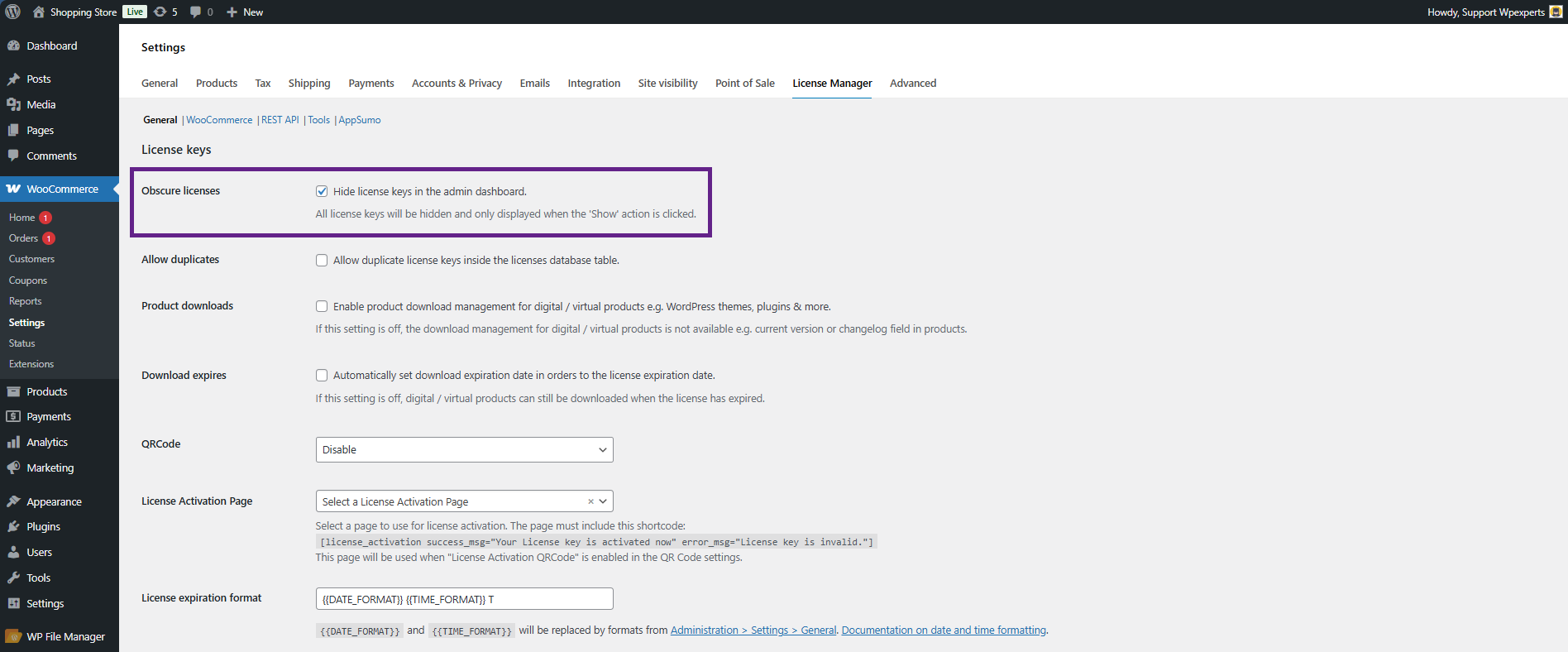
Obscure licenses Impact:
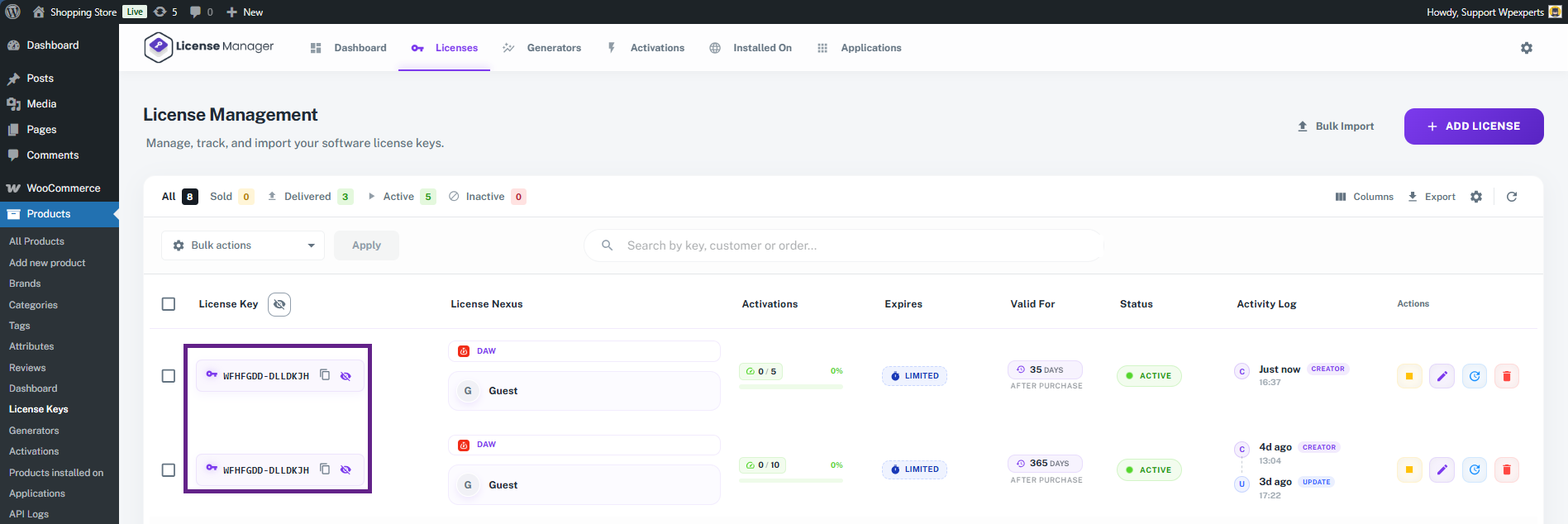
- The Allow Duplicates setting allows users to add duplicate license keys to the database. When this option is enabled, the plugin will no longer check whether the license key already exists in the database before adding it.
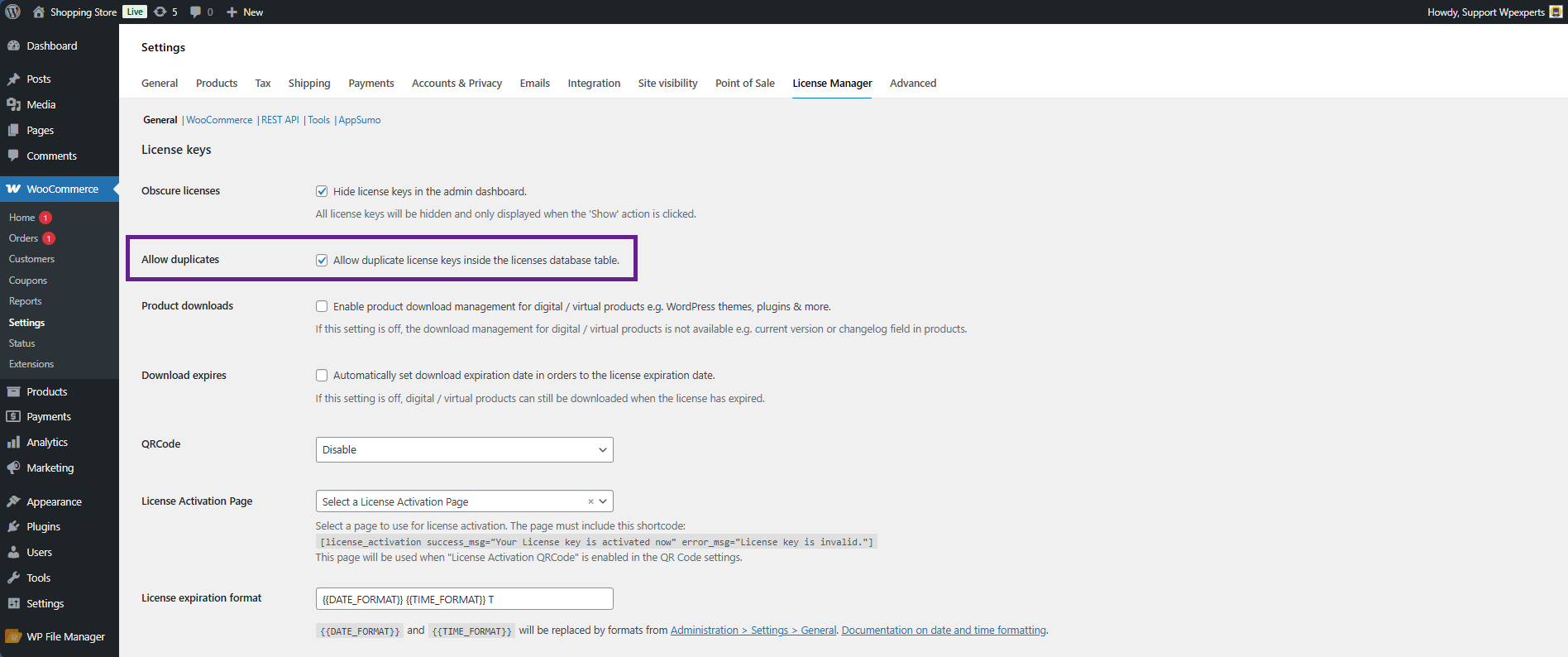
Allow Duplicates Impact:
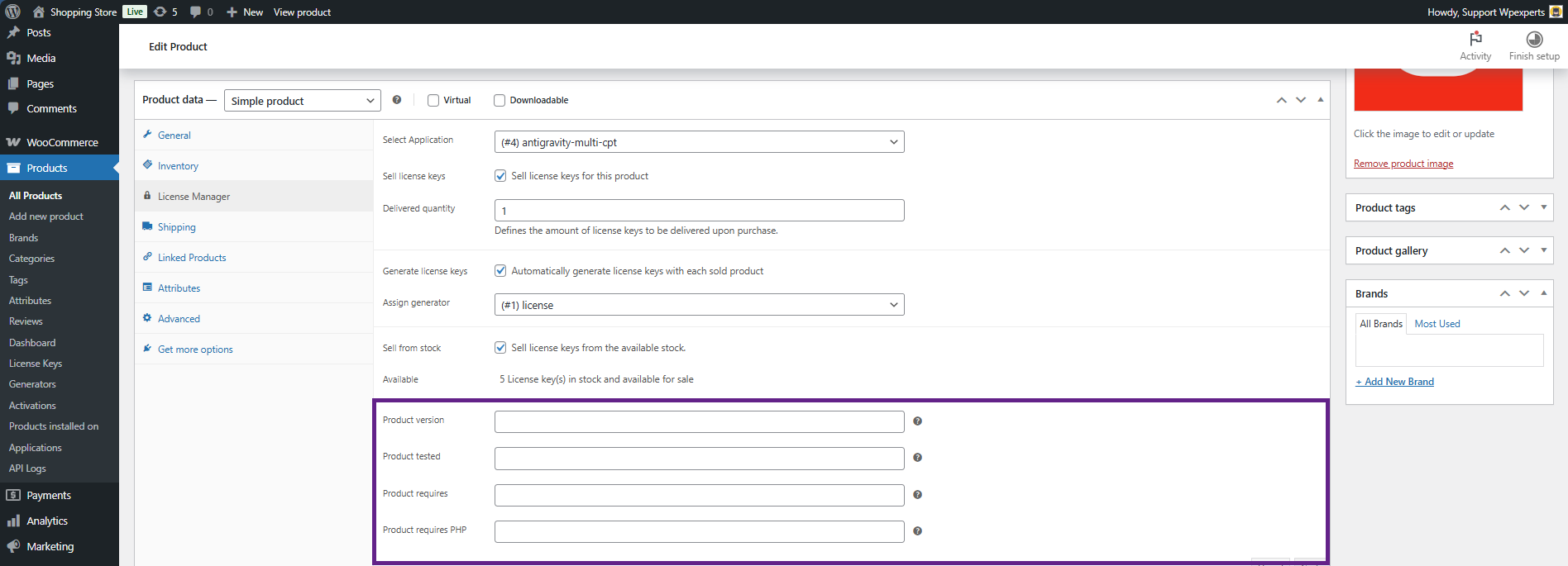
- The Product downloads option allows you to enter the change log and product version from settings.

Product Downloads Impact
- The Download Expiration option allows the admin to control whether customers can download digital or virtual products after their license has expired.
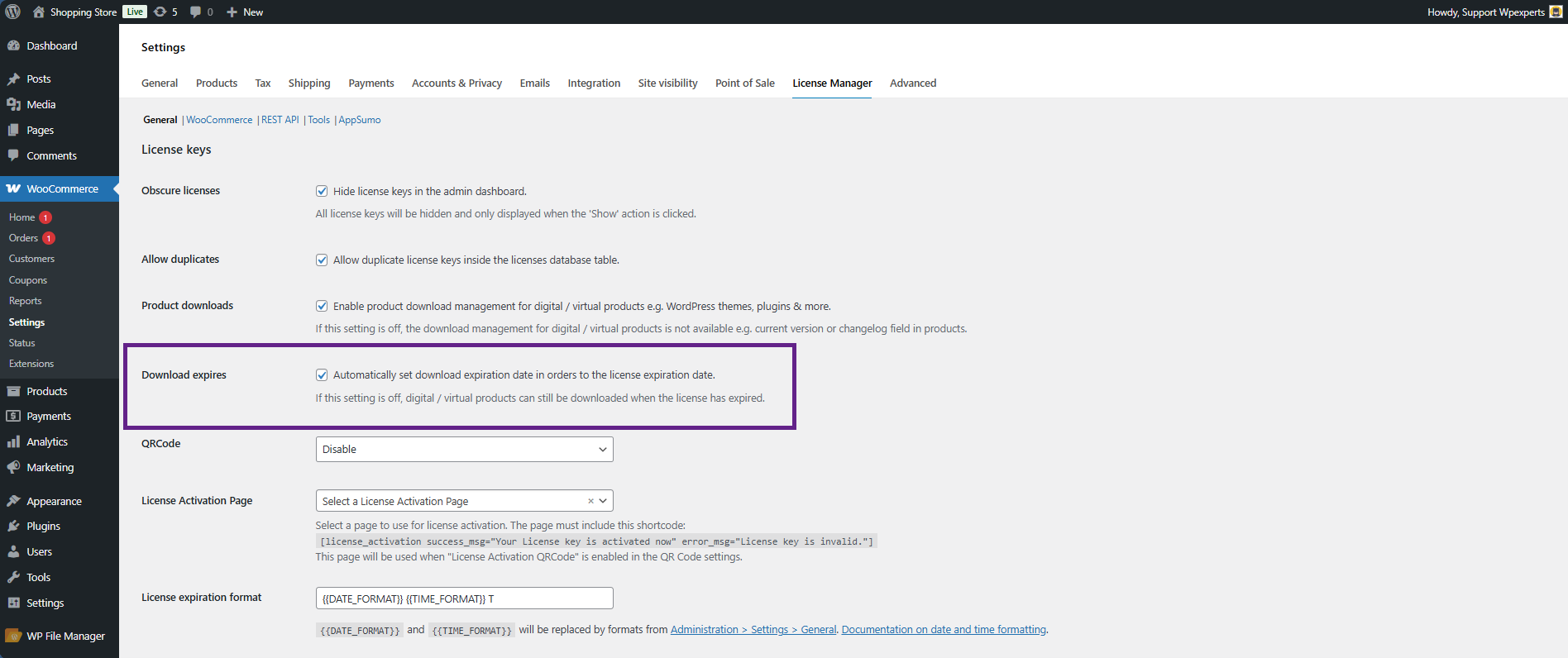
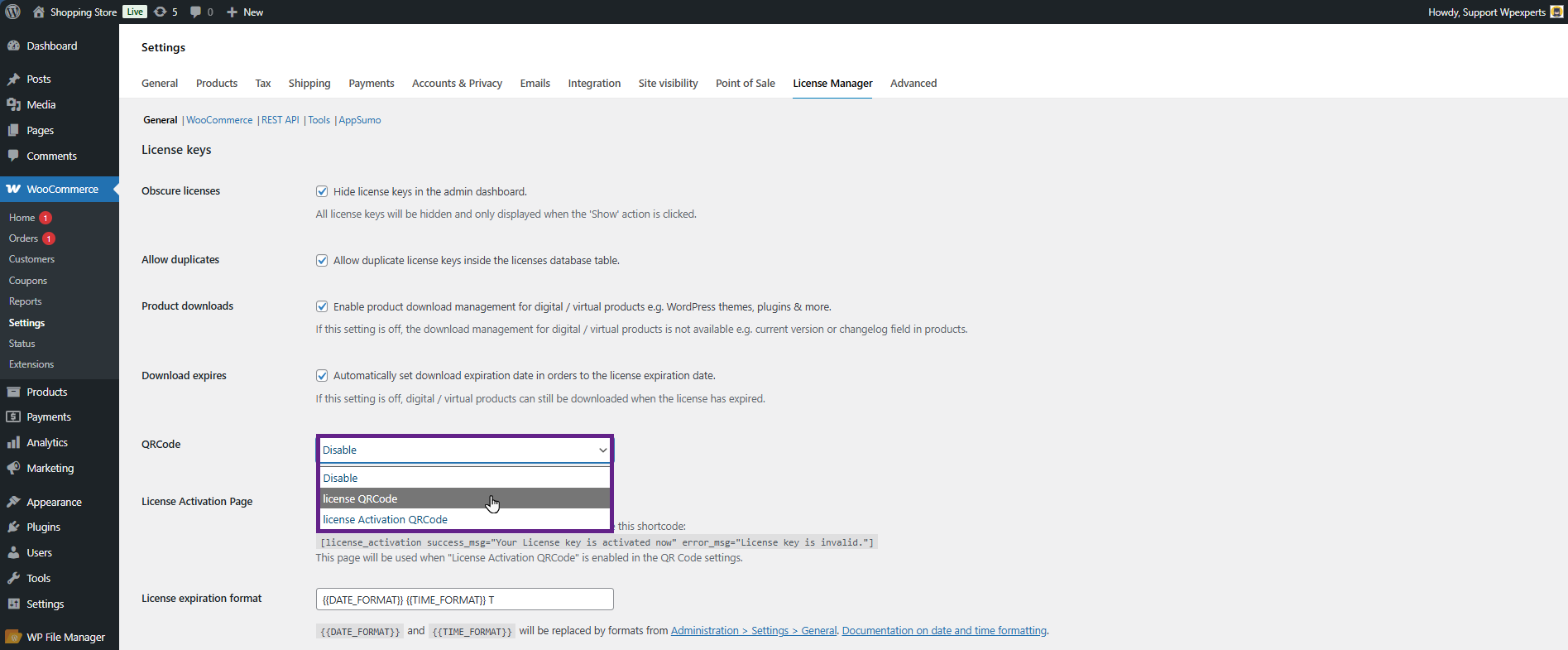
- The QR Code option allows quick access and activation of licenses using scannable codes.
- License QR Code: When enabled, users can scan the QR code to instantly copy the license key and manually activate it.
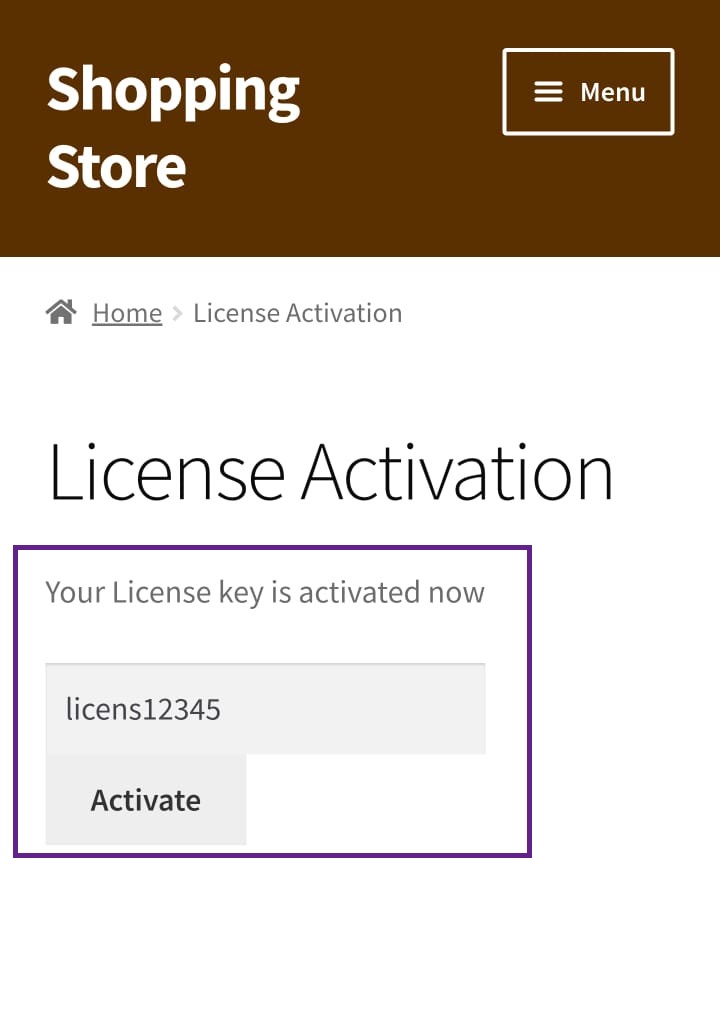
- License Activation QR Code: When enabled, users can activate their license directly by scanning the QR code. The user will be redirected to the page selected in the License Activation Page option, where they can easily activate the license key without manually copying it.
Note: Use the shortcode [license_activation success_msg=”Your License key is activated now” error_msg=” License key is invalid.”] to allow your customers to activate their license keys directly from a front-end page.

- Select the License QR Code option from the QR Code dropdown menu.
- This option allows users to scan the QR code and directly copy the license key from the front end. It is intended for manual license activation
- The second option, License Activation QR Code, allows the user to scan the QR code to activate the product’s license key.
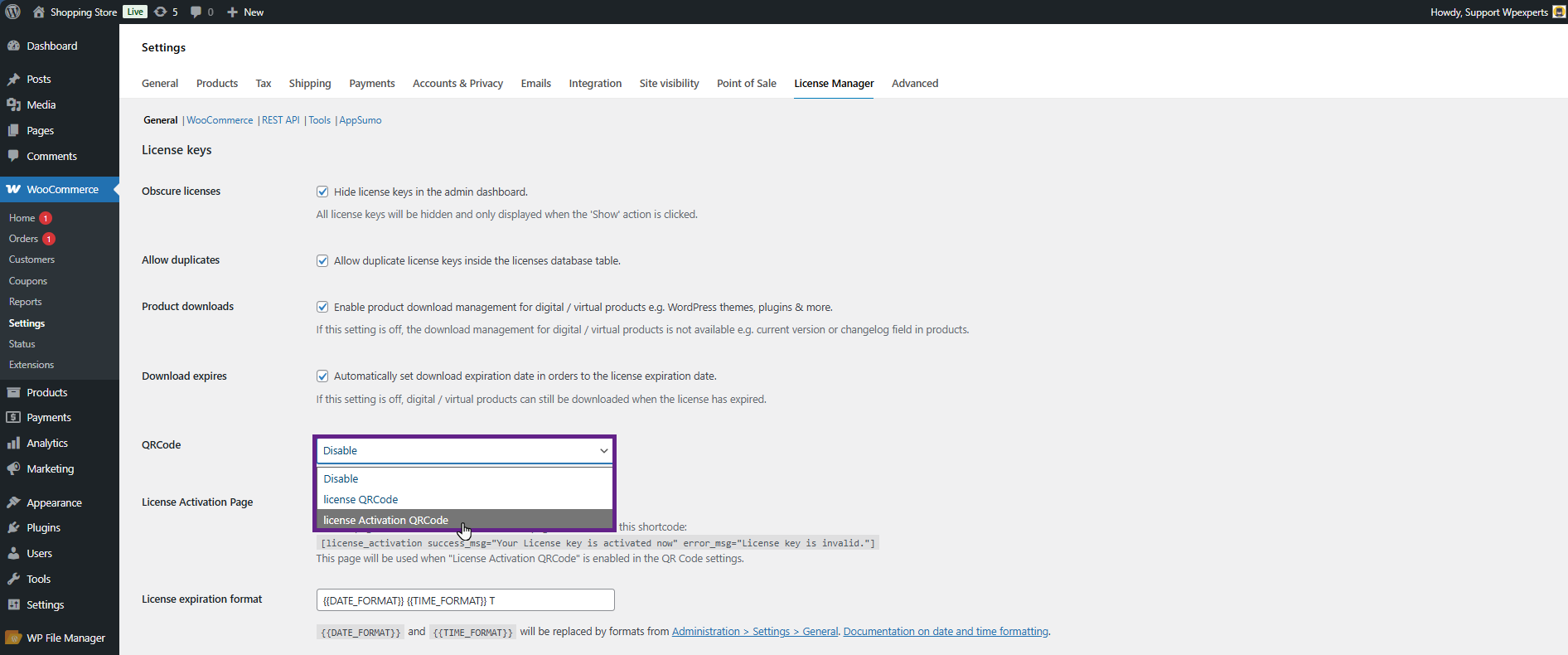
Note: Make sure that the page containing the shortcode [license_activation success_msg=”Your License key is activated now” error_msg=”License key is invalid.”] is selected in the License Activation Page option.
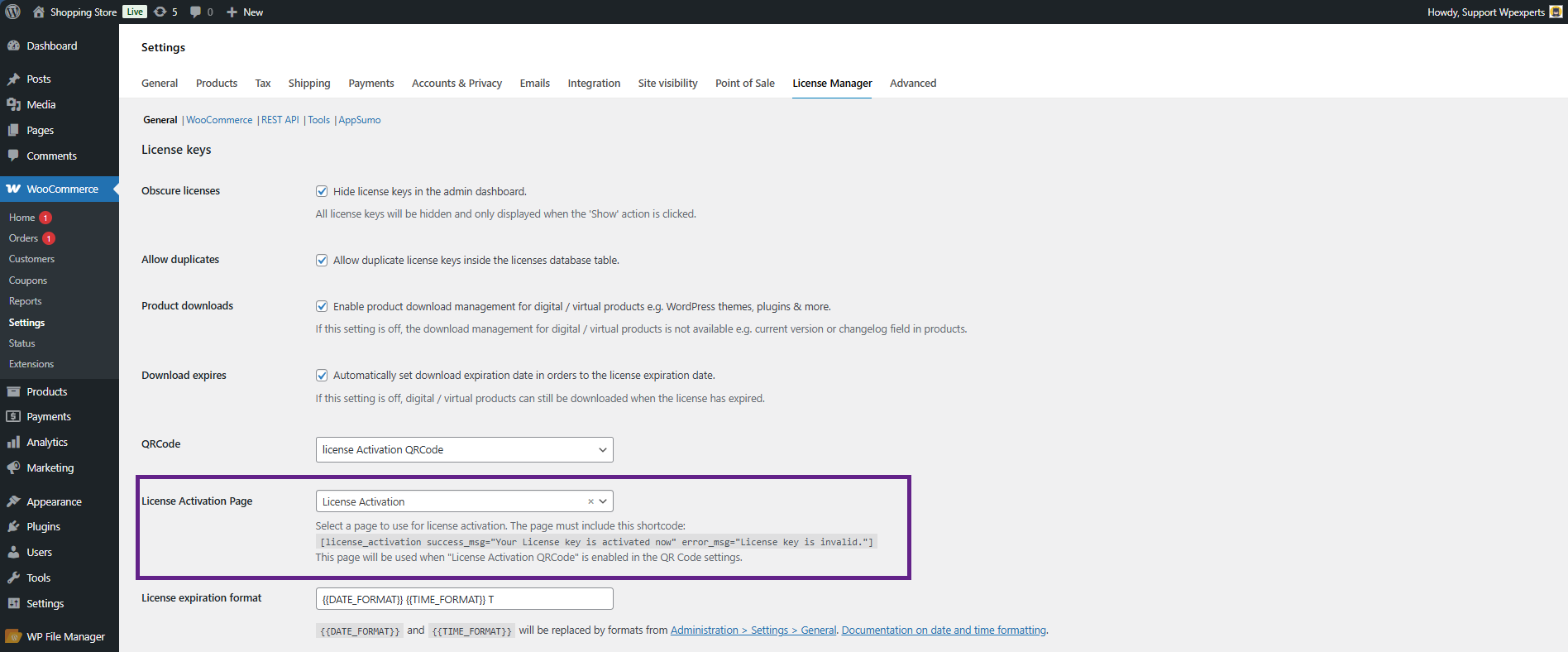
- Once done, click the Save Changes button.
QR Code & License Activation Page Impact
- Go to your website.
- Navigate to the My Account page.

- Navigate to the License Keys tab.

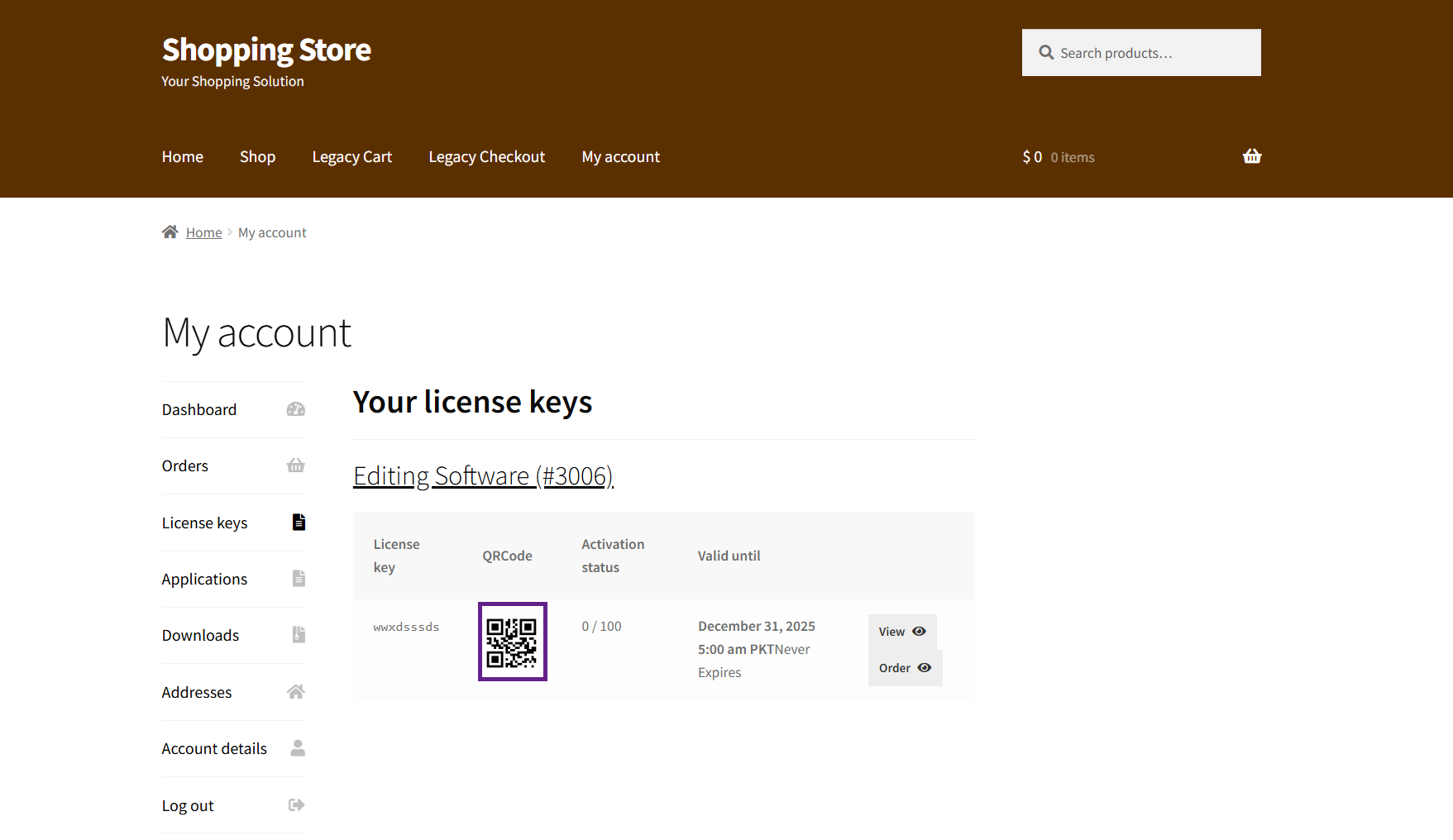
License QR Code Enabled
- As shown, the QR code is generated automatically. When scanned, it allows the user to copy the license key easily.
Please note: Ensure that the user you are logged in as has an assigned license key. If no license key is assigned, it will not appear in the License Key tab, and the QR code will not be generated. Also, make sure the order status is set to Completed; otherwise, the license key will not appear.
License Activation QR Code Enabled
- As shown, the QR code is generated automatically.
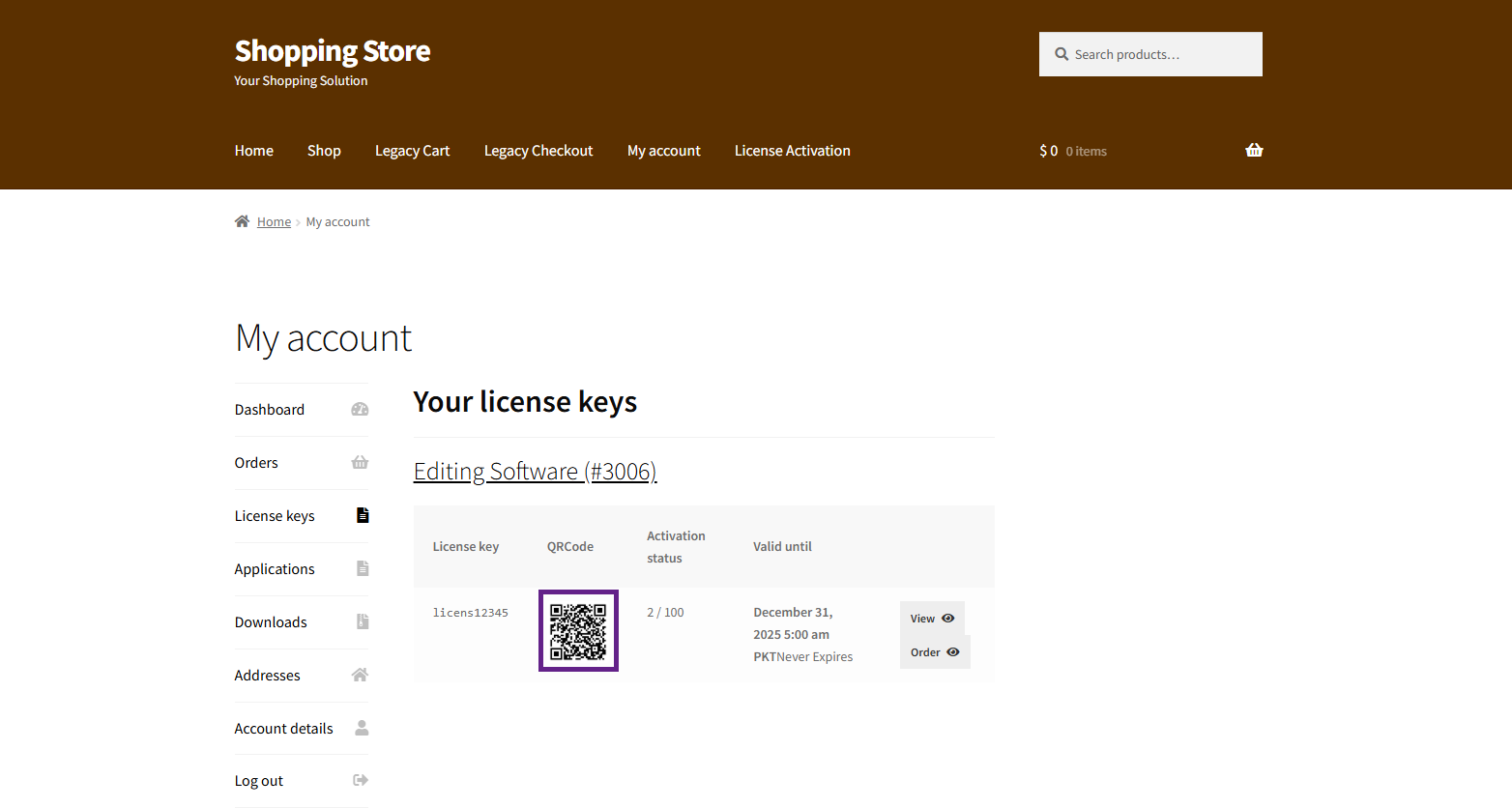
- When scanned, the user is redirected to the license activation page, where they can easily activate the license key without entering it manually.
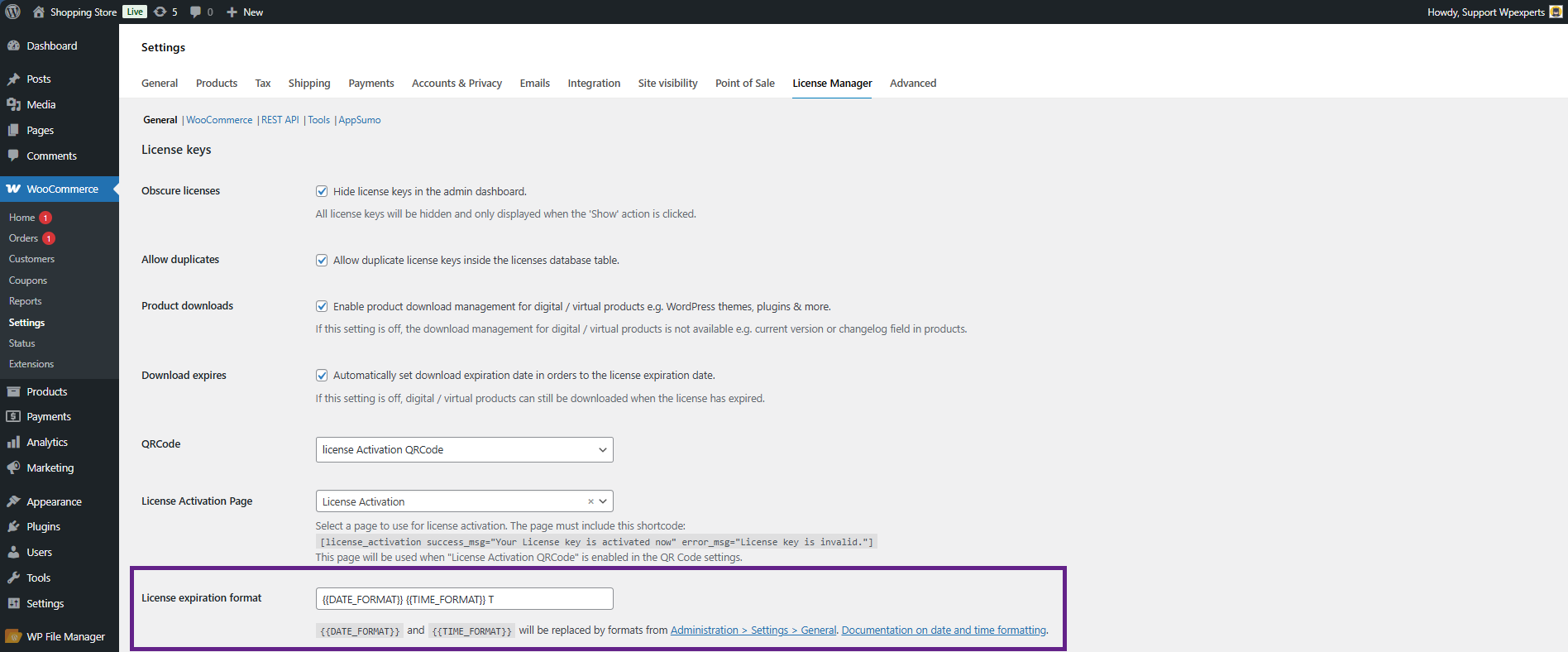
- The License Expiration Format option allows the admin to customize how the license expiry date and time are displayed on the Order and My Account pages.