
Documentation
Getting Started
- Introduction
- Setup
- General Settings
- WooCommerce
- Tools
- Analytics Reports
- Dashboard
- License
- Generator
- Activations
- Applications
- Installed On
- API Logs
- WooCommerce Products
- Customer License Manager Flow
Integrations
For Developer
Tools
The Database Migration tool allows the admin to migrate license keys from the Digital License Manager plugin to the License Manager with a single click.
Database Migration
- Access the Migration Tool by Going to your WordPress Dashboard.
- Navigate to WooCommerce > Settings > License Manager > Tools > Database Migration.
- Select the columns to export.
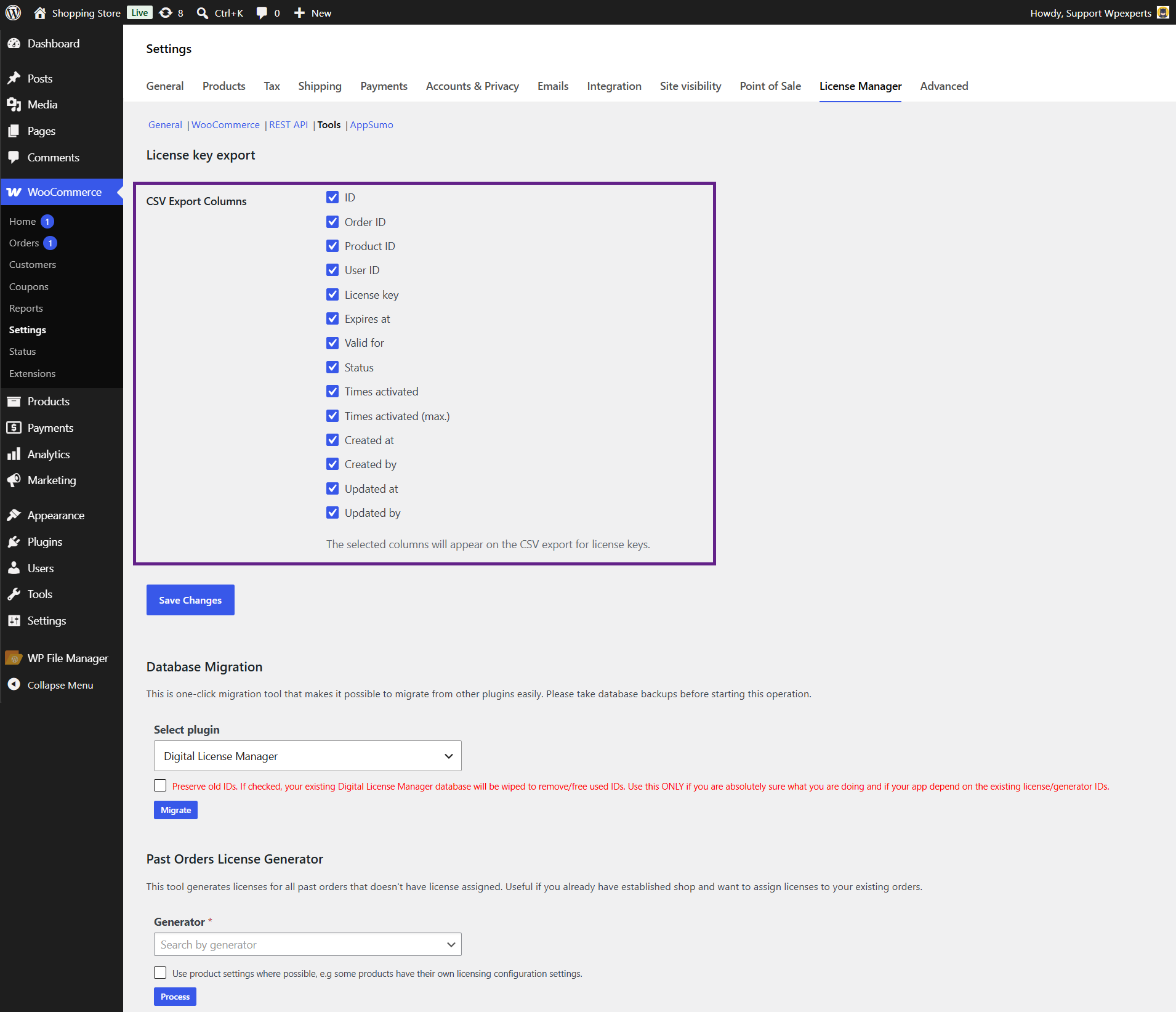
- Make sure to save the changes.

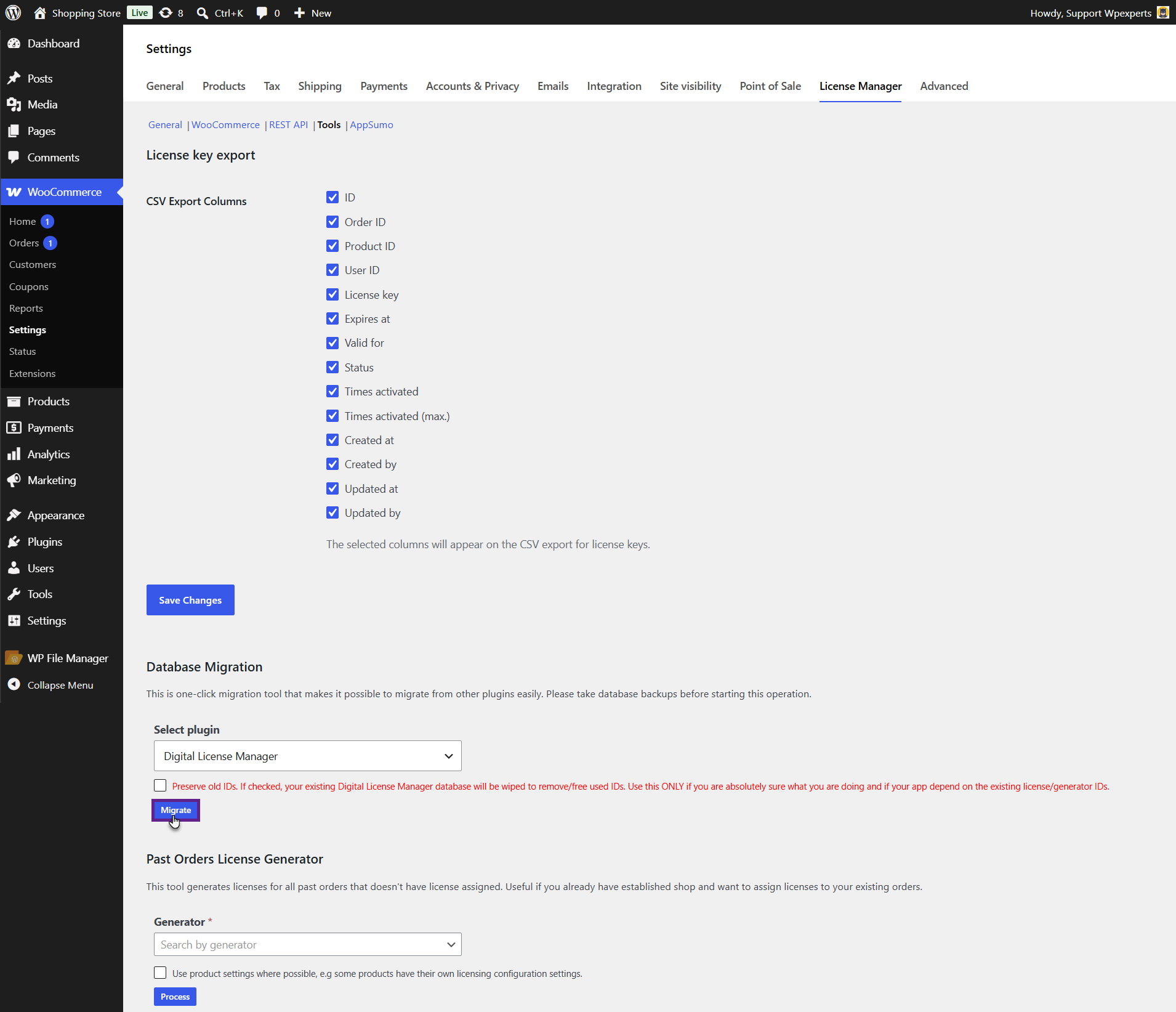
- Next, select the Source Plugin: In the Select Plugin drop-down menu, choose Digital License Manager.

- Optional: Wipe Existing Keys: Check the box below the drop-down menu to replace all license keys in License Manager.
- If you want to retain the current license keys, leave the checkbox unselected.

Note: If enabled, old IDs will be preserved. Your existing Digital License Manager database will be cleared to free up and remove used IDs. Use this option only if you understand what you are doing and your application depends on the existing license/generator IDs.
- Start the Migration: Click the Migrate button to begin transferring license keys.
Past Orders License Generator
Admins can generate licenses for past orders that do not currently have assigned licenses.
Note: Ensure your generator is created in the backend. To learn how to create a generator, refer to this section
Steps to Generate Licenses for Past Orders
- Select Past Orders License Generator.
- Select a Generator: Use the Search by Generator dropdown menu to find and select the appropriate generator.
- Process the Licenses: Click the Process button to generate licenses for all past orders without assigned licenses.

- Verify the Generated Licenses: Navigate to Dashboard > Products > License Keys to view the licenses assigned to the products in past orders.
BEFORE

AFTER
