Documentation
Getting Started
- Introduction
- Setup
- General Settings
- WooCommerce
- Tools
- Analytics Reports
- Dashboard
- License
- Generator
- Activations
- Applications
- Installed On
- API Logs
- WooCommerce Products
- Customer License Manager Flow
Integrations
For Developer
Customer License Manager Flow
Let’s assume an application has been created and listed as a product on WooCommerce. Below is a walkthrough of the customer flow when a user visits the site and purchases your product.
Flow
- Go to the website.
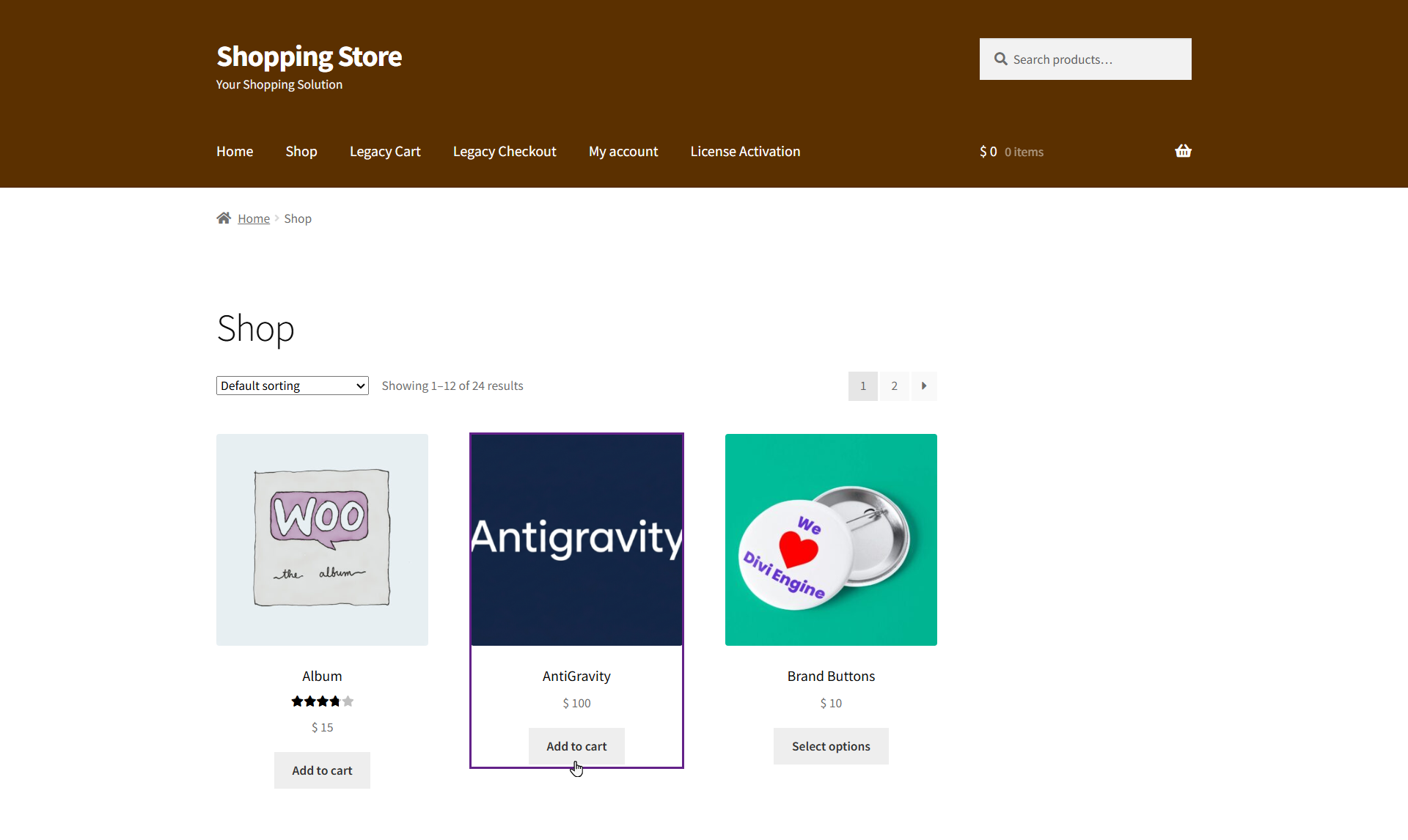
- Navigate to the Shop page.
- Add the product to the cart.
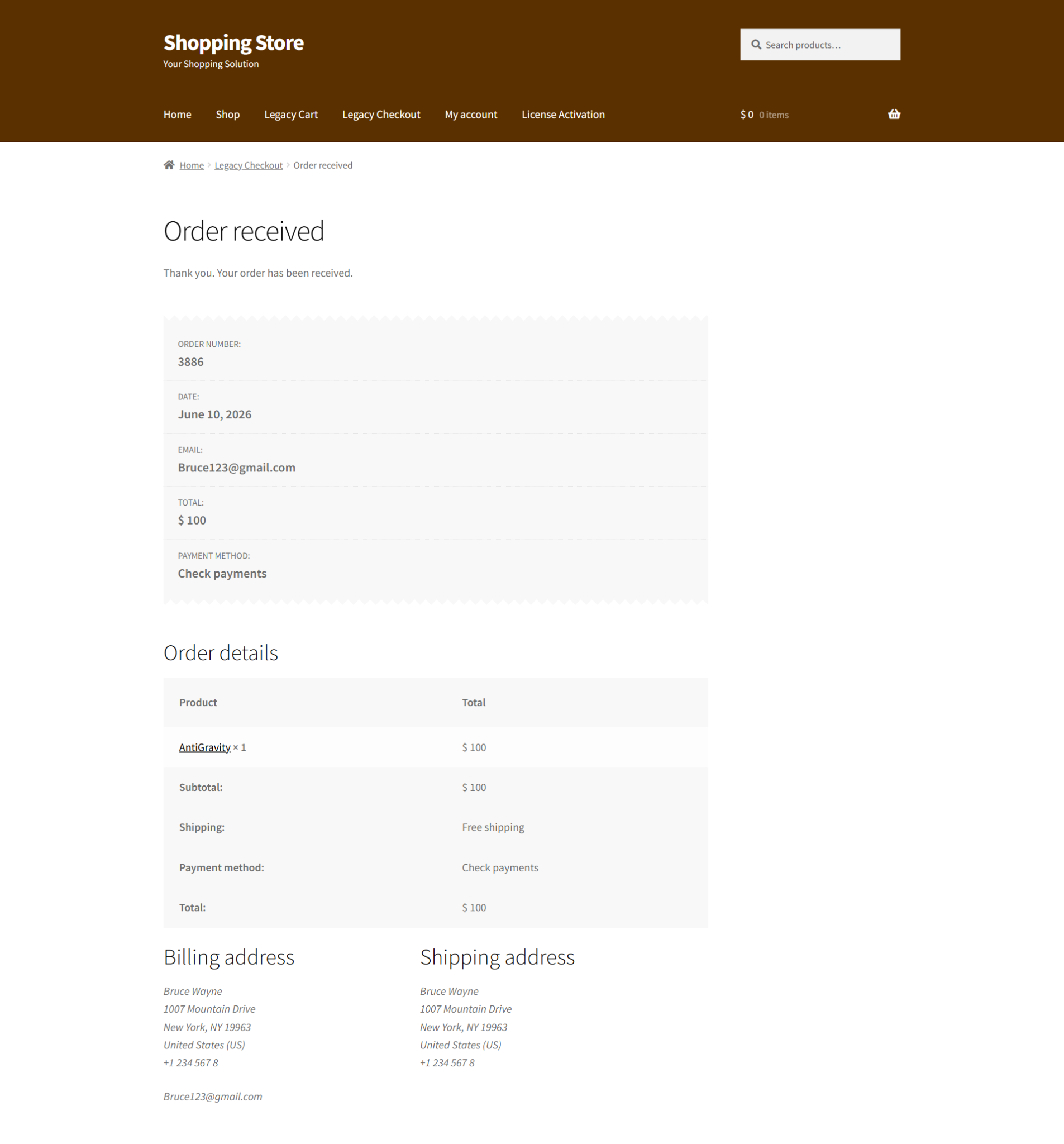
- Place an order.
- Next, the admin must mark the order status as complete.
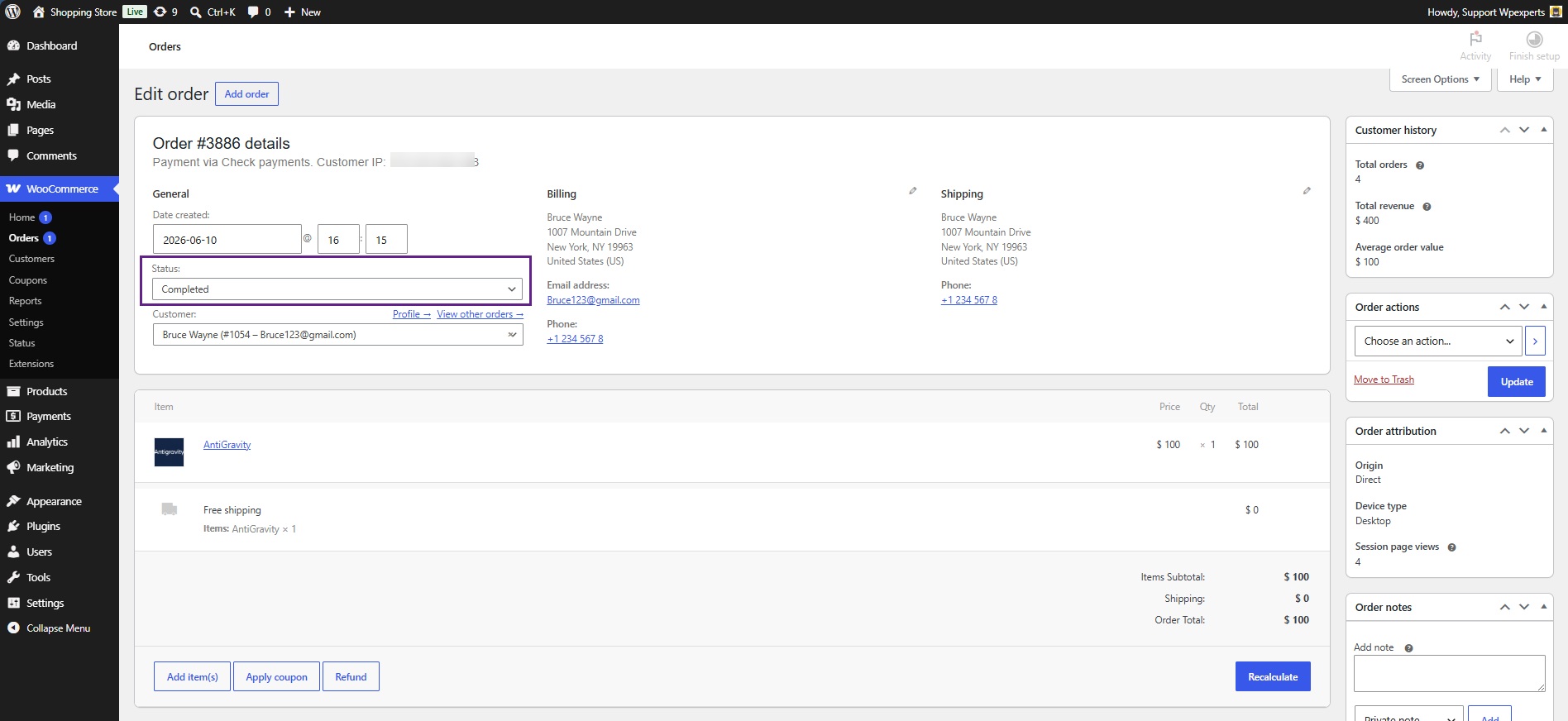
- Once done, the customer will receive their license key.
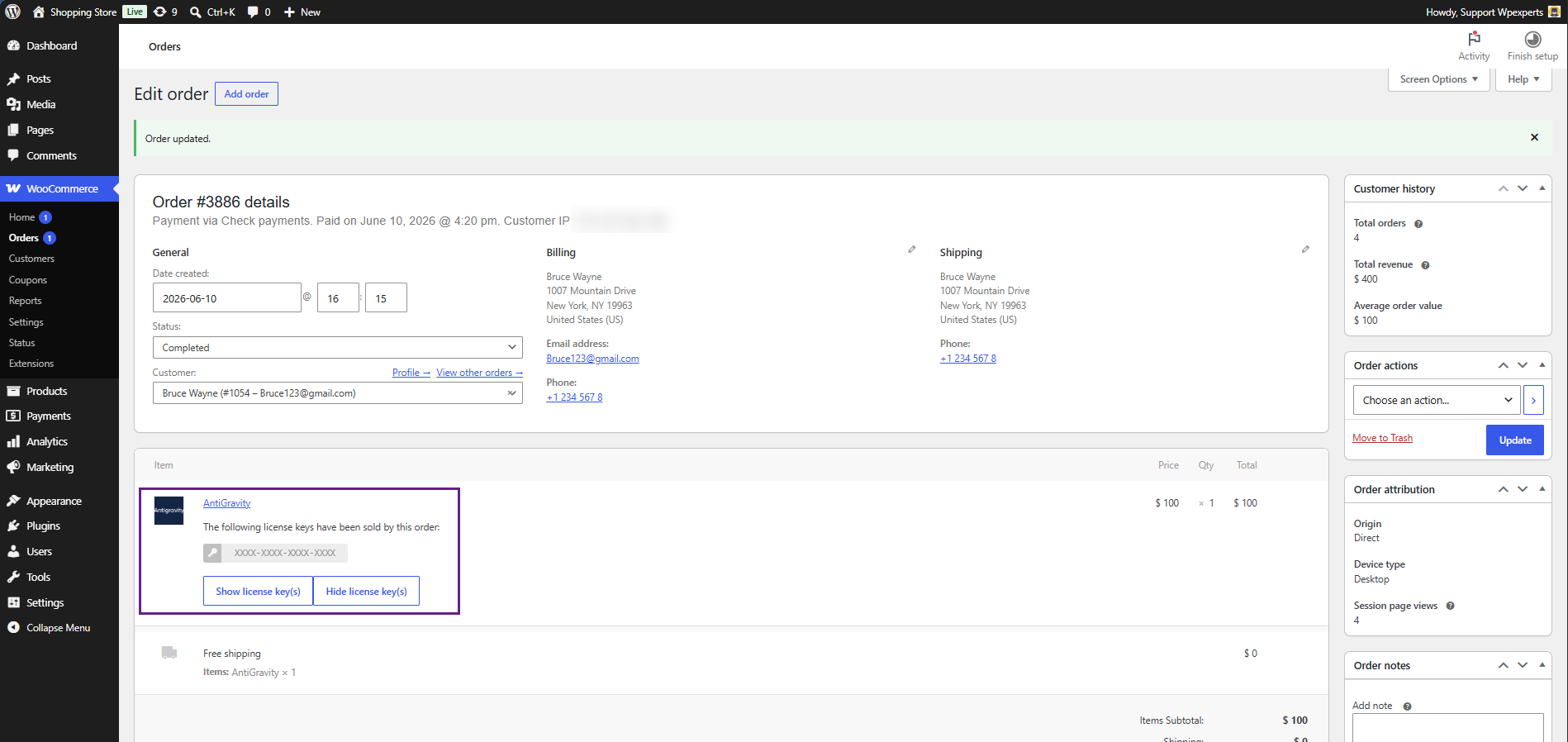
Please note that a license generator must first be created in the backend and assigned to this application product. This ensures that when a customer purchases the product, the generator will automatically create and deliver the license key. This process is explained in this section.
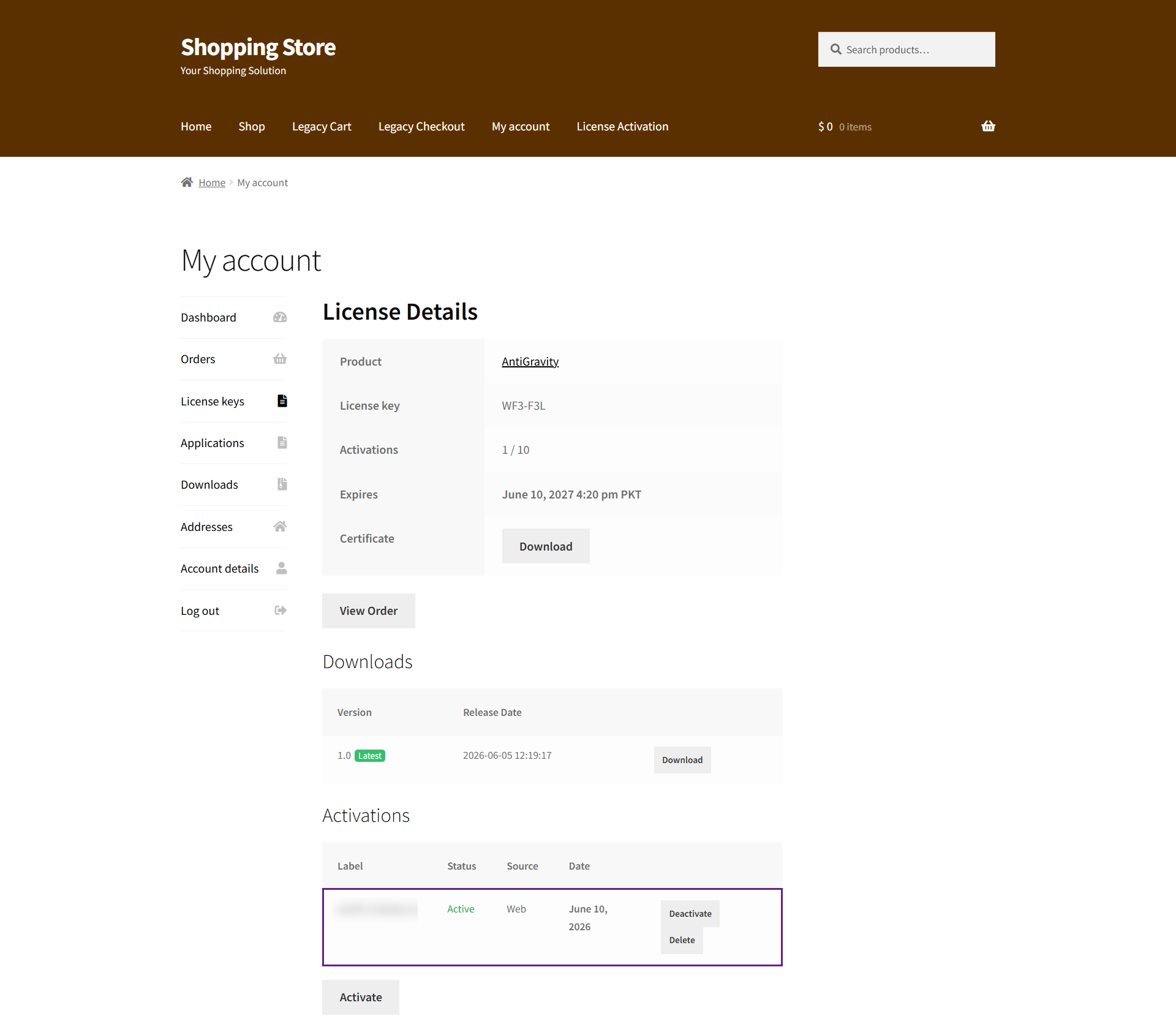
- From the My Account page, the customer can easily view and manage their license keys.
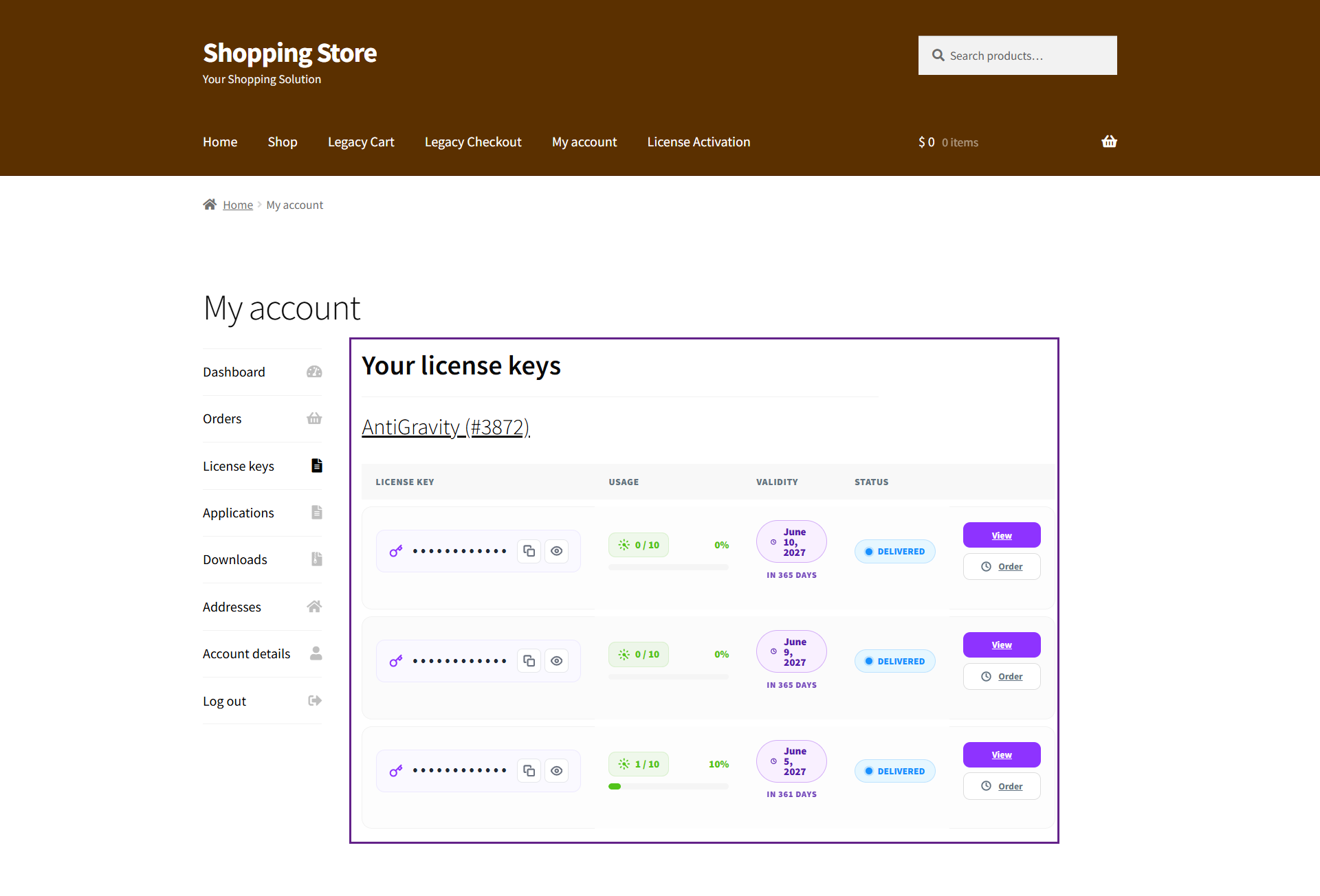
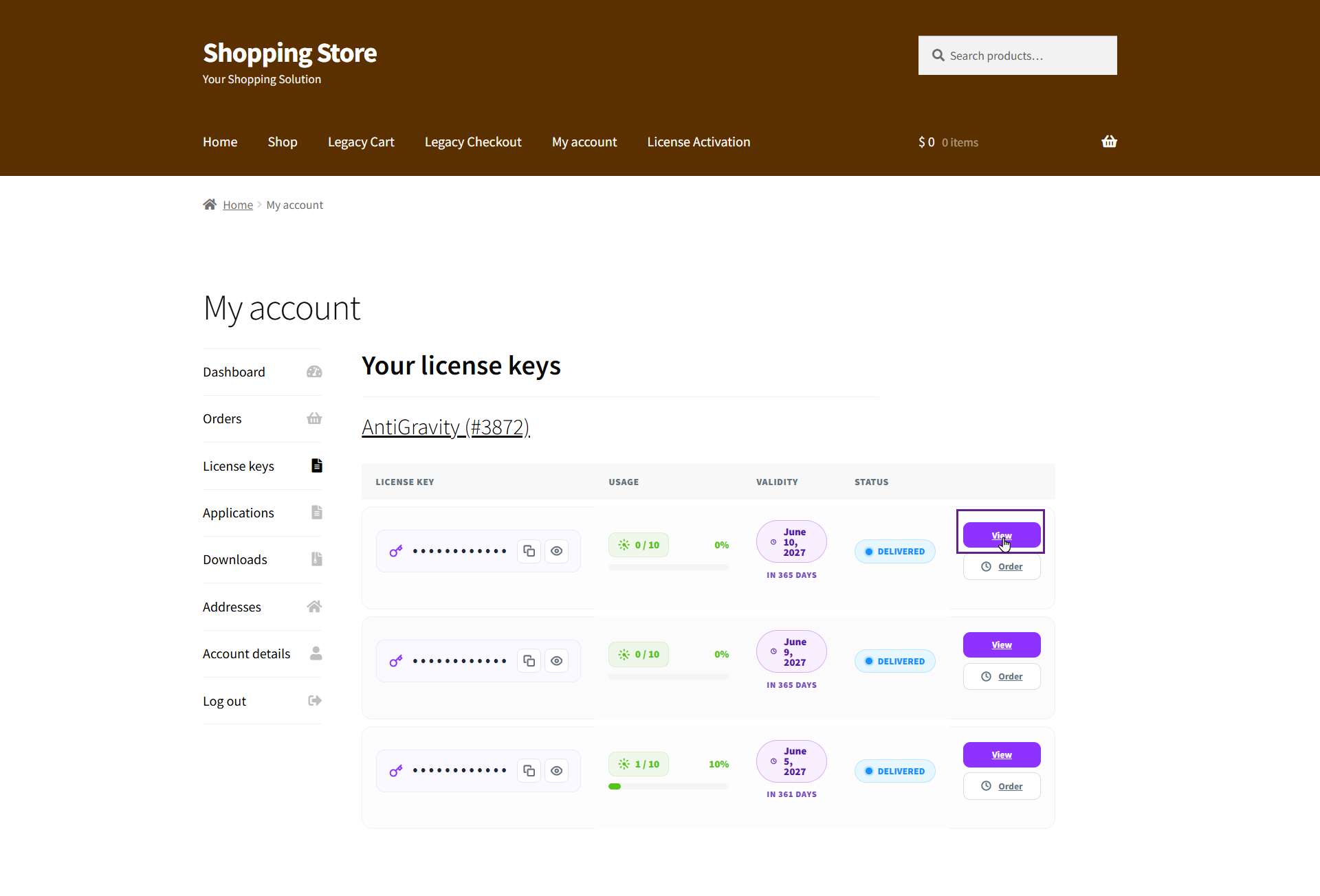
- To download the application, click View.
- Click the Download button to download your application’s ZIP file.
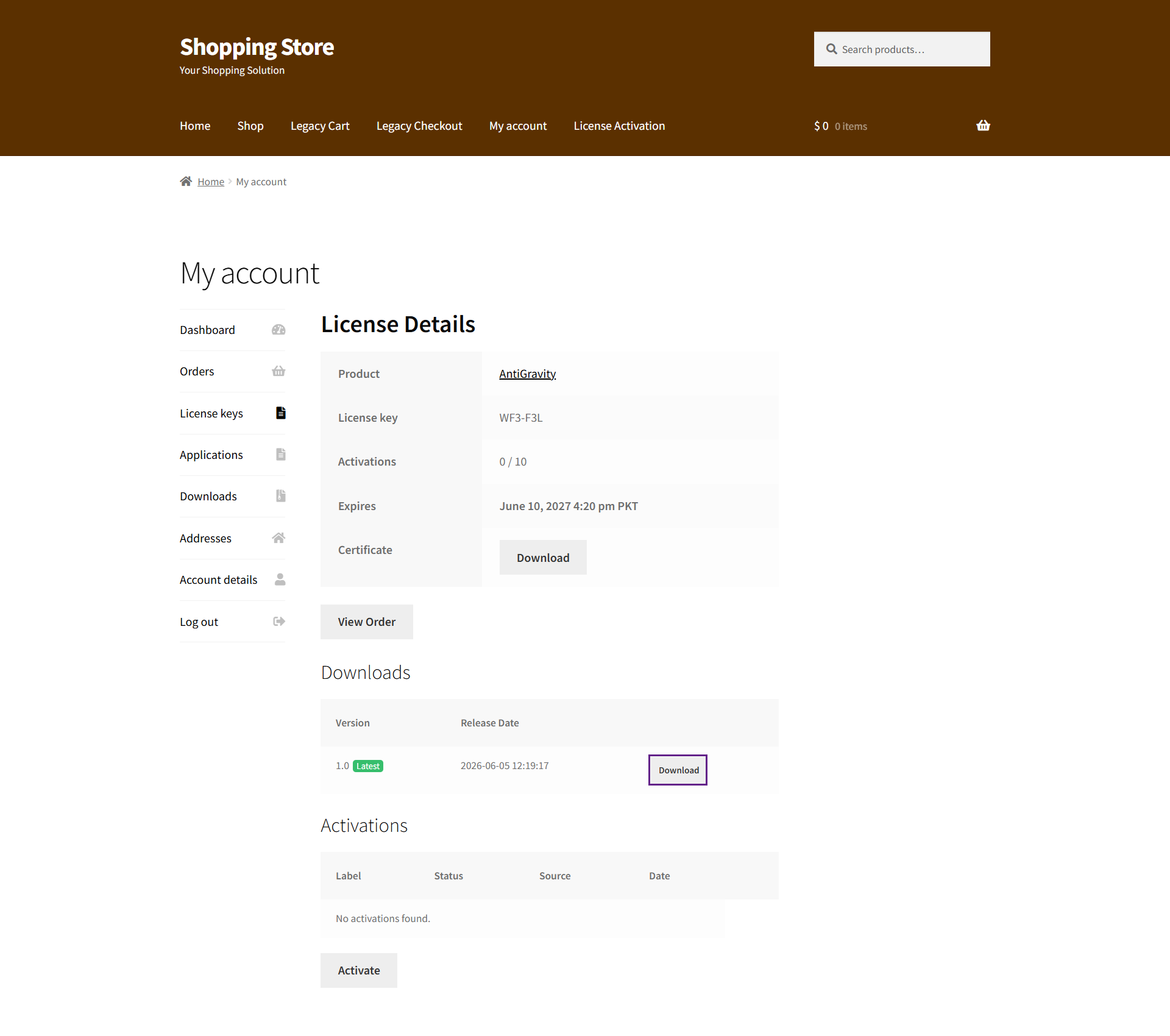
- Click the download button next to the certificate label to download it.
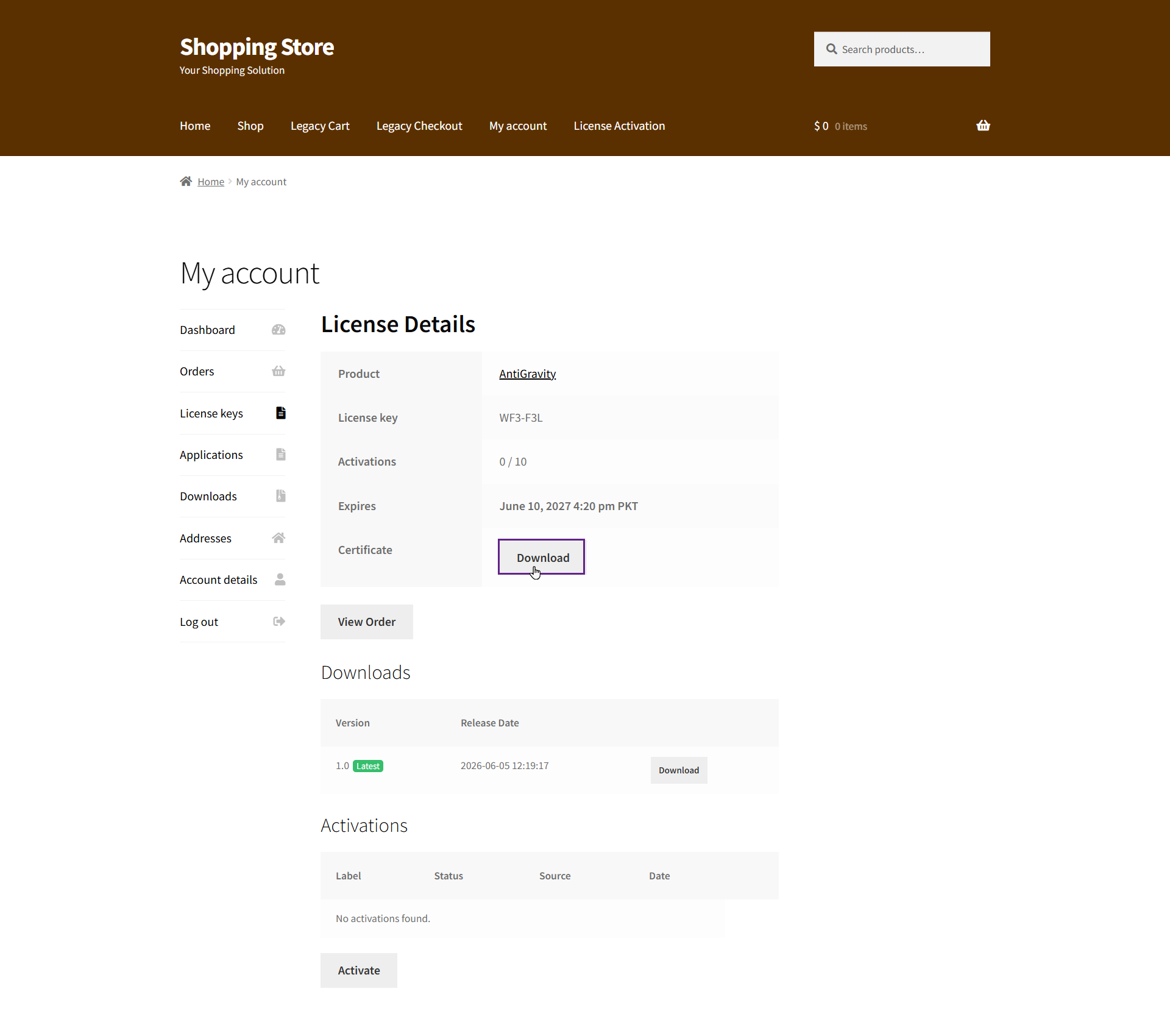
- To activate the license key, the customer can use any of the available activation methods. Four activation methods are explained in detail in this section. For now, we will use the web page method. To do this, click the Activate button.
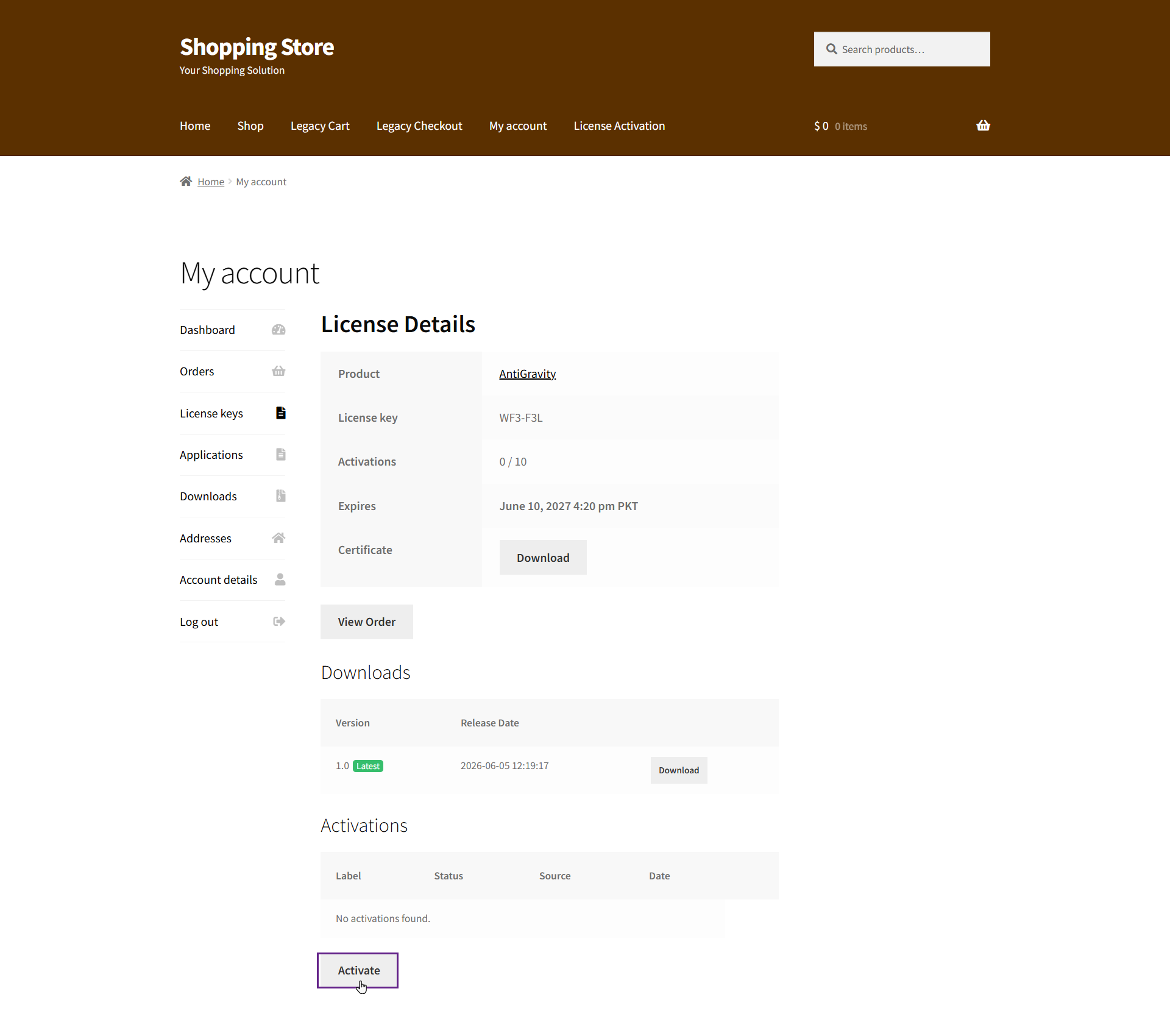
- As you can see, the customer now has an activated license key. They can deactivate the key by clicking the Deactivate.