
Documentation
Getting Started
- Introduction
- Setup
- General Settings
- WooCommerce
- Tools
- Analytics Reports
- Dashboard
- License
- Generator
- Activations
- Applications
- Installed On
- API Logs
- WooCommerce Products
- Customer License Manager Flow
Integrations
For Developer
License Key Delivery
- Navigate to the WooCommerce Sub-tab.
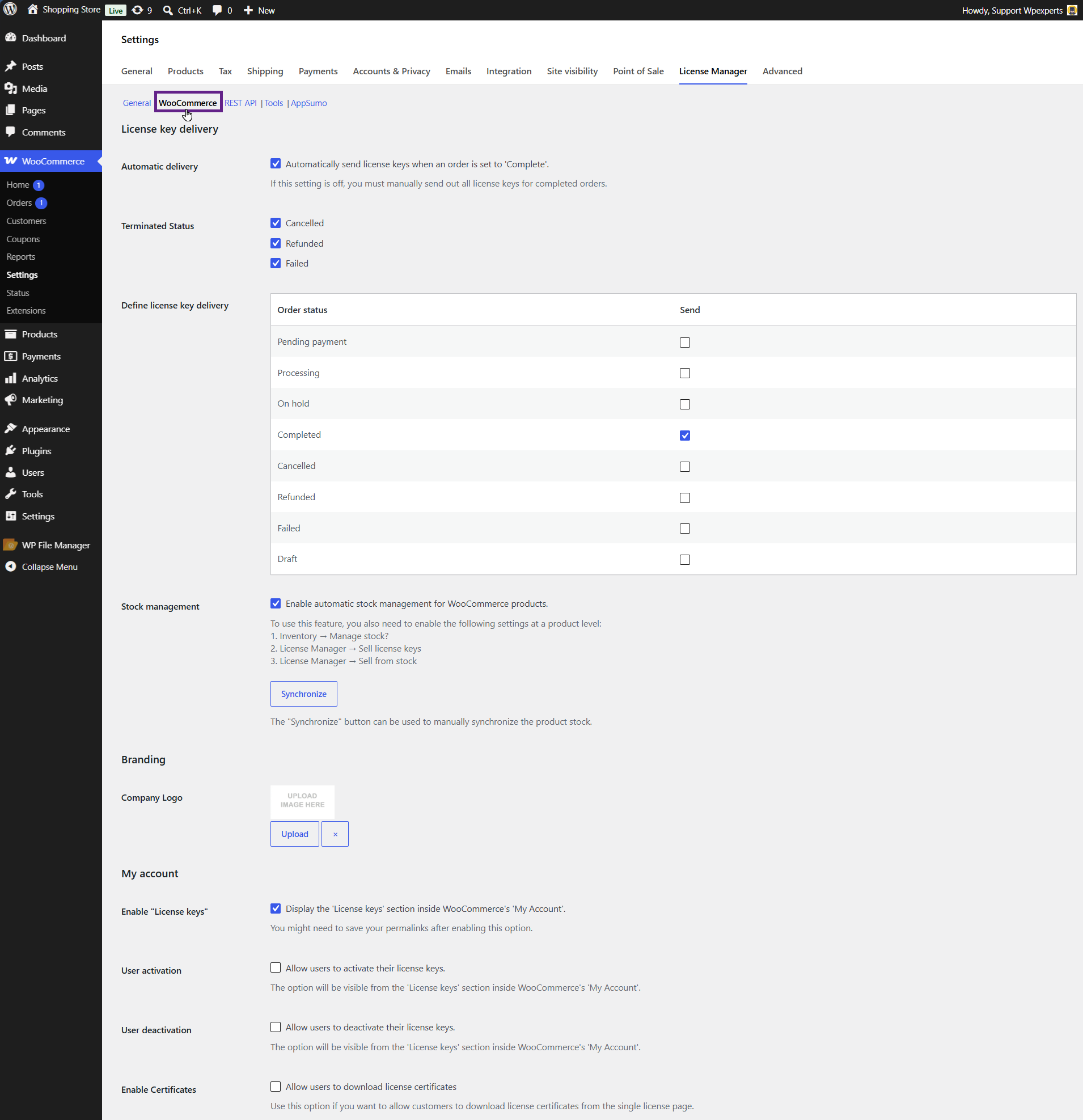
- The WooCommerce Settings section in License Manager includes the following sub-sections:
- License Key Delivery
- Branding
- My Account
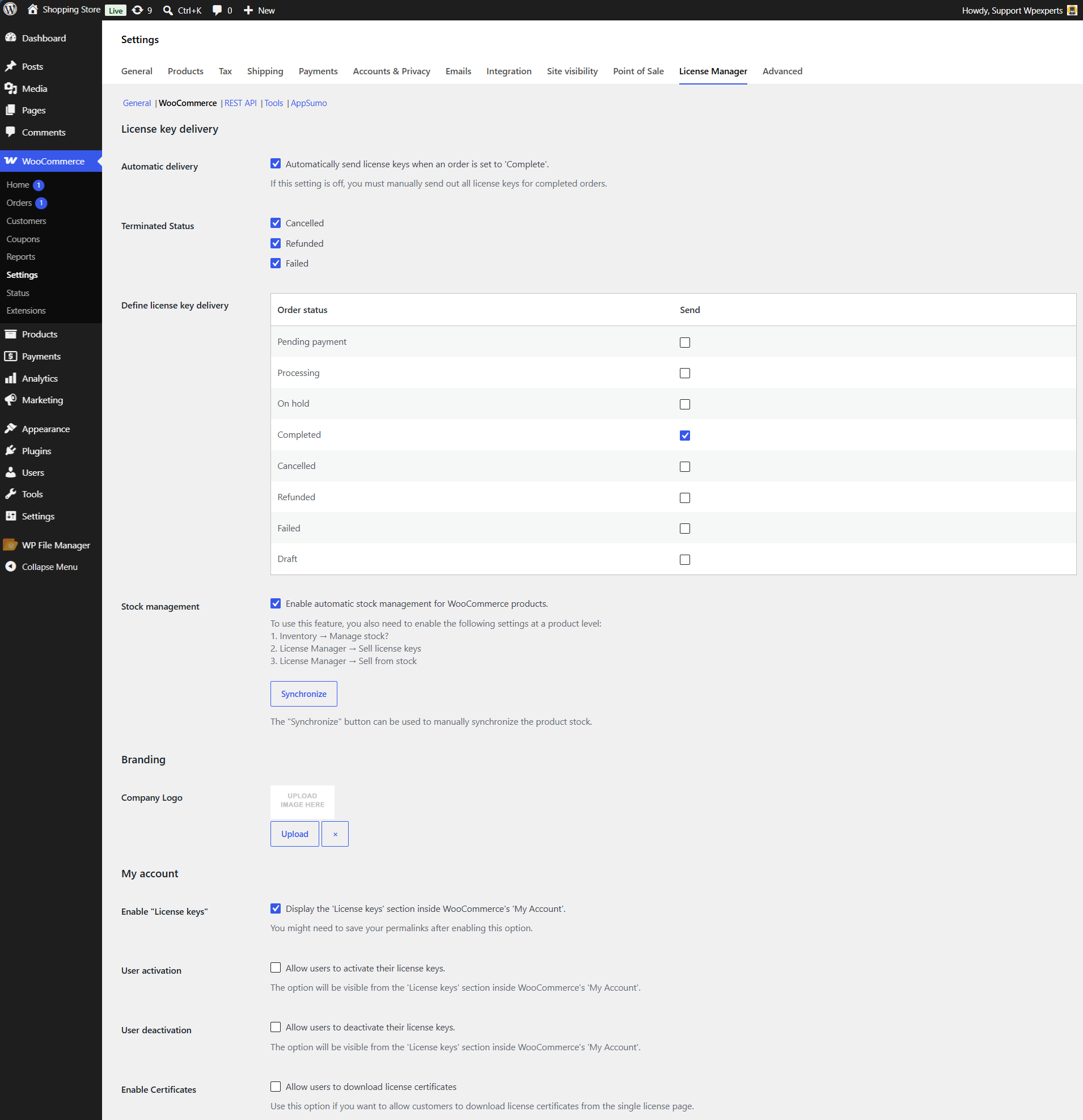
- The Automatic Delivery option allows the admin to automatically deliver license keys once the order delivery process has been triggered. Disabling this option enables manual order review before sending license keys.
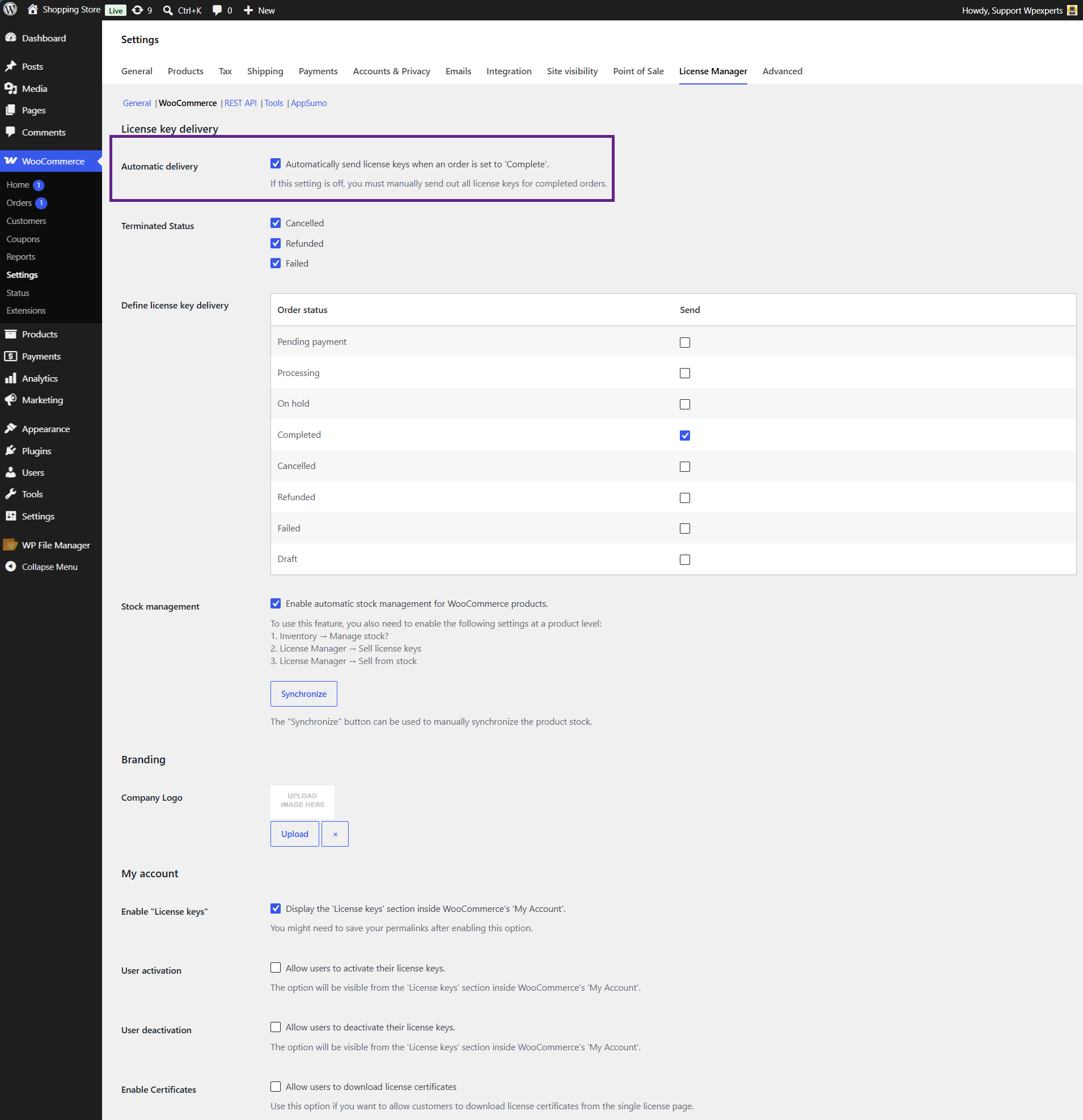
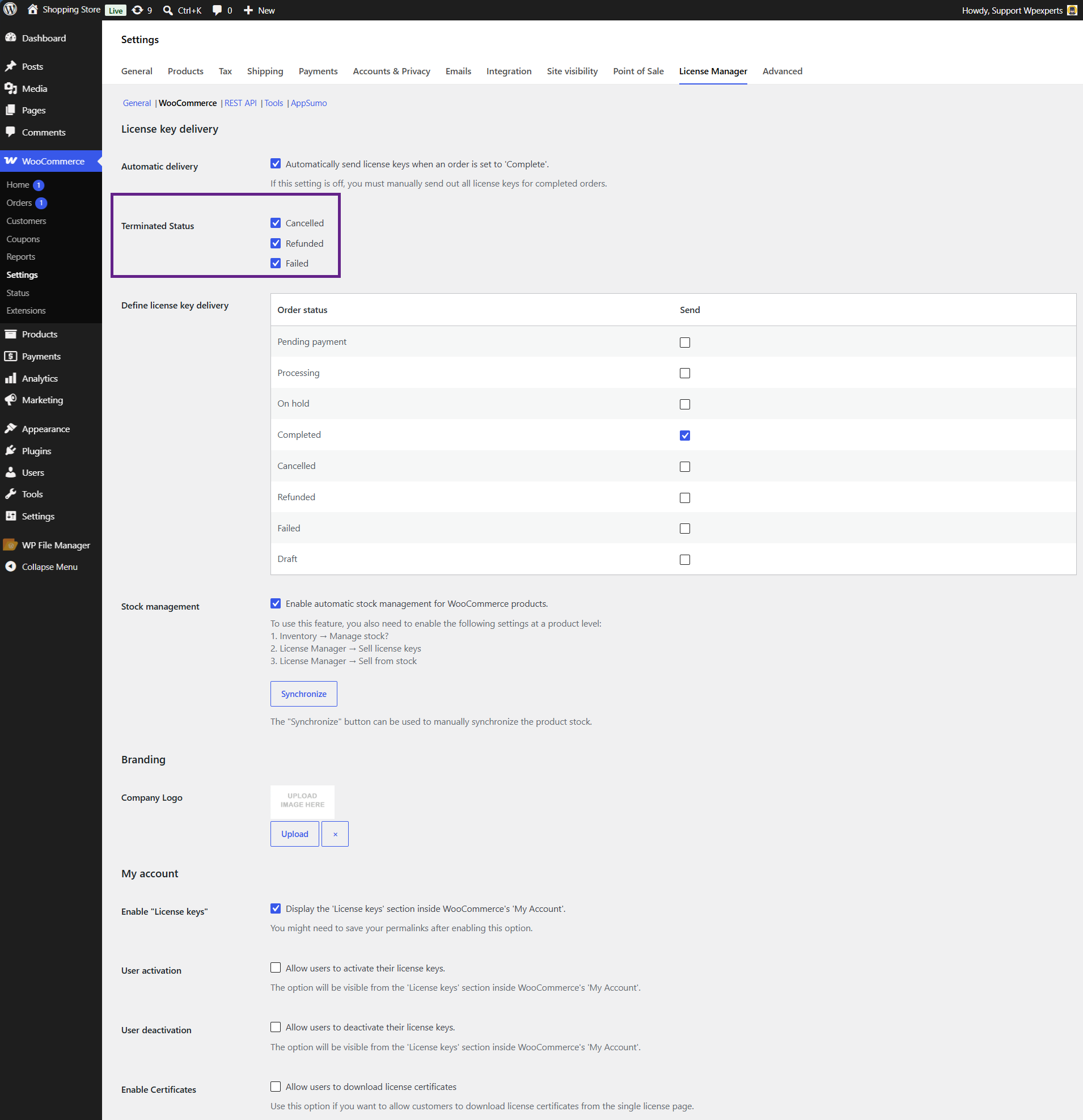
- The Terminated Status feature ensures that the license key is automatically discarded when the order status is marked as Refunded, Cancelled, or Failed.
Front-End Impact
- Go to the website.
- Navigate to the Shop page.
- Add the product to the cart.
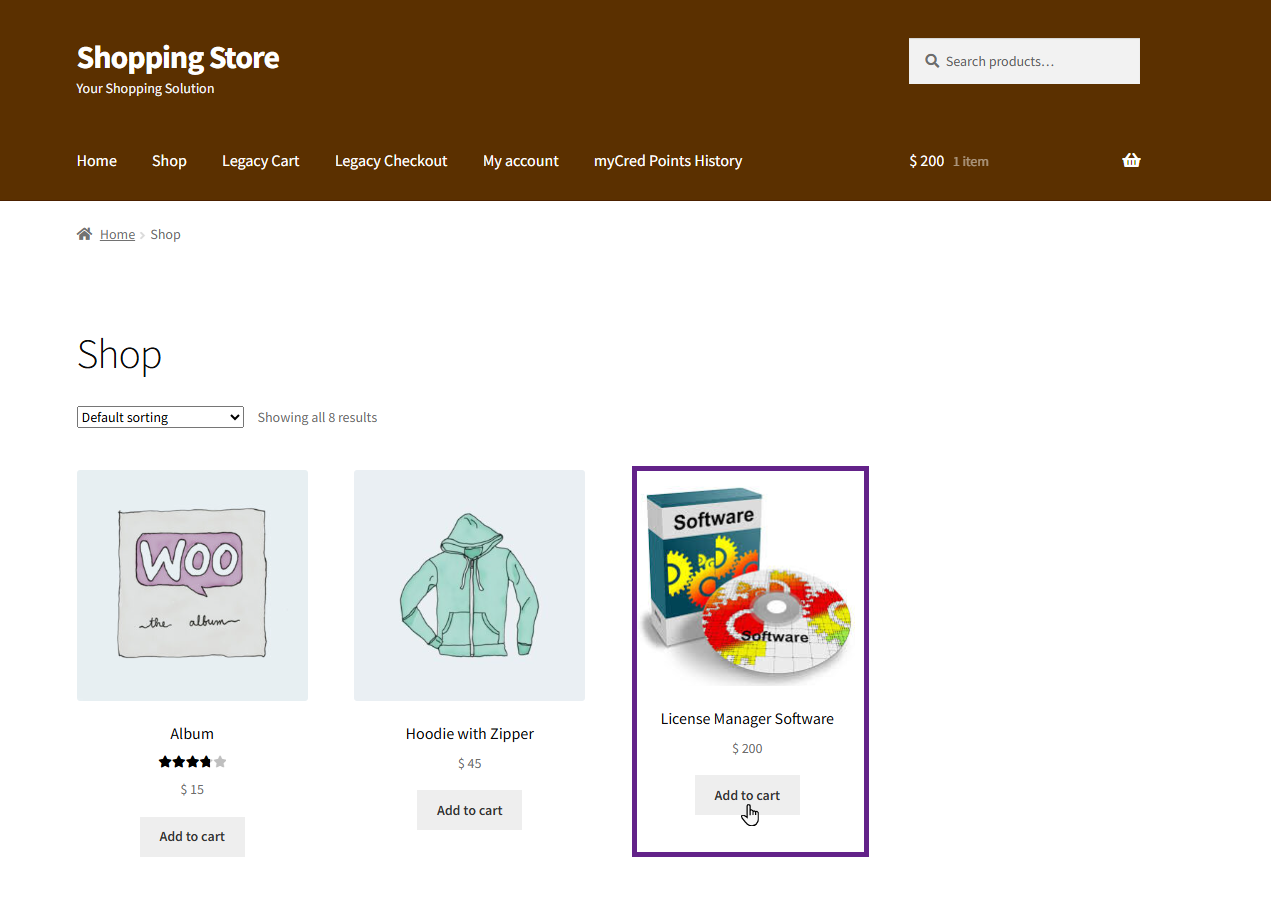
- Proceed to the Checkout page and place the order.
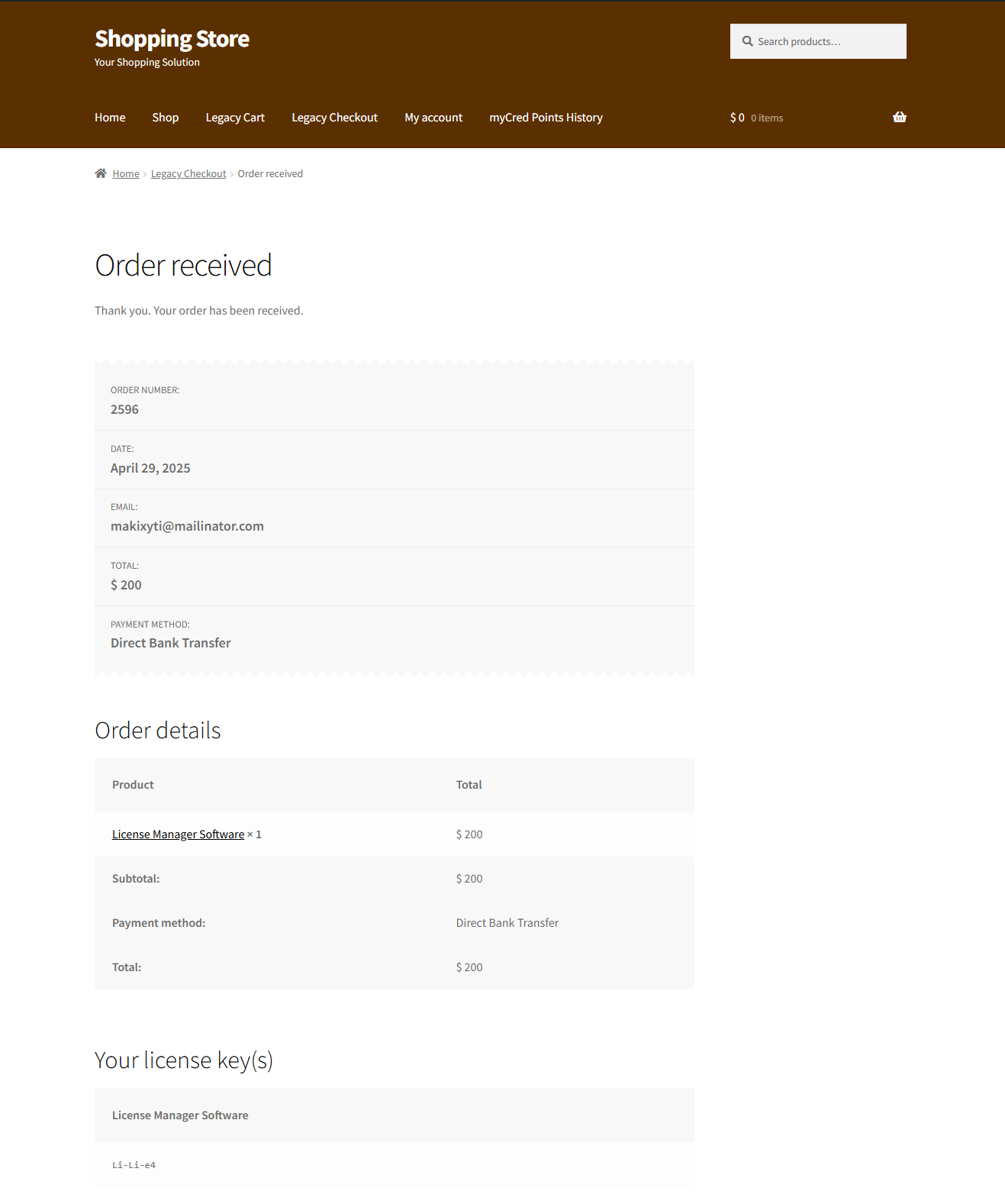
System Impact (Back-End)
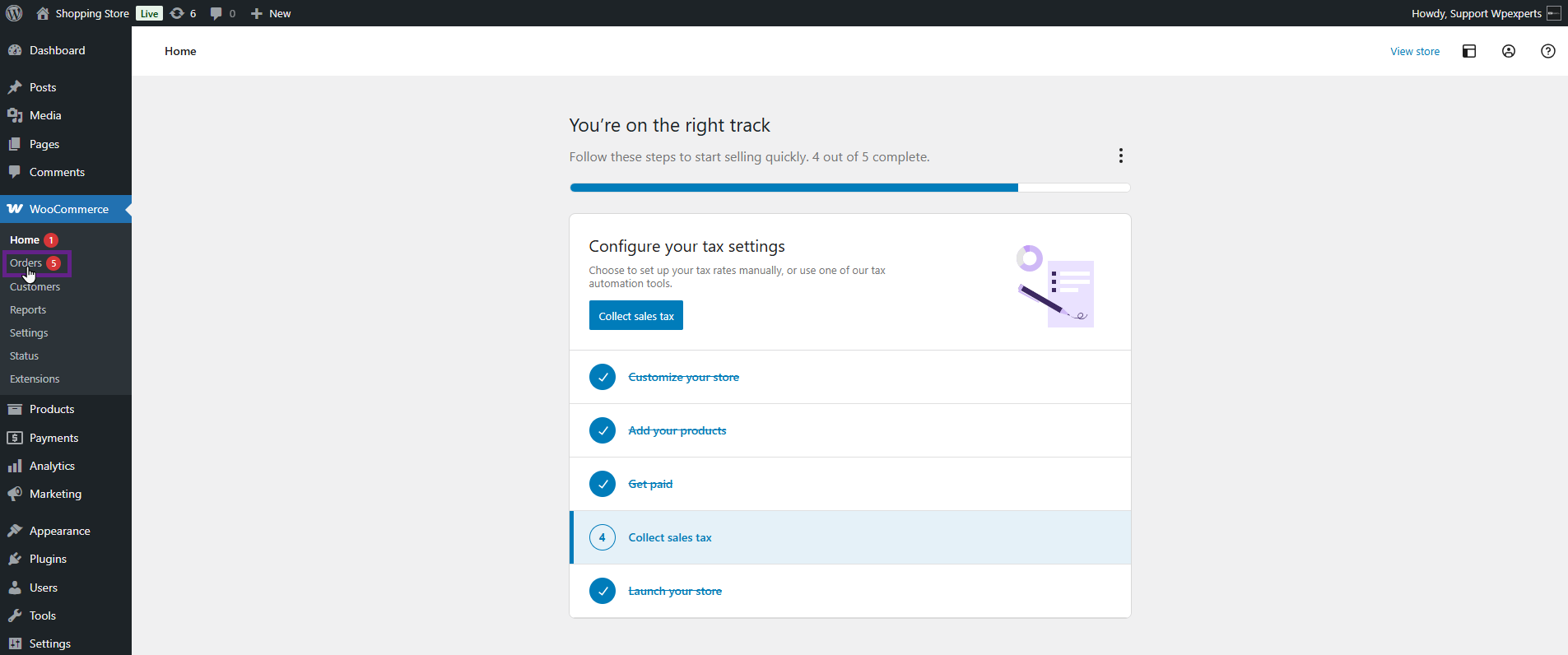
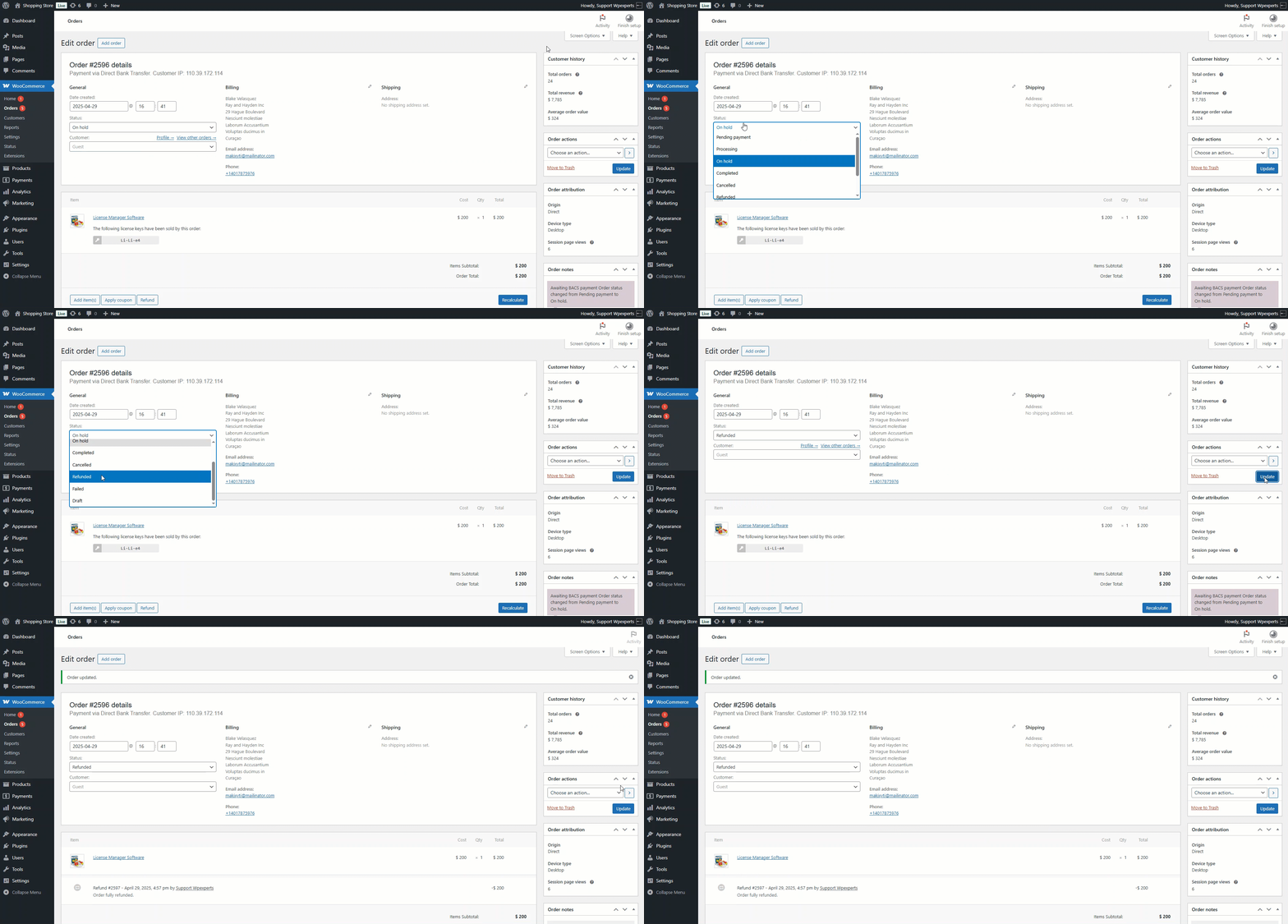
- Now, go to the Admin Dashboard > WooCommerce > Orders.
- Select the relevant order.
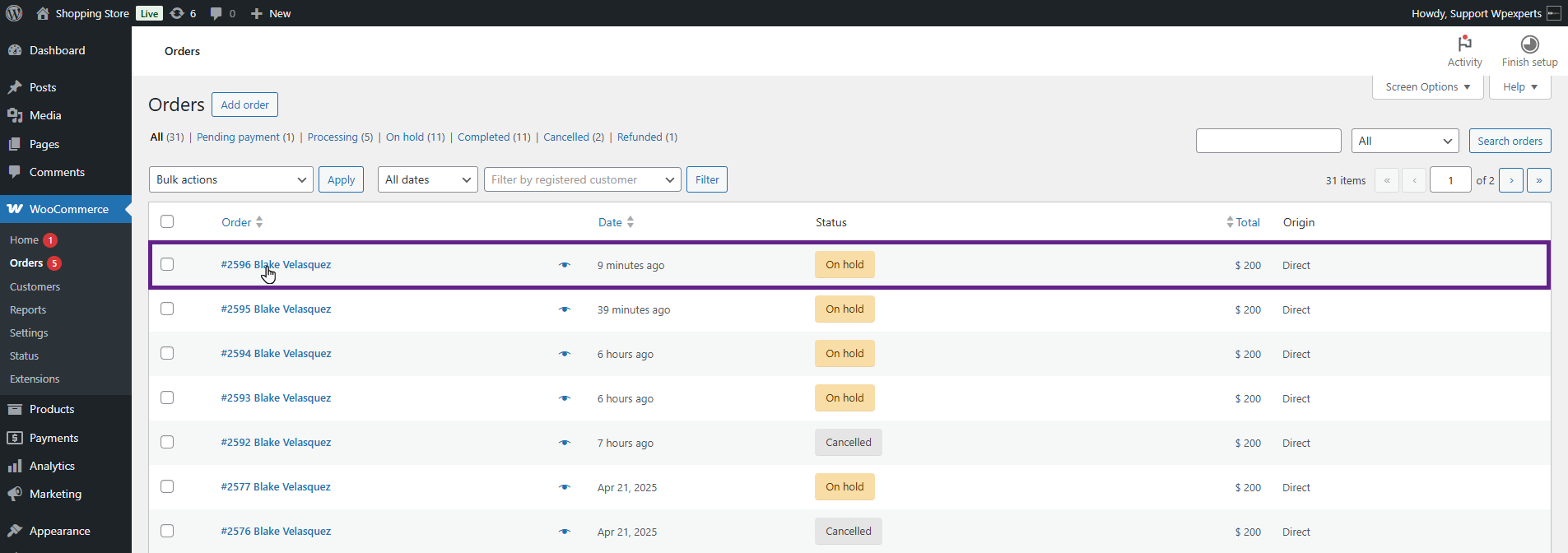
- When the status is changed to Cancelled, Refunded, or Failed, the license key associated with the item will be automatically removed.
Note: For this documentation, we are changing the status to Refunded.
System Impact (Front-End)
- Go to the website.
- Navigate to My Account > License Keys.
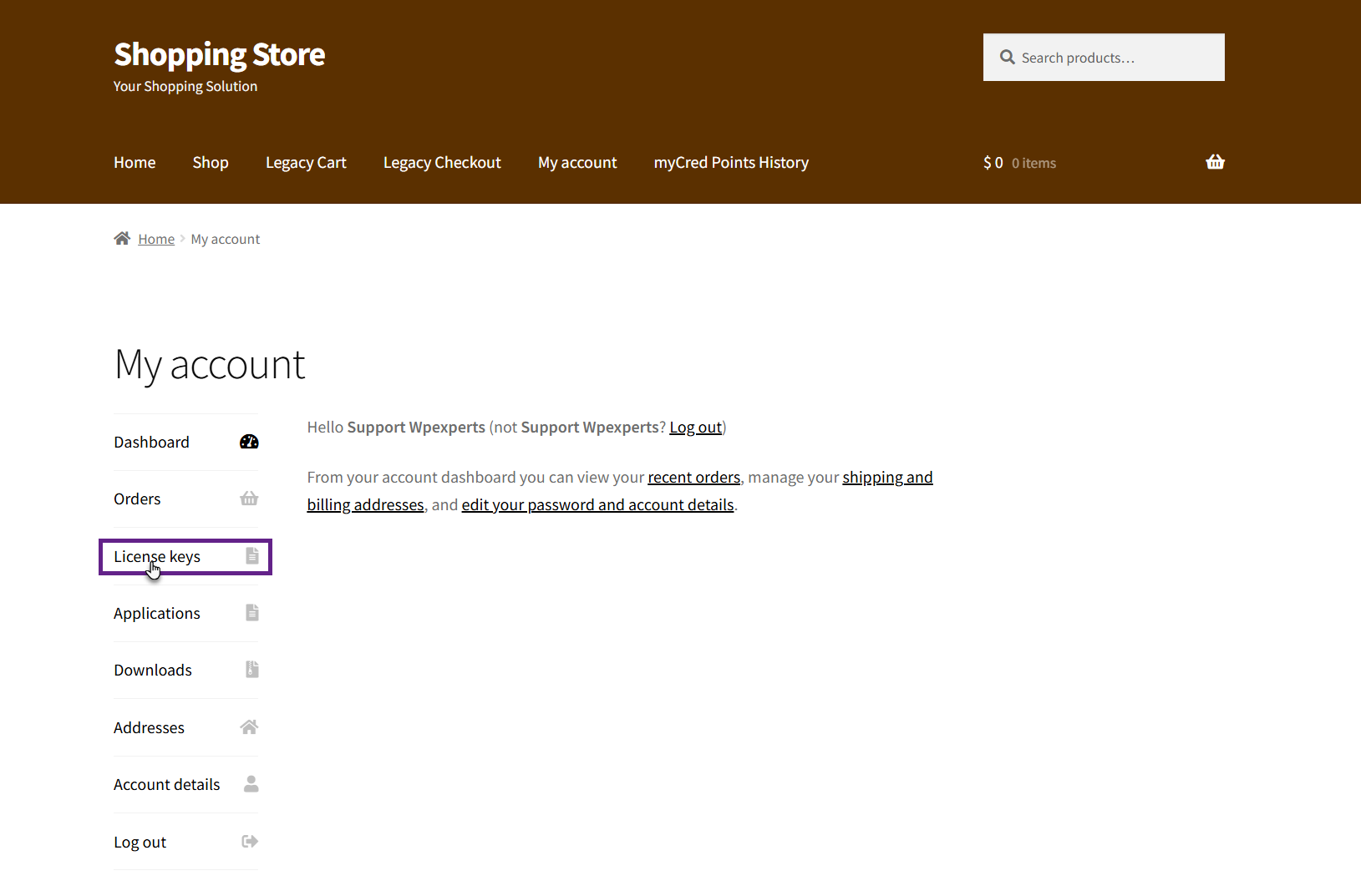
Before:
- Since the order status has not changed to Failed, Refunded, or Cancelled, the license key will remain visible to the user on the front end.
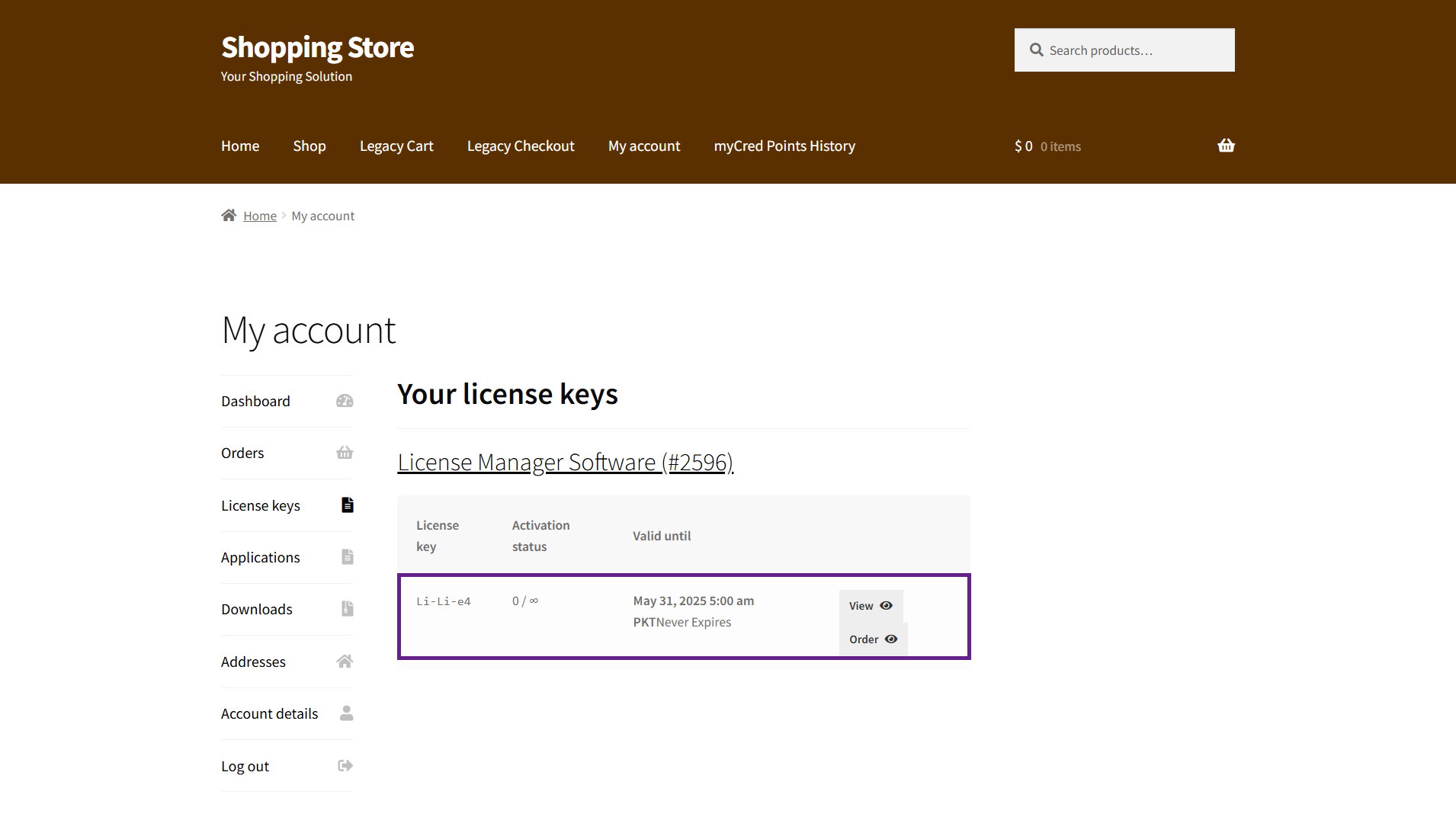
- Once the order status is changed to Refunded (as shown in the back-end settings), the license key is automatically removed and no longer appears under the License Keys tab on the front end.
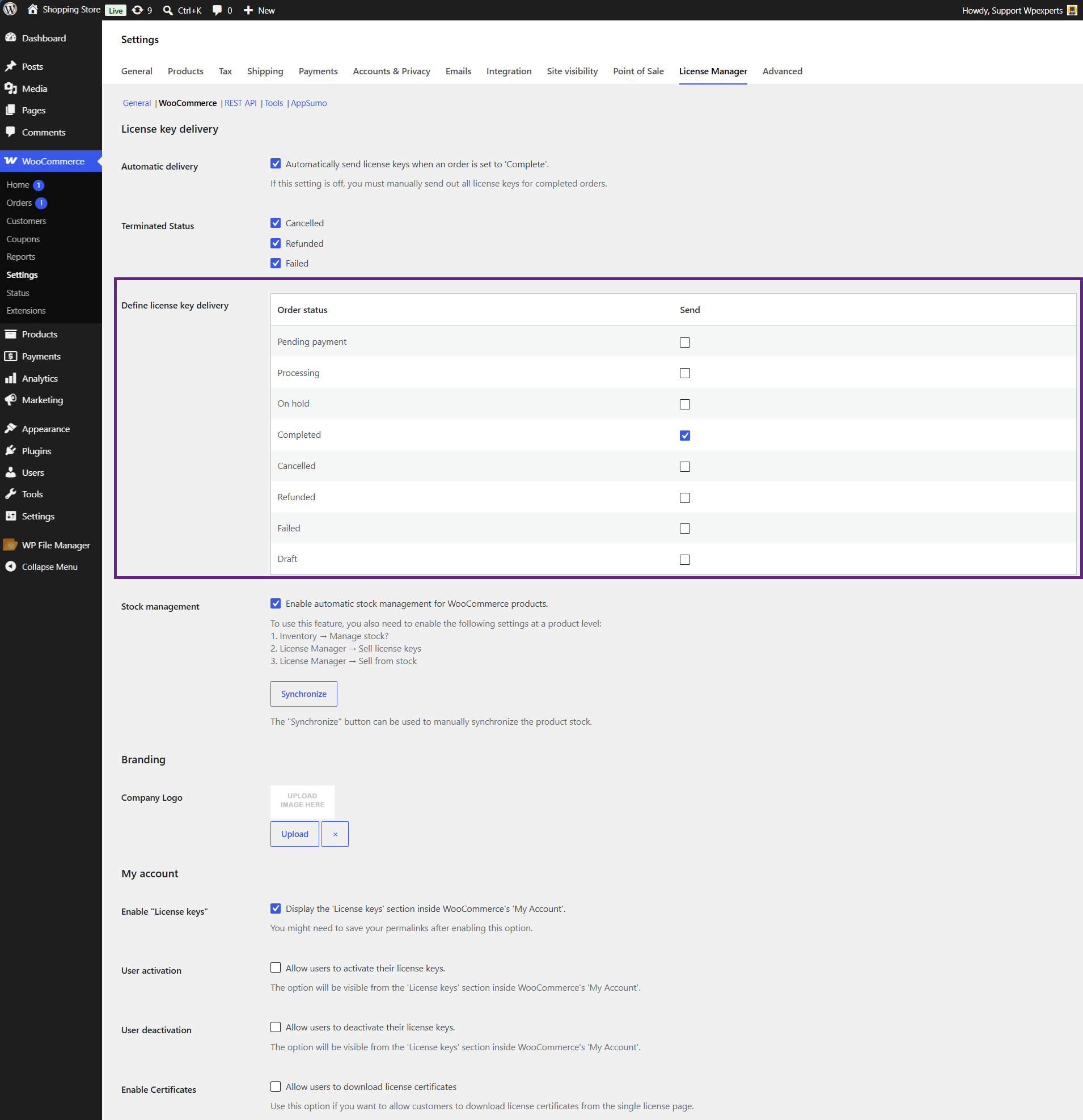
- The Define license key delivery setting allows the user to individually enable the order status on which the license key would be delivered.
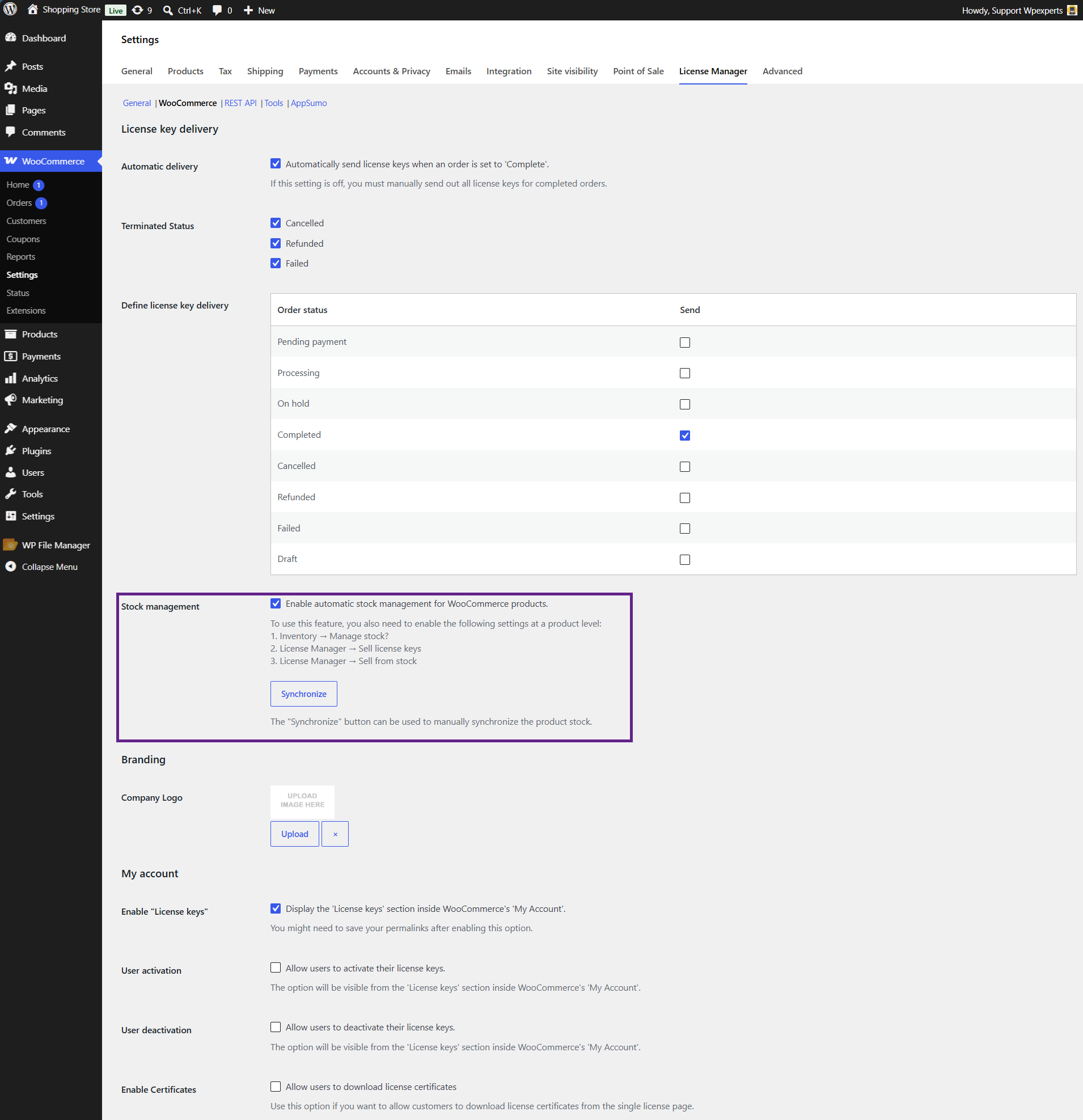
- The Stock management setting enables automatic stock management for WooCommerce products.
Stock Synchronize in Products:
- Go to Dashboard > Products > Inventory tab and enable the Stock Management option.
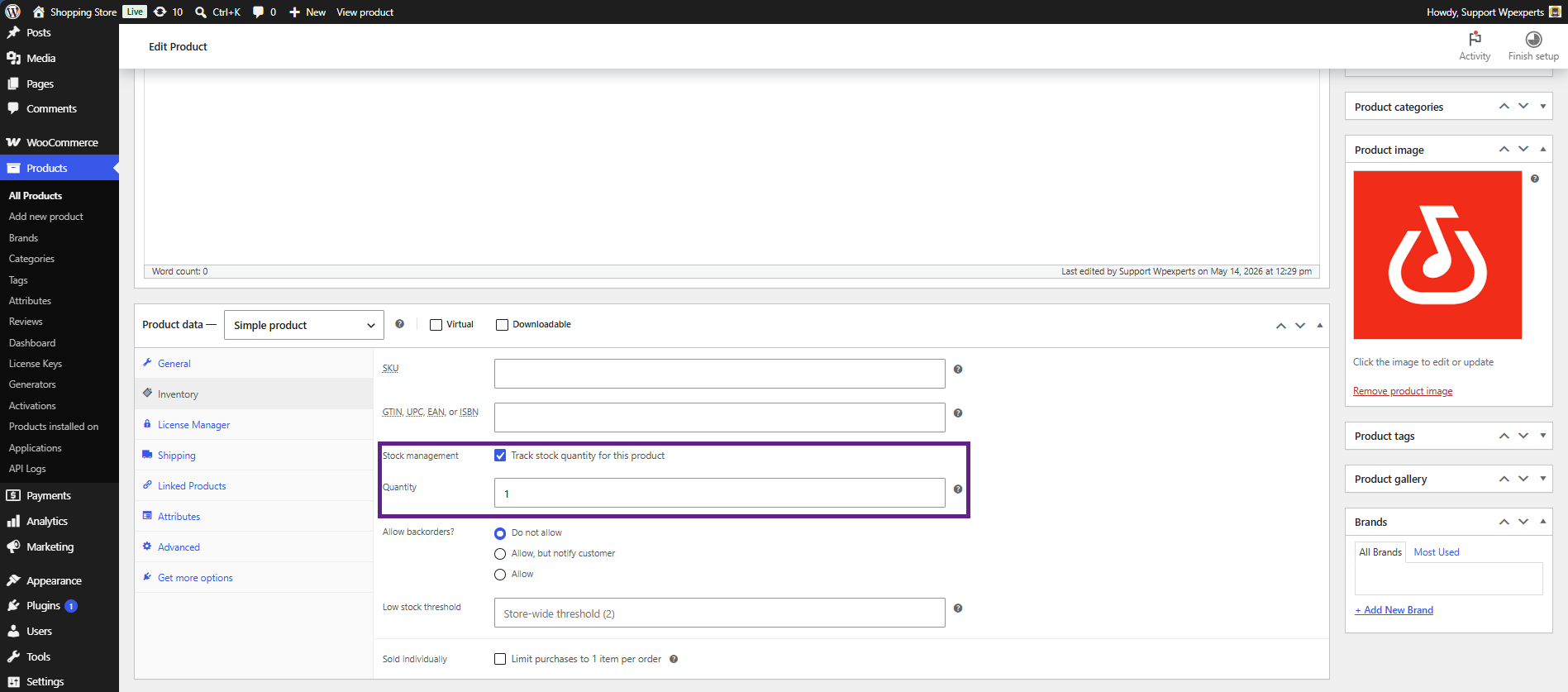
- Now, go to the License Manager Tab and enable the Sell license keys and Sell from stock options to enable automatic sync of stock.
