
Documentation
Getting Started
- Introduction
- Setup
- General Settings
- WooCommerce
- Tools
- Analytics Reports
- Dashboard
- License
- Generator
- Activations
- Applications
- Installed On
- API Logs
- WooCommerce Products
- Customer License Manager Flow
Integrations
For Developer
Rest API
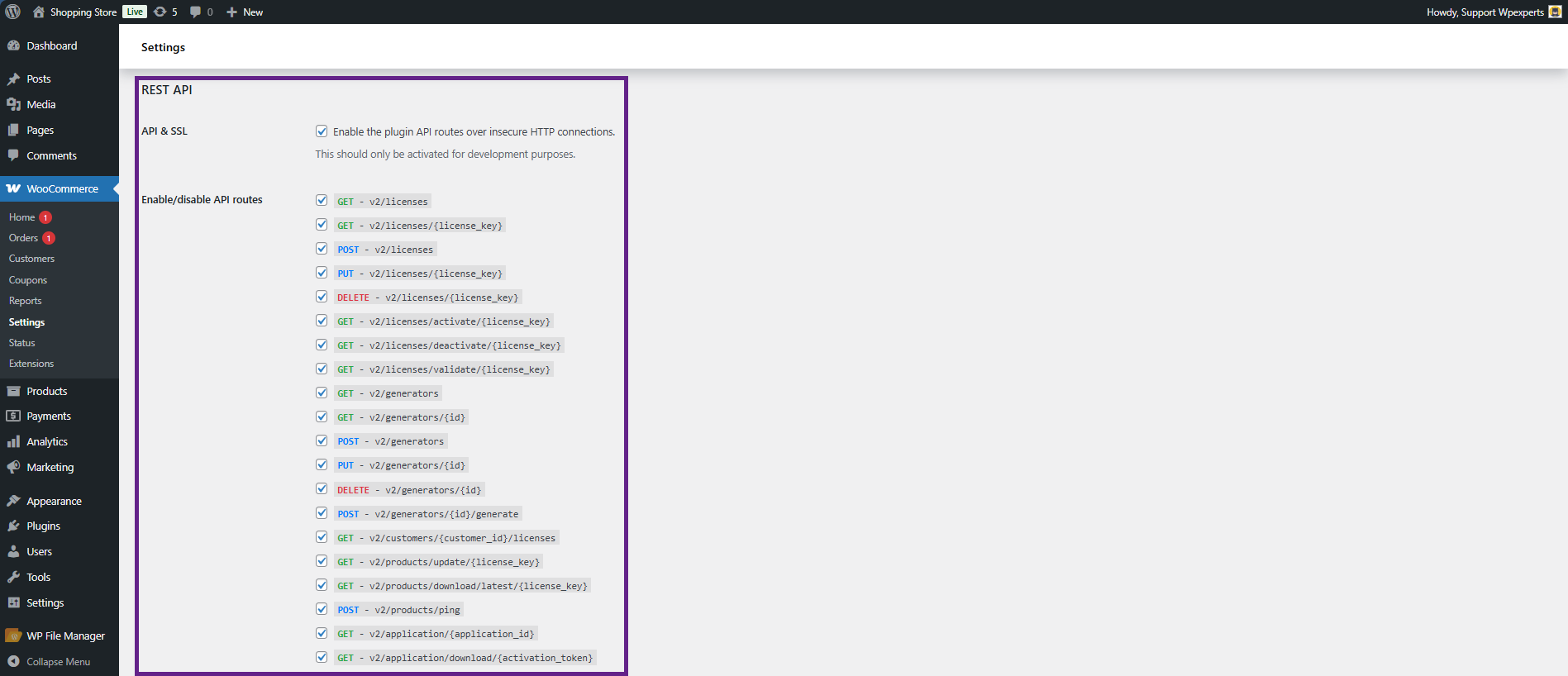
The API & SSL setting controls whether the REST API can be accessed over insecure HTTP connections instead of secure HTTPS connections. This option should only be used in development, testing, or staging environments and should never be enabled on a live production website, as it may expose API requests to security risks such as man-in-the-middle attacks.
The Enable/Disable API Routes setting allows the admin to individually manage REST API endpoints by enabling or disabling specific routes. For better security, it is recommended to disable any API routes that are not being used by your application.
Requirements
Enabling WordPress Permalinks
To ensure the License Manager plugin functions properly, WordPress Permalinks must be enabled.
Enable Permalinks
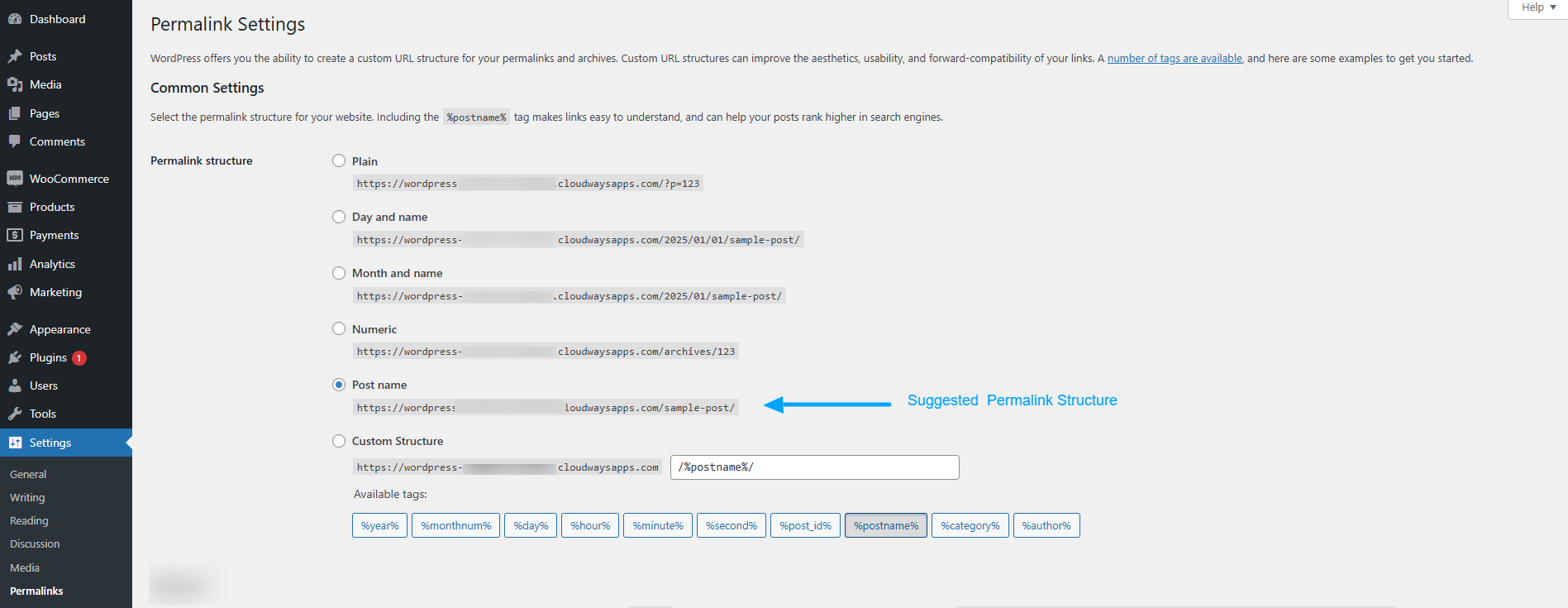
- Navigate to Permalink Settings: Go to Dashboard > Settings > Permalinks.
- Choose a Permalink Structure: The default permalink structure is typically set to Plain (e.g., https://yourwebsite.com/?p=123 For using RestAPI you need to select one of the following
- Post Name recommended: https://yourwebsite.com/sample-post/
- Day and Name: https://yourwebsite.com/2024/12/30/sample-post/
- Month and Name: https://yourwebsite.com/2024/12/sample-post/
- Custom Structure: Create your own URL format.
- Save Changes: Once you’ve selected a structure, click Save Changes to apply it.
Default Permalink Setting
By default, WordPress uses the Plain permalink structure, which appears as:
https://yourwebsite.com/?p=123
Switching to a more readable structure like Post Name is highly recommended for better user experience and compatibility with the License Manager plugin. below there is a visual representation of enabling the Post name permalink structure.
API Keys
- To access the REST API routes, you will first need to create a pair of API keys. These API keys are used to access the REST API routes as a specific user.
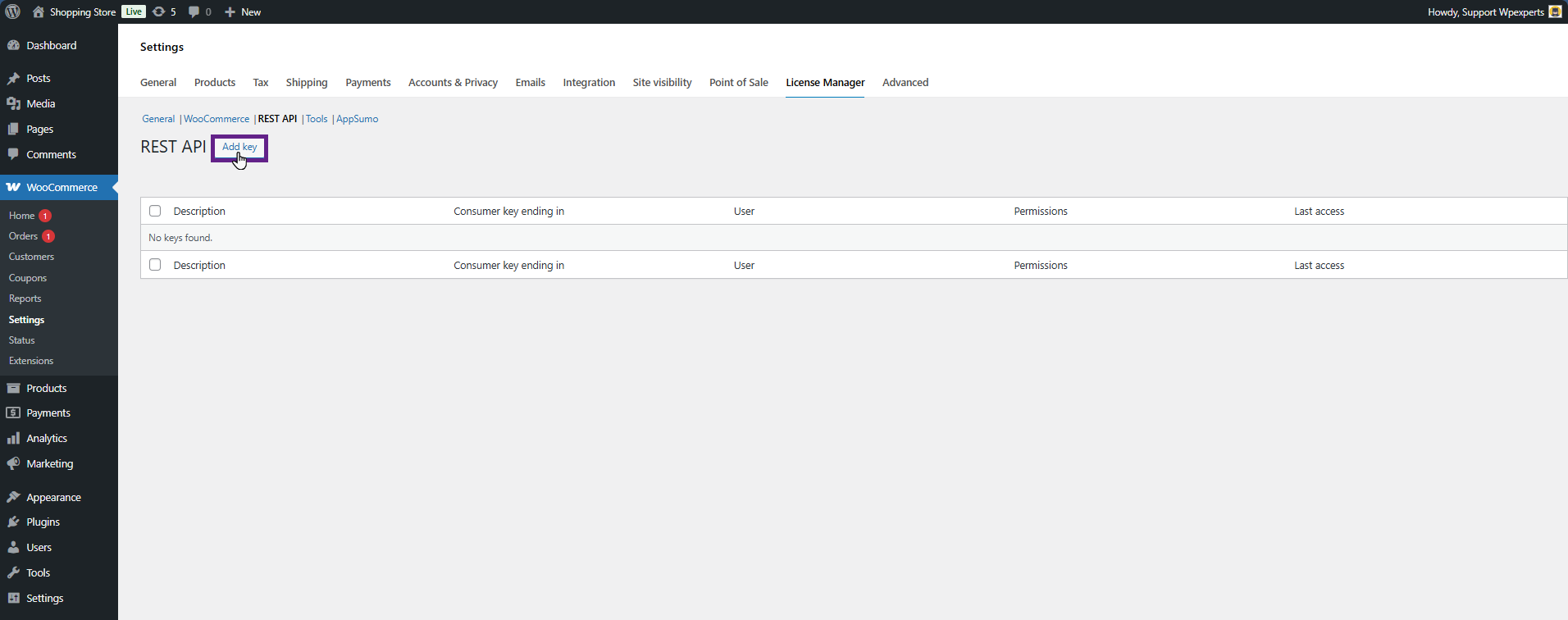
- Navigate to the Admin Dashboard > WooCommerce > Settings > License Manager > REST API keys.

- Here you will be presented with the following screen.

Adding a new key
- On this screen, click the “Add key” button at the top of the page. From here on, you will be redirected to the following form:
Create REST API keys
- All fields are required. The “Description” field provides a name for this REST API key pair, which should summarize what it is the keys are being used for. The “User” field is a searchable dropdown field that determines to whom these keys will be assigned to. The “Permissions” field grants the REST API keys either read, write, or read/write permissions.
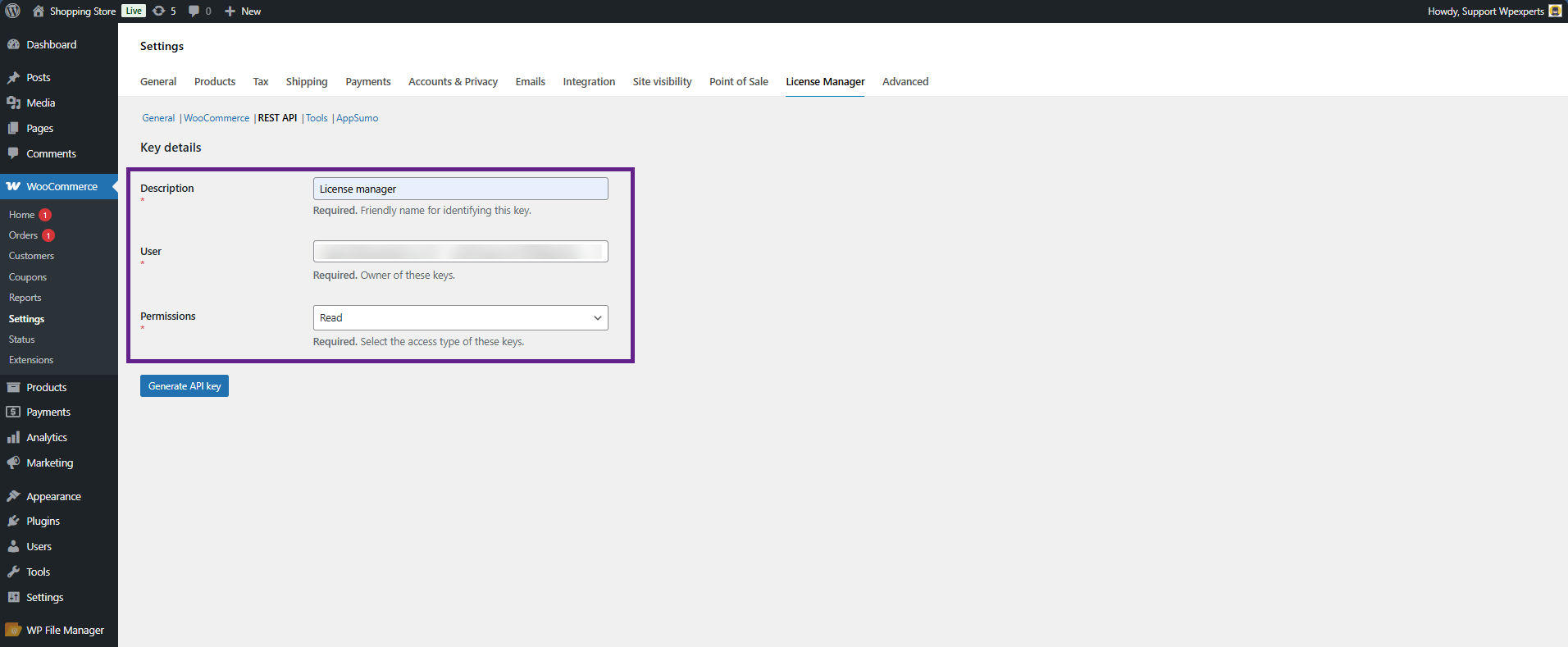
- After filling out the form, click the “Generate API key” button.
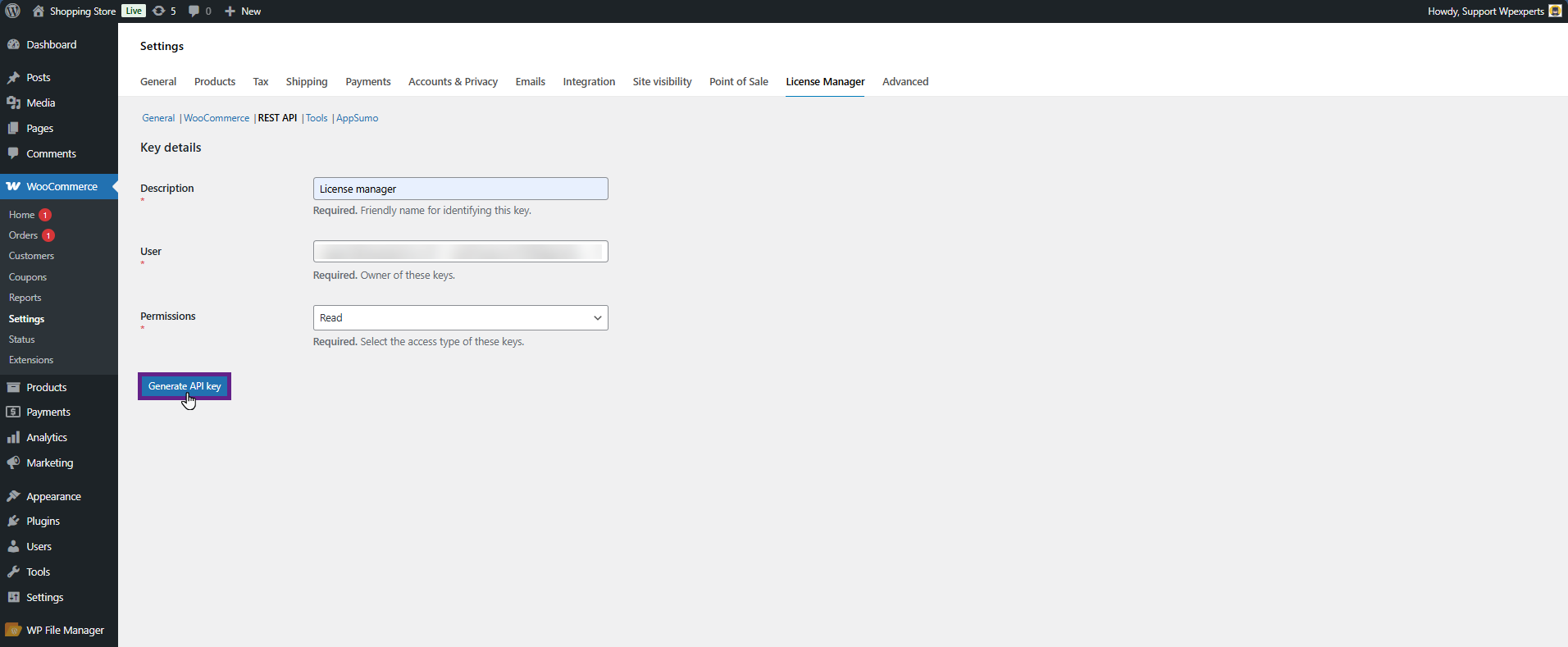
- Once clicked, the admin will be redirected to the following page.
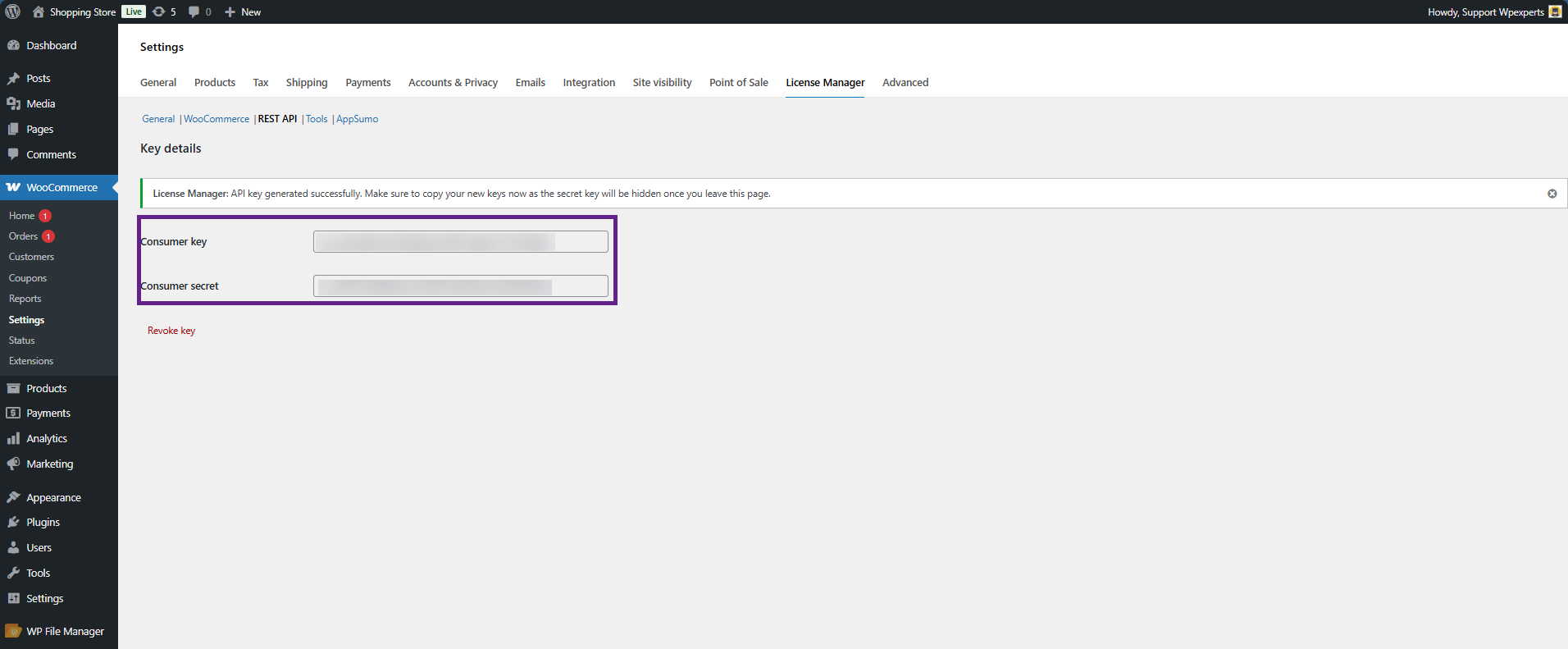
Note: Consumer Key acts as the username, while the Consumer Secret acts as the password for REST API authentication.

Please note: As mentioned in the success message, you should store these keys in a secure location, as this is the only time the secret key will be visible. If the REST API keys are lost or not saved, they cannot be recovered because the consumer secret is stored as a hashed value in the database. In such cases, you will need to generate a new pair of REST API keys.
Test if the API is Working
Making a basic request
The request URL we’ll test is wp-json/lmfwc/v2/generators. On localhost, the full URL may look something like this: http://dev.wordpress.local/wp-json/lmfwc/v2/orders. Modify this to use your own site URL.
In Postman, you need to set the fields for request type, request URL, and the settings on the authorization tab. For Authorization, choose basic auth and enter your consumer key and consumer secret keys from the License Manager for WooCommerce into the username and password fields.
Once you’re done, hit send, and you’ll see the JSON response from the API if everything went well. The response should look like this:
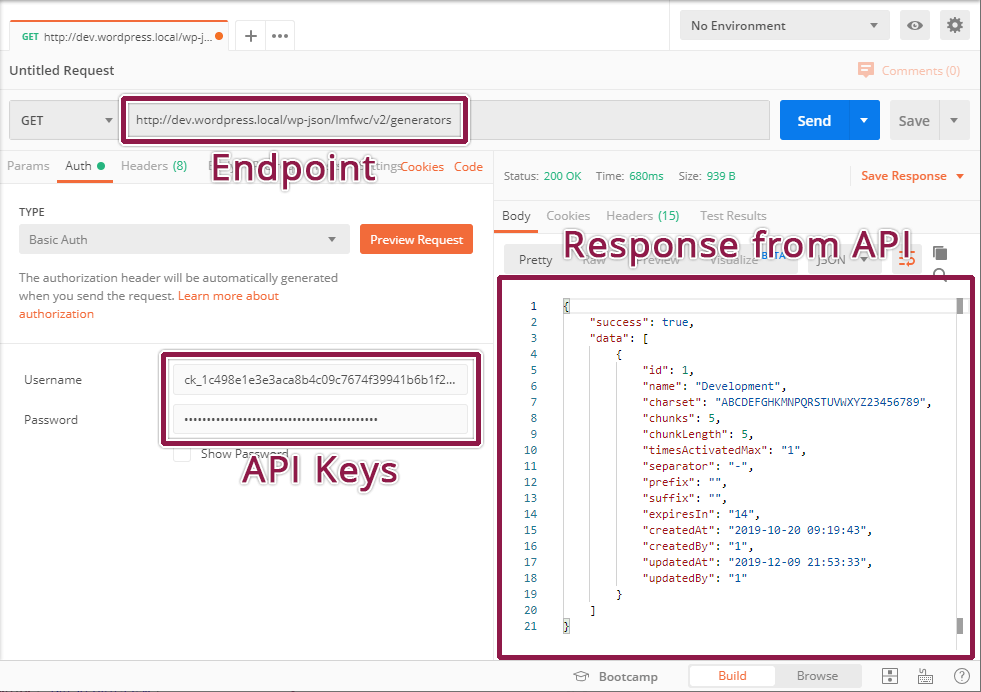
That’s it! The API is working.
If you have problems connecting, you may need to disable SSL verification – see the connection issues section below.
401 Unauthorized
Your API keys or signature are wrong. Ensure that:
- The user you generated API keys for actually has access to those resources.
- The username when authenticating is your consumer key.
- The password when authenticating is your consumer secret.
- Make a new set of keys to be sure.
If your server utilizes FastCGI, check that your authorization headers are properly read.
Consumer key is missing
If you are receiving the 403 HTTP status along with the lmfwc_rest_no_ssl_error error message, the plugin is rejecting the request because a secure SSL connection is not being used. You can enable the REST API to use insecure HTTP connections in the plugin settings. To do this, navigate to License Manager > Settings.
Please note: Do not disable this setting in a productive environment. Allowing the REST API to be used on insecure connections will expose your license keys to Man-in-the-Middle attacks.
API Routes
List licenses
Description
This route is used to retrieve all license keys from the database. Use it with caution. If this API route is not required in your production environment, it is recommended to disable it from the settings page. The response returns an array of license key data objects.
Request URL
GET
/wp-json/lmfwc/v2/licenses

RESPONSE EXAMPLE:
{
  "success": true,
  "data": [
    {
      "id": 1,
      "orderId": 165,
      "productId": 20,
      "userId": 1,
      "licenseKey": "FIRST",
      "expiresAt": "2023-12-28 00:00:00",
      "validFor": null,
      "source": 2,
      "status": 2,
      "timesActivated": 1,
      "timesActivatedMax": 5,
      "createdAt": "2023-12-11 07:27:15",
      "createdBy": 1,
      "updatedAt": "2023-12-22 10:52:18",
      "updatedBy": 1,
      "activationData": [
        {
          "id": 3,
          "token": "8a242078c59489077dfa420ed870d043f58cb300",
          "license_id": 1,
          "label": null,
          "source": 1,
          "ip_address": "::1",
          "user_agent": "Mozilla/5.0 (Windows NT 10.0; Win64; x64) AppleWebKit/537.36 (KHTML, like Gecko) Chrome/120.0.0.0 Safari/537.36",
          "meta_data": null,
          "created_at": "2023-12-15 14:39:11",
          "updated_at": "2023-12-15 14:41:30",
          "deactivated_at": null
        }
      ]
    },
    {
      "id": 19,
      "orderId": null,
      "productId": null,
      "userId": null,
      "licenseKey": "license_key",
      "expiresAt": null,
      "validFor": null,
      "source": 2,
      "status": 3,
      "timesActivated": null,
      "timesActivatedMax": null,
      "createdAt": "2023-12-21 15:19:22",
      "createdBy": 1,
      "updatedAt": null,
      "updatedBy": null,
      "activationData": []
    }
  ]
}
Retrieve a license
Description
This route is used to retrieve a single license key by the license key string itself. The response contains the queried license key data object.
REQUEST URL
GET
/wp-json/lmfwc/v2/licenses/{license_key}
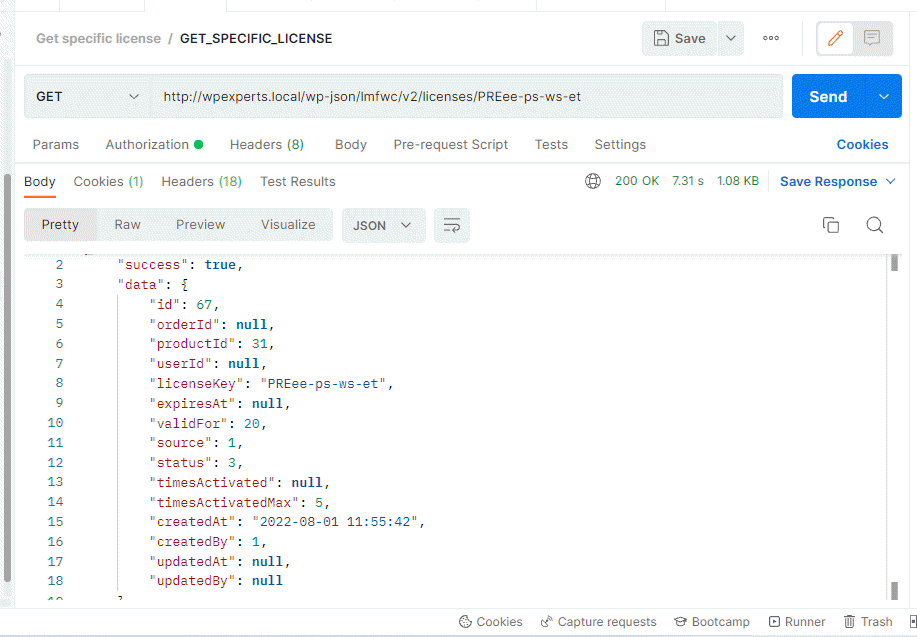
RESPONSE EXAMPLE:
{
  "success": true,
  "data": {
    "id": 1,
    "orderId": 165,
    "productId": 20,
    "userId": 1,
    "licenseKey": "FIRST",
    "expiresAt": "2023-12-28 00:00:00",
    "validFor": null,
    "source": 2,
    "status": 2,
    "timesActivated": 1,
    "timesActivatedMax": 5,
    "createdAt": "2023-12-11 07:27:15",
    "createdBy": 1,
    "updatedAt": "2023-12-22 10:52:18",
    "activationData": [
      {
        "id": 3,
        "token": "8a242078c59489077dfa420ed870d043f58cb300",
        "license_id": 1,
        "label": null,
        "source": 1,
        "ip_address": "::1",
        "user_agent": "Mozilla/5.0 (Windows NT 10.0; Win64; x64) AppleWebKit/537.36 (KHTML, like Gecko) Chrome/120.0.0.0 Safari/537.36",
        "meta_data": null,
        "created_at": "2023-12-15 14:39:11",
        "updated_at": "2023-12-15 14:41:30",
        "deactivated_at": null
      }
    ]
  }
}
Create a license
Description
This route is used to create a new license key using the parameters provided in the request body. Certain fields may be omitted or explicitly set to null. The response will include the newly created license key data object.
REQUEST URL
POST
/wp-json/lmfwc/v2/licenses
REQUEST HEADERS
Content-Type: application/json
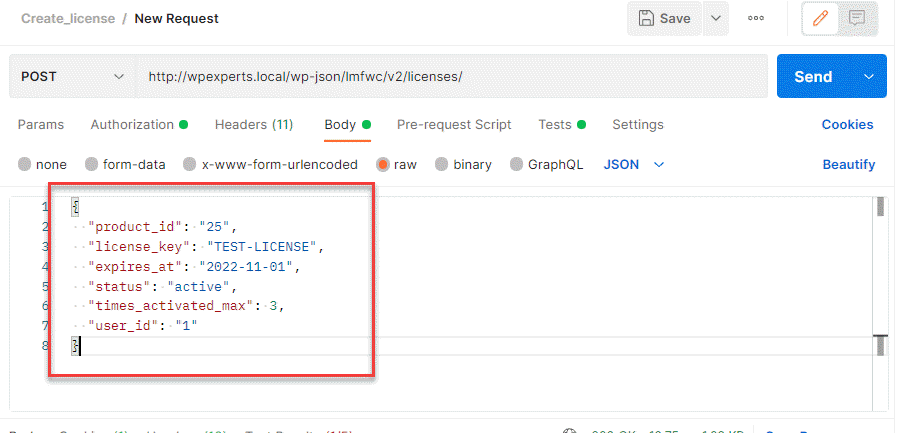
Note: You can also use “valid_for”: “45” to specify the number of valid days instead of expires_at. Please do not use both at the same time.
REQUEST BODY:
{
  "product_id": "25",
  "license_key": "TEST-LICENSE",
  "expires_at": "2022-11-01",
  "status": "active",
  "times_activated_max": 3,
  "user_id": "1"
}
RESPONSE EXAMPLE:
{
  “success”: true,
  “data”: {
    “id”: 69,
    “orderId”: null,
    “productId”: 25,
    “userId”: 1,
    “licenseKey”: “TEST-LICENSE”,
    “expiresAt”: “2022-11-01 00:00:00”,
    “validFor”: null,
    “source”: 3,
    “status”: 3,
    “timesActivated”: null,
    “timesActivatedMax”: 3,
    “createdAt”: “2022-08-01 13:34:42”,
    “createdBy”: 1,
    “updatedAt”: null,
    “updatedBy”: null
   }
}
Update a license
Description
This route is used to update an existing license key. Fields that are not included in the request body will remain unchanged. However, if a field is present in the request, its value will be updated, even if the value is set to null. The response will contain the updated license key data object.
REQUEST URL
PUT
/wp-json/lmfwc/v2/licenses/{license_key}
REQUEST HEADERS
Content-Type: application/json
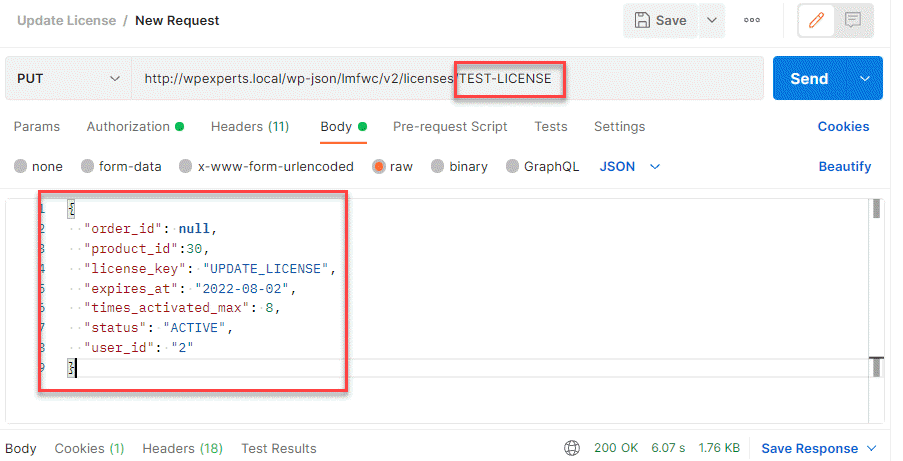
REQUEST BODY:
{
  "order_id": null,
  "product_id": 30,
  "license_key": "UPDATE_LICENSE",
  "expires_at": "2022-08-02",
  "times_activated_max": 8,
  "status": "ACTIVE",
  "user_id": "2"
}
RESPONSE EXAMPLE:
“success”: true,
“data”: {
  “id”: 31,
  “orderId”: null,
  “productId”: 30,
  “userId”: 2,
  “licenseKey”: “UPDATE_LICENSE”,
  “expiresAt”: “2022-08-02 00:00:00”,
  “validFor”: null,
  “source”: 3,
  “status”: 3,
  “timesActivated”: null,
  “timesActivatedMax”: 8,
  “createdAt”: “2022-07-29 11:20:24”,
  “createdBy”: 1,
  “updatedAt”: “2022-07-29 11:24:52”,
  “updatedBy”: 1
 }
}
Delete a License
Description
This route is used to delete a license by its key value. The response contains success = true if the license is deleted.
Request URL
DELETE
/wp-json/lmfwc/v2/licenses/{license_key}
REQUEST HEADERS
Content-Type: application/json

Response
{
    "success": true,
    "data": []
}
Activate a license
Description
This route is used to increment the times_activated value by one (1). The plugin checks whether a times_activated_max limit is set. If the limit exists and the current times_activated value has not reached the maximum allowed limit, the value will be increased by 1, and the updated license key data object will be returned. An activation token will also be created in the Activations page.
REQUEST URL
GET
/wp-json/lmfwc/v2/licenses/activate/{license_key}
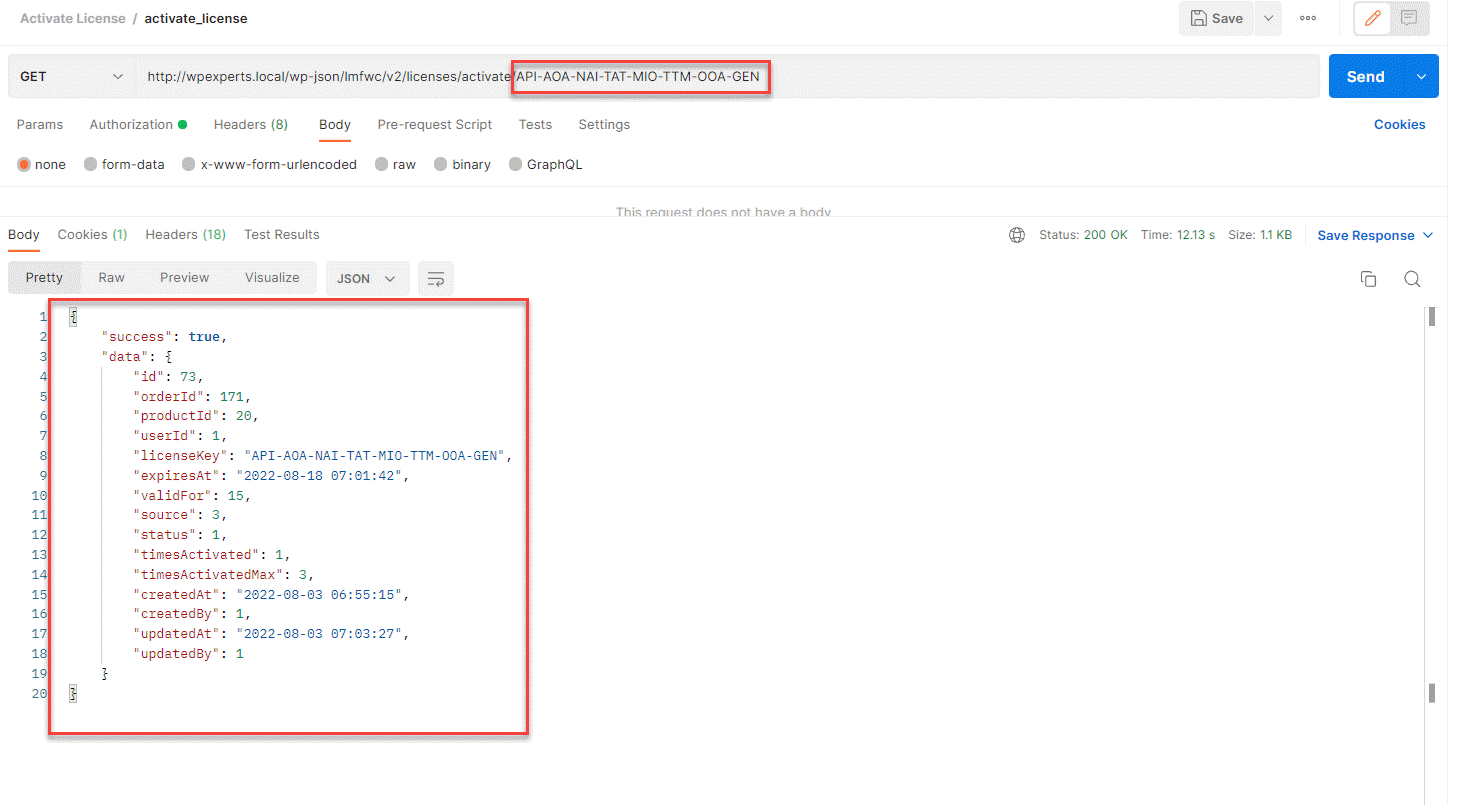
RESPONSE EXAMPLE:
{
   "success":true,
   "data":{
      "id":1,
      "orderId":165,
      "productId":20,
      "userId":1,
      "licenseKey":"FIRST",
      "expiresAt":"2023-12-28 00:00:00",
      "validFor":null,
      "source":2,
      "status":2,
      "timesActivated":2,
      "timesActivatedMax":5,
      "createdAt":"2023-12-11 07:27:15",
      "updatedAt":"2023-12-22 11:07:44",
      "activationData":{
         "id":6,
         "token":"8f04017840bd40f993e5712403e4ed945a2aeb7c",
         "license_id":1,
         "label":null,
         "source":2,
         "ip_address":"127.0.0.1",
         "user_agent":"PostmanRuntime/7.36.0",
         "meta_data":null,
         "created_at":"2023-12-22 11:07:44",
         "updated_at":null,
         "deactivated_at":null
      }
   }
}
Reactivate a License
Description
This route is used to increment the times_activated value by one (1). The plugin checks whether a times_activated_max value is set. If the limit exists and the current times_activated value has not reached the maximum allowed limit, the value will be increased by 1. The updated license key and activation data object will then be returned. The activation token will also be reactivated using the provided parameters.
REQUEST URL
GET
/wp-json/lmfwc/v2/licenses/activate/{license_key}

RESPONSE EXAMPLE:
{
   "success":true,
   "data":{
      "id":1,
      "orderId":165,
      "productId":20,
      "userId":1,
      "licenseKey":"FIRST",
      "expiresAt":"2023-12-28 00:00:00",
      "validFor":null,
      "source":2,
      "status":2,
      "timesActivated":2,
      "timesActivatedMax":5,
      "createdAt":"2023-12-11 07:27:15",
      "updatedAt":"2023-12-22 11:07:44",
      "activationData":{
         "id":6,
         "token":"8f04017840bd40f993e5712403e4ed945a2aeb7c",
         "license_id":1,
         "label":null,
         "source":2,
         "ip_address":"127.0.0.1",
         "user_agent":"PostmanRuntime/7.36.0",
         "meta_data":null,
         "created_at":"2023-12-22 11:07:44",
         "updated_at":null,
         "deactivated_at":null
      }
   }
}
Deactivate a license
Description
This route is used to decrease the times_activated value by one (1). It is not possible to deactivate a license key whose times_activated is null or already zero. Deactivations can be performed by the licensee key and by passing the activation token. When only the license key is passed in the deactivate license API, then all activations will become inactive. To deactivate a single activation, you will use this route /wp-json/lmfwc/v2/licenses/deactivate/{license_key} like this. In the parameters, you will pass the token.
REQUEST URL
GET
/wp-json/lmfwc/v2/licenses/deactivate/{license_key}
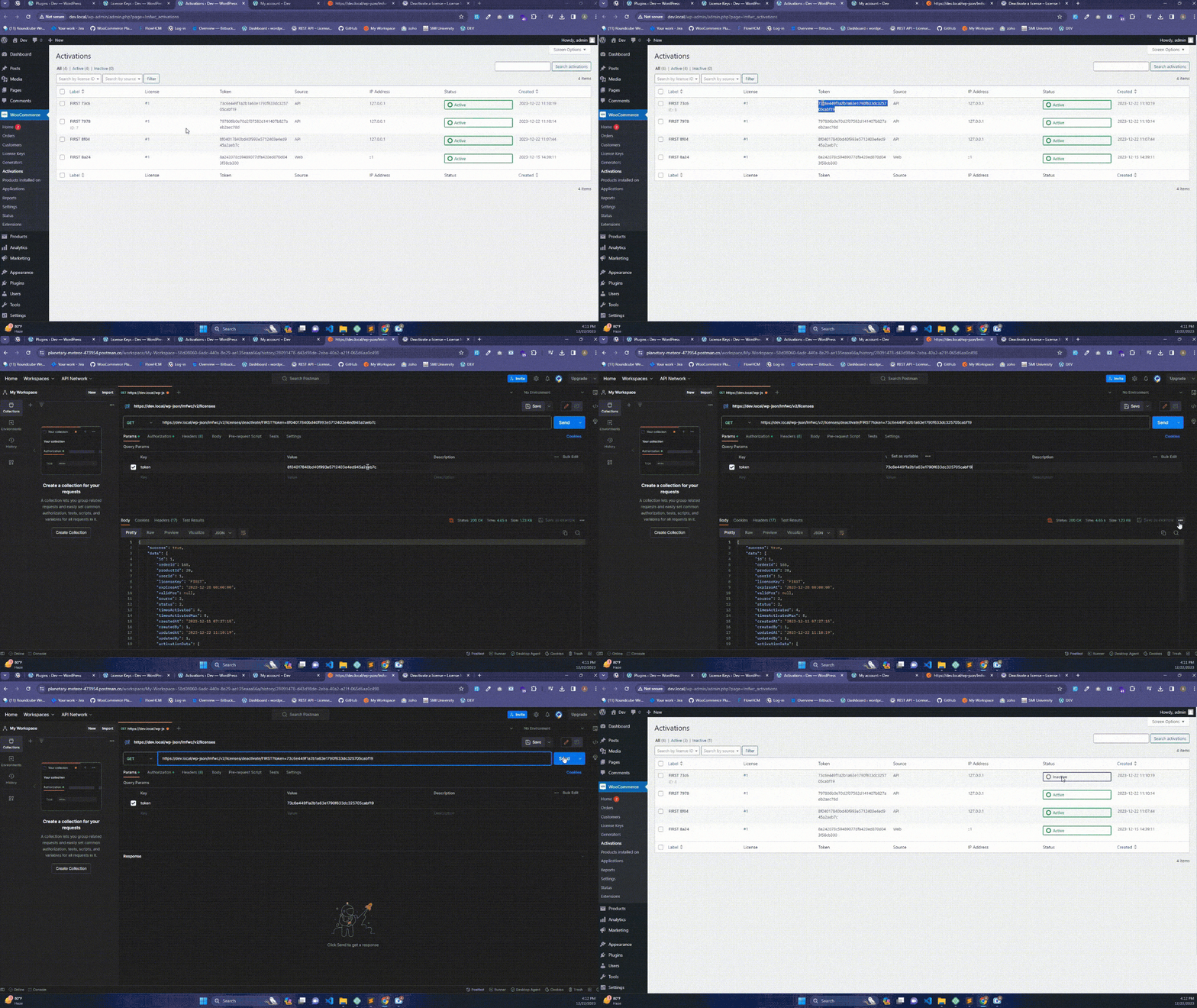
RESPONSE EXAMPLE:
{
    “success”: true,
    “data”: {
        “id”: 73,
        “orderId”: 171,
        “productId”: 20,
        “userId”: 1,
        “licenseKey”: “API-AOA-NAI-TAT-MIO-TTM-OOA-GEN”,
        “expiresAt”: “2022-08-18 07:01:42”,
        “validFor”: 15,
        “source”: 3,
        “status”: 1,
        “timesActivated”: 0,
        “timesActivatedMax”: 3,
        “createdAt”: “2022-08-03 06:55:15”,
        “createdBy”: 1,
        “updatedAt”: “2022-08-03 07:09:33”,
        “updatedBy”: 1
    }
}
Validate a license
Description
This route is used to check the current activation status of a license key. The response will contain the number of activations, the maximum activation count, and the remaining activations.
REQUEST URL
GET
/wp-json/lmfwc/v2/licenses/validate/{license_key}
RESPONSE EXAMPLE:
{
    "success": true,
    "data": {
        "id": 1,
        "orderId": 165,
        "productId": 20,
        "userId": 1,
        "licenseKey": "FIRST",
        "expiresAt": "2023-12-28 00:00:00",
        "validFor": null,
        "source": 2,
        "status": 2,
        "timesActivated": 0,
        "timesActivatedMax": 5,
        "createdAt": "2023-12-11 07:27:15",
        "createdBy": 1,
        "updatedAt": "2023-12-26 13:14:34",
        "updatedBy": 1,
        "activationData": [
            {
                "id": 11,
                "token": "99011e7d2f7fab83bbbcdeb72d427353b4fe66d3",
                "license_id": 1,
                "label": null,
                "source": 2,
                "ip_address": "127.0.0.1",
                "user_agent": "PostmanRuntime/7.36.0",
                "meta_data": null,
                "created_at": "2023-12-26 13:13:10",
                "updated_at": "2023-12-26 13:14:34",
                "deactivated_at": "2023-12-26 13:14:34"
            }
        ]
    }
}
List all generators
Description
This route is used to retrieve all currently available generators. The response will contain an array of generator data objects.
REQUEST URL
GET
/wp-json/lmfwc/v2/generators
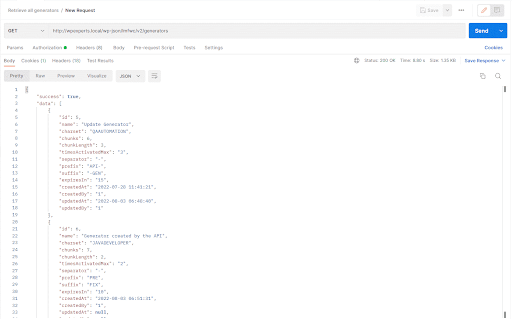
RESPONSE EXAMPLE:
{
  "success": true,
  "data": [
    {
      "id": 5,
      "name": "Update Generator",
      "charset": "QAAUTOMATION",
      "chunks": 6,
      "chunkLength": 3,
      "timesActivatedMax": "3",
      "separator": "-",
      "prefix": "API-",
      "suffix": "-GEN",
      "expiresIn": "15",
      "createdAt": "2022-07-28 11:41:21",
      "createdBy": "1",
      "updatedAt": "2022-08-03 06:48:40",
      "updatedBy": "1"
    },
    {
      "id": 6,
      "name": "Generator created by the API",
      "charset": "JAVADEVELOPER",
      "chunks": 7,
      "chunkLength": 2,
      "timesActivatedMax": "2",
      "separator": "-",
      "prefix": "PRE",
      "suffix": "FIX",
      "expiresIn": "10",
      "createdAt": "2022-08-03 06:51:31",
      "createdBy": "1",
      "updatedAt": null,
      "updatedBy": null
    }
  ]
}
Retrieve specific generator
Description
This route is used to retrieve a single generator by its ID. The response contains the generator data object.
REQUEST URL
GET
/wp-json/lmfwc/v2/generators/{generator_id}

RESPONSE EXAMPLE:
{
  "success": true,
  "data": {
    "id": 6,
    "name": "Generator created by the API",
    "charset": "DEVELOPER",
    "chunks": 7,
    "chunkLength": 2,
    "timesActivatedMax": "2",
    "separator": "-",
    "prefix": "",
    "suffix": "",
    "expiresIn": "10",
    "createdAt": "2022-08-03 06:51:31",
    "createdBy": "1",
    "updatedAt": "2022-08-03 07:45:15",
    "updatedBy": "1"
  }
}
Create a generator
Description
This route is used to create a new generator. The response contains the newly created generator data object.
REQUEST URL
POST
/wp-json/lmfwc/v2/generators
REQUEST HEADERS
Content-Type: application/json

REQUEST BODY:
{
  "name": "Generator created by the API",
  "charset": "LICENSE_GENERATE",
  "chunks": 7,
  "chunk_length": 2,
  "times_activated_max": 2,
  "separator": "-",
  "prefix": "PRE",
  "suffix": "FIX",
  "expires_in": 10
}
RESPONSE EXAMPLE:
{
    “success”: true,
    “data”: {
        “id”: 7,
        “name”: “Generator created by the API”,
        “charset”: “LICENSE_GENERATE”,
        “chunks”: 7,
        “chunkLength”: 2,
        “timesActivatedMax”: “2”,
        “separator”: “-“,
        “prefix”: “PRE”,
        “suffix”: “FIX”,
        “expiresIn”: “10”,
        “createdAt”: “2022-08-03 07:49:21”,
        “createdBy”: “1”,
        “updatedAt”: null,
        “updatedBy”: null
    }
}
Update a generator
Description
This route is used to update a generator by its ID. The response contains the updated generator data object.
REQUEST URL
PUT
/wp-json/lmfwc/v2/generators/{generator_id}
REQUEST HEADERS
Content-Type: application/json
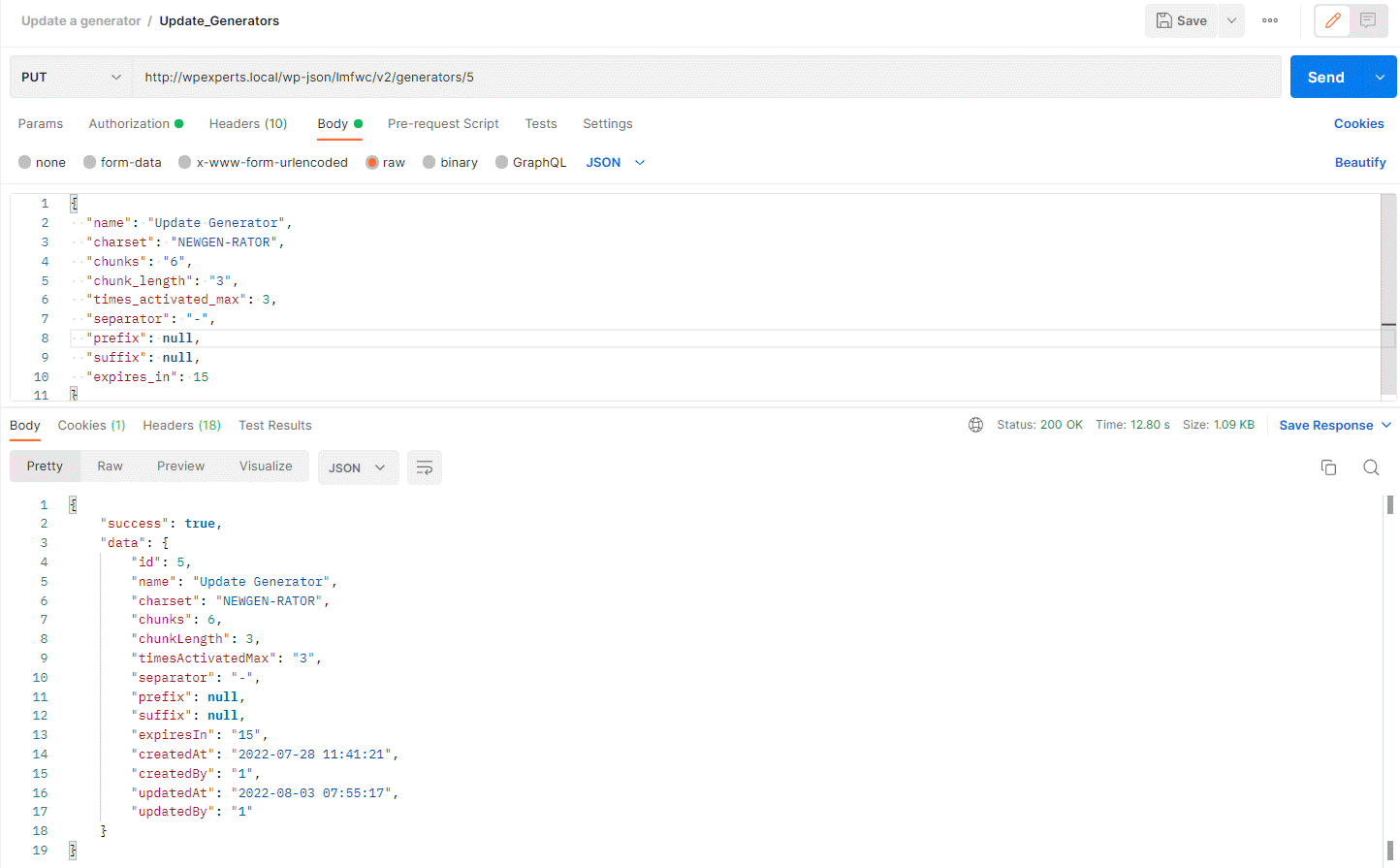
REQUEST BODY:
{
  "name": "Update Generator",
  "charset": "NEWGEN-RATOR",
  "chunks": "6",
  "chunk_length": "3",
  "times_activated_max": 3,
  "separator": "-",
  "prefix": null,
  "suffix": null,
  "expires_in": 15
}
RESPONSE EXAMPLE:
{
  "success": true,
  "data": {
    "id": 5,
    "name": "Update Generator",
    "charset": "NEWGEN-RATOR",
    "chunks": 6,
    "chunkLength": 3,
    "timesActivatedMax": "3",
    "separator": "-",
    "prefix": null,
    "suffix": null,
    "expiresIn": "15",
    "createdAt": "2022-07-28 11:41:21",
    "createdBy": "1",
    "updatedAt": "2022-08-03 07:55:17",
    "updatedBy": "1"
  }
}
Delete a Generator
Description
This route is used to delete a generator by its ID. The response contains success = true if the generator is deleted.
Request URL
DELETE
wp-json/lmfwc/v2/generators/{generator_id}
Request headers
Content-Type: application/json
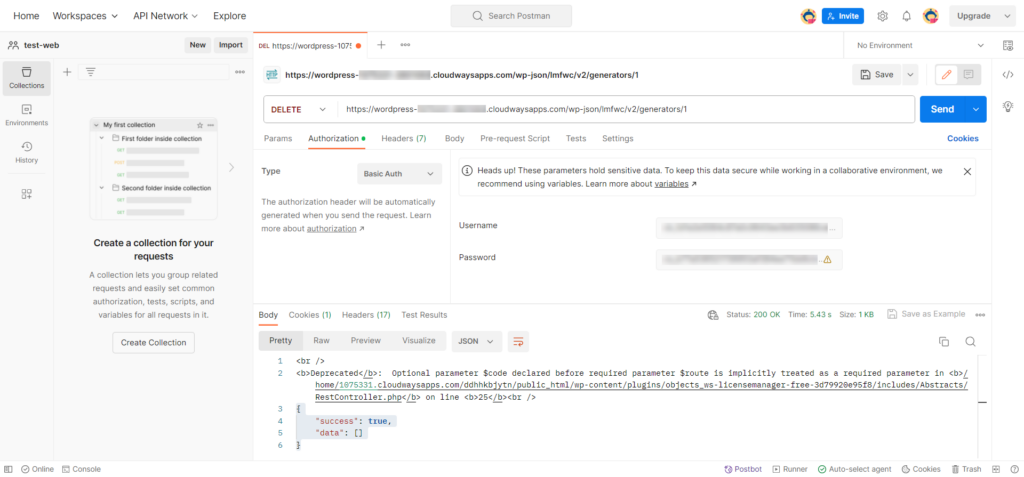
Response
{
    “success”: true,
    “data”: []
}
Generate Licenses (Pro)
Description
This route is used to generate license keys using a generator ID. The response contains the generated license keys.
REQUEST URL
POST
/wp-json/lmfwc/v2/generators/1/generate
REQUEST HEADERS
Content-Type: application/json
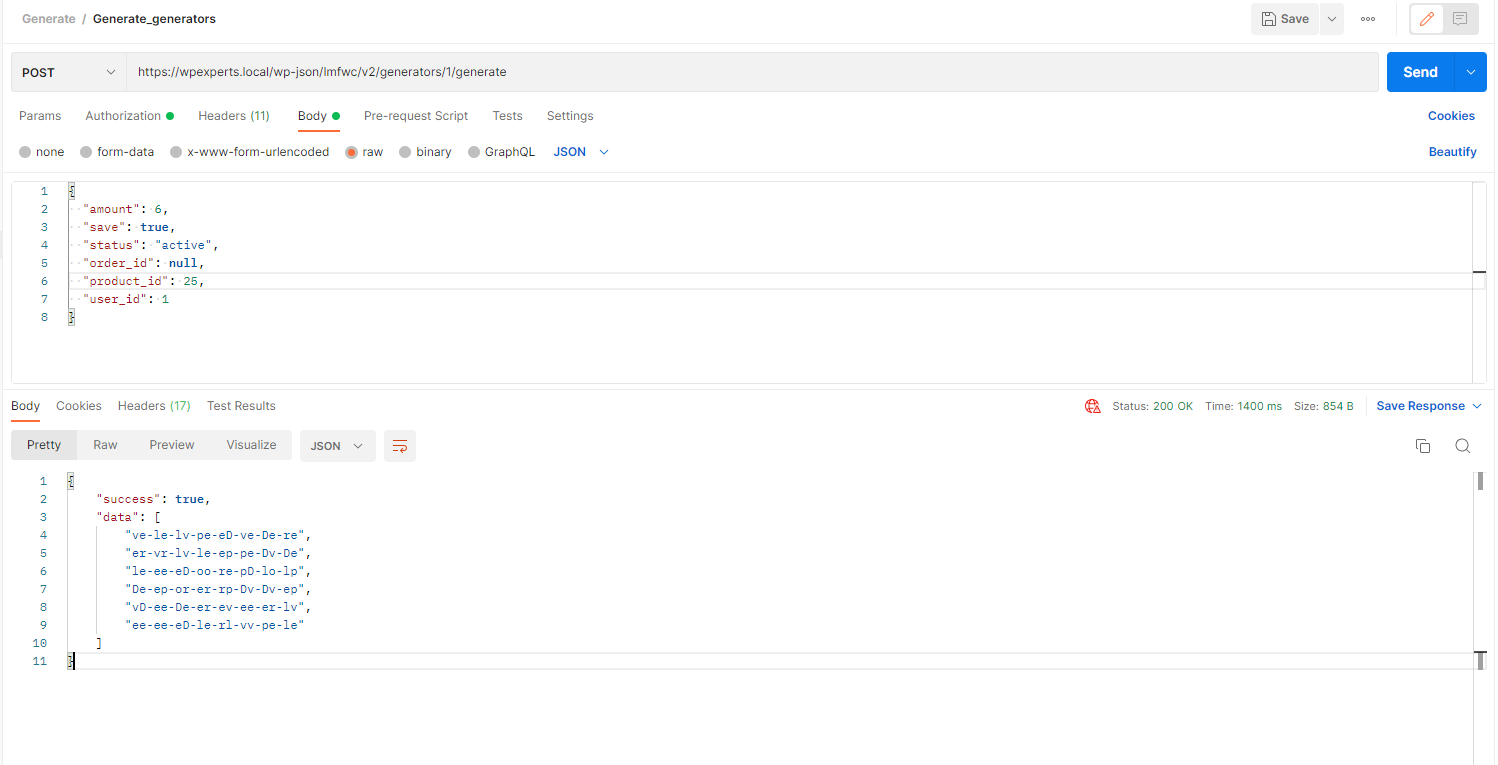
REQUEST BODY:
{
  "amount": 6,
  "save": true,
  "status": "active",
  "order_id": null,
  "product_id": 25,
  "user_id": 1
}
RESPONSE EXAMPLE
{
  "success": true,
  "data": [
    "ve-le-lv-pe-eD-ve-De-re",
    "er-vr-lv-le-ep-pe-Dv-De",
    "le-ee-eD-oo-re-pD-lo-lp",
    "De-ep-or-er-rp-Dv-Dv-ep",
    "vD-ee-De-er-ev-ee-er-lv",
    "ee-ee-eD-le-rl-vv-pe-le"
  ]
}
Validate Customer Licenses(Pro)
Description
This route is used to get the customer’s licenses by the customer’s ID, and which licenses are assigned to the customer.
REQUEST URL
GET
wp-json/lmfwc/v2/customers/1/licenses
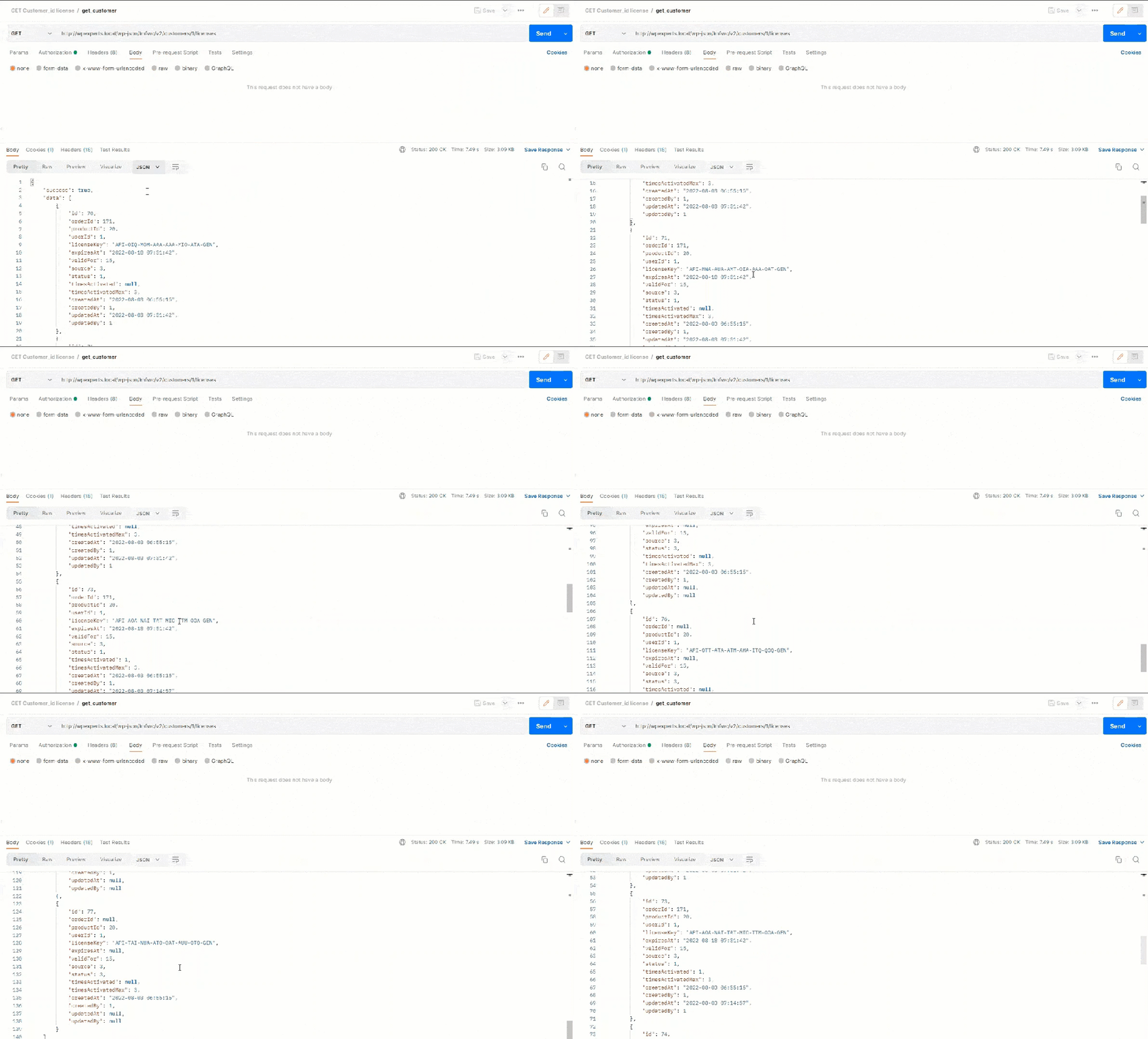
RESPONSE EXAMPLE:
{
  "success": true,
  "data": [
    {
      "id": 70,
      "orderId": 171,
      "productId": 20,
      "userId": 1,
      "licenseKey": "API-OIQ-MOM-AAA-AAA-MIO-ATA-GEN",
      "expiresAt": "2022-08-18 07:01:42",
      "validFor": 15,
      "source": 3,
      "status": 1,
      "timesActivated": null,
      "timesActivatedMax": 3,
      "createdAt": "2022-08-03 06:55:15",
      "createdBy": 1,
      "updatedAt": "2022-08-03 07:01:42",
      "updatedBy": 1
    },
    {
      "id": 71,
      "orderId": 171,
      "productId": 20,
      "userId": 1,
      "licenseKey": "API-MNA-AUA-AMT-OIA-AAA-OAT-GEN",
      "expiresAt": "2022-08-18 07:01:42",
      "validFor": 15,
      "source": 3,
      "status": 1,
      "timesActivated": null,
      "timesActivatedMax": 3,
      "createdAt": "2022-08-03 06:55:15",
      "createdBy": 1,
      "updatedAt": "2022-08-03 07:01:42",
      "updatedBy": 1
    },
    {
      "id": 72,
      "orderId": 171,
      "productId": 20,
      "userId": 1,
      "licenseKey": "API-OOU-AOA-OAT-UOT-OTN-TOA-GEN",
      "expiresAt": "2022-08-18 07:01:42",
      "validFor": 15,
      "source": 3,
      "status": 1,
      "timesActivated": null,
      "timesActivatedMax": 3,
      "createdAt": "2022-08-03 06:55:15",
      "createdBy": 1,
      "updatedAt": "2022-08-03 07:01:42",
      "updatedBy": 1
    }
  ]
}
Products/ping (Pro)
Description
This route is used to send a ping request to verify the connection between the REST API Server and the Client.
Request URL
POST
wp-json/lmfwc/v2/products/ping
REQUEST HEADERS
Content-Type: application/json
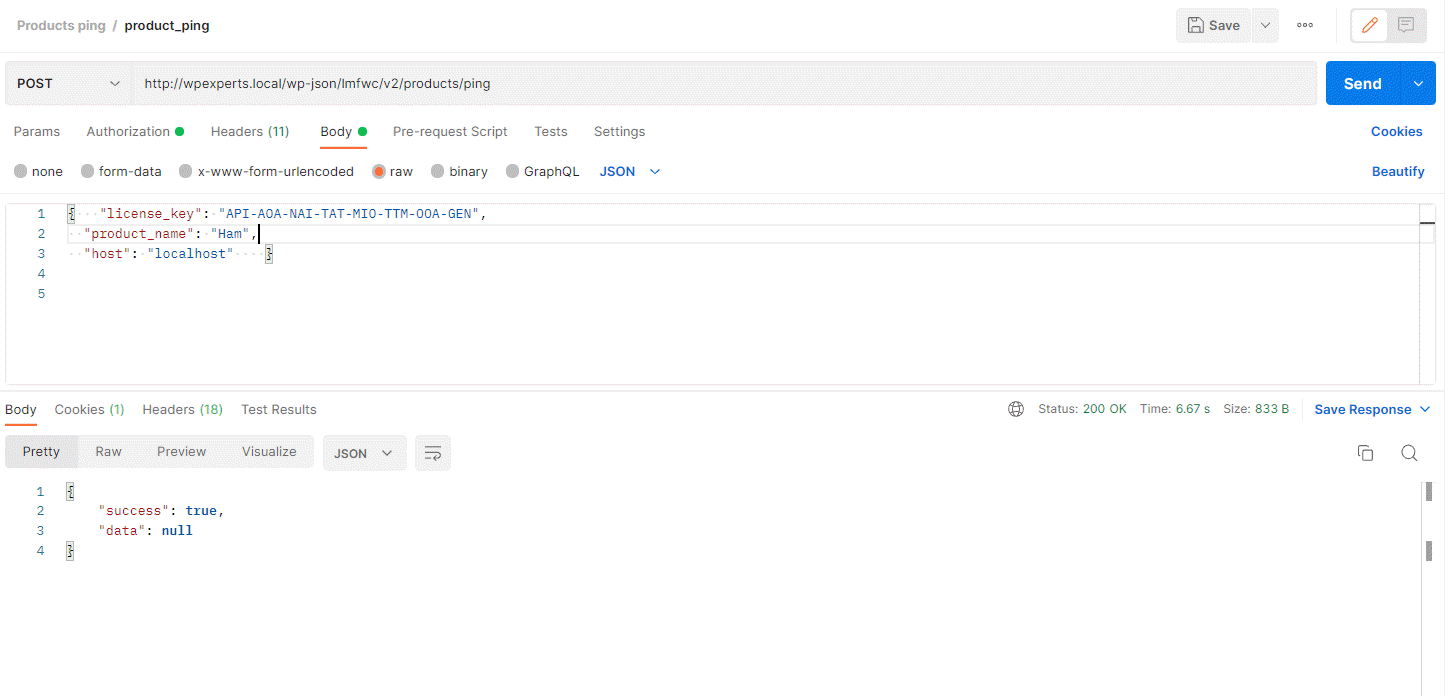
REQUEST BODY EXAMPLE:
{
  "license_key": "API-AOA-NAI-TAT-MIO-TTM-OOA-GEN",
  "product_name": "Ham",
  "host": "localhost"
}
RESPONSE EXAMPLE:
{
    “success”: true,
    “data”: null
}- After calling the Products Ping API, the admin can view the ping details in the Products Installed menu.
- Navigate to the Admin Dashboard > WooCommerce > Products Installed.

Products/update (Pro)
DESCRIPTION
This route is used to show the product details in which the product’s license key is assigned.
Request URL
GET
wp-json/lmfwc/v2/products/update/{license_key}
REQUEST HEADERS
Content-Type: application/json

RESPONSE EXAMPLE:
{
    “success”: true,
    “data”: {
        “license_key”: “API-AOA-NAI-TAT-MIO-TTM-OOA-GEN”,
        “url”: “http://wpexperts.local/product/ham/”,
        “new_version”: “2.0”,
        “package”: “http://wpexperts.local/wp-json/lmfwc/v2/products/download/latest/API-AOA-NAI-TAT-MIO-TTM-OOA-GEN?consumer_key=ck_23bba59cc27dedebf5778b34f0521e948c01f300&consumer_secret=cs_0821d6a54dd8adcb71cf3dbf9d3663c6c1084722”,
        “tested”: “6.0”,
        “requires”: “1.0”,
        “requires_php”: “7.4.1”,
        “last_updated”: null,
        “rating”: null,
        “num_ratings”: 0,
        “sections”: {
            “changelog”: “<p>Initial Release</p>”
        }
    }
}
Download Products (Pro)
Description
This route is used to download the latest products of your license when hit this API, please use this API only in the browser..
Request URl
wp-json/lmfwc/v2/products/download/latest/{license_key}
Response

Retrieve an application(pro)
Description:
This route is used to retrieve a single application by its ID. The response contains the queried application data object.
REQUEST URL
wp-json/lmfwc/v2/application{application_id}
Request Headers
Content-Type: application/json

Response
{
    “success”: true,
    “data”: {
        “name”: “My Application”,
        “type”: “wordpress”,
        “stable_release”: “1.4”,
        “documentation”: “Phasellus aliquet sollicitudin ante non scelerisque. Ut id erat in elite fringilla placerat. Nam luctus est eget quam dictum suscipit. Suspendisse at pellentesque urna. Nam porttitor lectus et tellus tempor, vel vulputate nisl posuere.”,
        “support”: “Duis rutrum nibh ante, nec euismod sem tristique facilisis. Quisque semper ante ac pharetra eleifend. Nam porta scelerisque volutpat. Nulla suscipit fermentum bibendum.”,
        “description”: “Lorem ipsum dolor sit amet, consectetur adipiscing elit. Donec semper ante ac enim sodales tincidunt.”,
        “gallery”: [
            {
                “id”: “327”,
                “title”: “”,
                “description”: “Nulla suscipit fermentum bibendum.”,
                “url”: “https://wordpress-***********.cloudwaysapps.com/wp-content/uploads/2023/09/default-point-type.png”
            }
        ]
    }
}
Download Application(Pro)
Description
This route is used to download the latest version of your application when this API is hit. Please use this API only in the browser.
Request URL
GET
wp-json/lmfwc/v2/application/download/{activation_token}
Request Headers
Content-Type: application/json

Response
- Open a new tab and paste the request URL in the search bar.
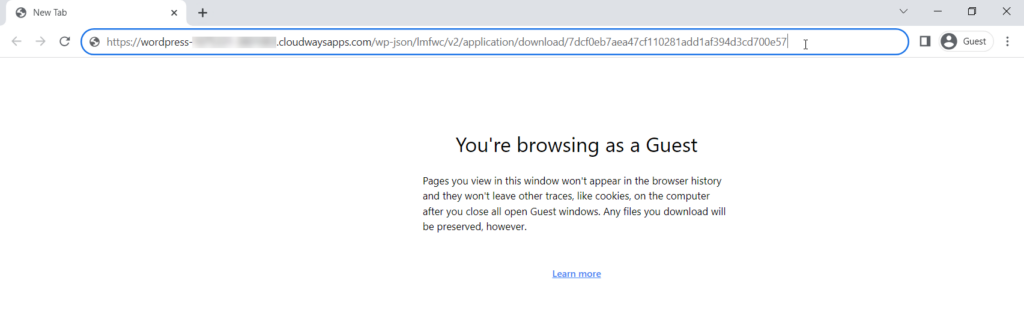
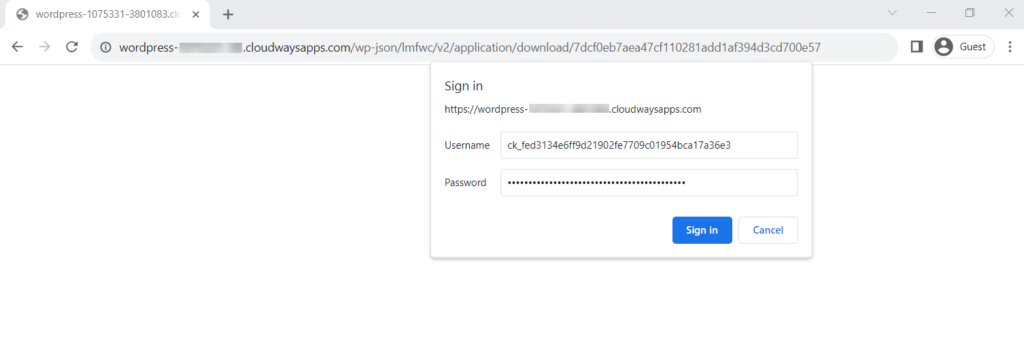
- Enter the consumer key and consumer secret in the alert bar.
- Click on the Sign in button.
- Resulting will download the application.
Validating Custom Request Data
This tutorial demonstrates how to perform additional request data validation and abort a REST API call if the validation fails. In this example, we will pass an additional UUID with the license activation request and verify whether the license has already been activated using that UUID. If a previous activation is found, the API will return an error response and prevent the activation request from proceeding.
To sum everything up, we will demonstrate the following:
- Adding additional parameters to the activation request
- Validating the additional parameters on the server-side
- Returning an error if validation did not pass
The first thing you need to do is to modify your REST API license activation request. Simply add a JSON object with a key named uuid and its value. It’s also important to set the Content-Type header to application/json.
Then, you will need to pass a function to the lmfwc_rest_api_validation filter. This filter takes 3 arguments. The function in that filter will look something like this:
[php]function lmfwc_tutorial_check_uuid($result, $server, $request) {
    // Not our route, nothing to do...
    if (strpos($request->get_route(), '/lmfwc/v2/licenses/activate') === false) {
        return true;
    }
    // Retrieve the body parameters
    $body = $request->get_json_params();
    // The request body was empty, or the "uuid" property is missing.
    if (!$body || !array_key_exists('uuid', $body)) {
        return new WP_Error(
            'lmfwc_rest_data_error',
            'The UUID is missing from the request.',
            array('status' => 400)
        );
    }
    // Obtain the license key from the request URL
    $licenseKey = explode('/lmfwc/v2/licenses/activate/', $request->get_route())[1];
    // Retrieve the license object
    $license = lmfwc_get_license($licenseKey);
    // The license was not found
    if (!$license) {
        return new WP_Error(
            'lmfwc_rest_validation_error',
            'The license was not found.',
            array('status' => 404)
        );
    }
    // Check if the license key already has this UUID
    $previousActivation = lmfwc_get_license_meta($license->getId(), 'activation_uuid', true);
    // Throw an error if that's the case
    if ($previousActivation && $previousActivation === $body['uuid']) {
        return new WP_Error(
            'lmfwc_rest_validation_error',
            'The license was already activated using this UUID.',
            array('status' => 403)
        );
    }
    // Hasn't been used before, proceed
    return true;
}
add_filter('lmfwc_rest_api_validation', 'lmfwc_tutorial_check_uuid', 10, 3);
[/php]
We first must check if we are on the correct route. If so, the function will then retrieve all needed variables and check if they are correct. Lastly, we obtain the activation_uuid meta key from the license, and check its value against the value provided in the request body. Please note that the meta key name can be anything; it’s up to you to define it.
Modifying Response Data
This tutorial will demonstrate how you can modify the REST API response. In this example, we will create an activation object consisting of an ID, the client proxy (should the client be using one), and the client IP address. This activation object will be stored in the license meta when the “Activate license” request has been made. The same methods and techniques shown here can be used to modify any other response. You can even remove response data, by using the PHP unset() method.
To sum everything up, we will demonstrate the following:
- Hooking into the lmfwc_rest_api_pre_response filter.
- Creating an activation object
- Storing our activation object inside the license meta
- Adding our activation object back to the response.
The process is rather simple; you need to hook into the lmfwc_rest_api_pre_response filter by using the WordPress method add_filter(). This filter takes 3 arguments. Your code would then look something like this:
[php]function lmfwc_tutorial_modify_response($method, $route, $data) {
    // First check if we are on the correct route
    if ($route !== 'v2/licenses/activate/{license_key}') {
        return $data;
    }
    // Now we will save an activation object for this license/activation. The
    // activation object will be an array consisting of an ID, the proxy (if
    // The remote party is using a proxy), and the user's remote address (IP).
    // Please note that we're just using the PHP "uniqid()" method for the ID,
    // you can of course use something more appropriate.
    $activation = array(
        'id' => uniqid(),
        'http_x_forwarded_for' => $_SERVER['HTTP_X_FORWARDED_FOR'],
        'remote_addr' => $_SERVER['REMOTE_ADDR']
    );
    // Save to the license meta
    lmfwc_add_license_meta($data['id'], 'activation', $activation);
    // Add the $activation variable to the response
    $data['activation'] = $activation;
    // Return the result
    return $data;
}
add_filter('lmfwc_rest_api_pre_response', 'lmfwc_tutorial_modify_response', 10,
License Manager SDK
Enable all the SDK API endpoints. To do this, navigate to the Admin Dashboard > WooCommerce > Settings > License Manager.
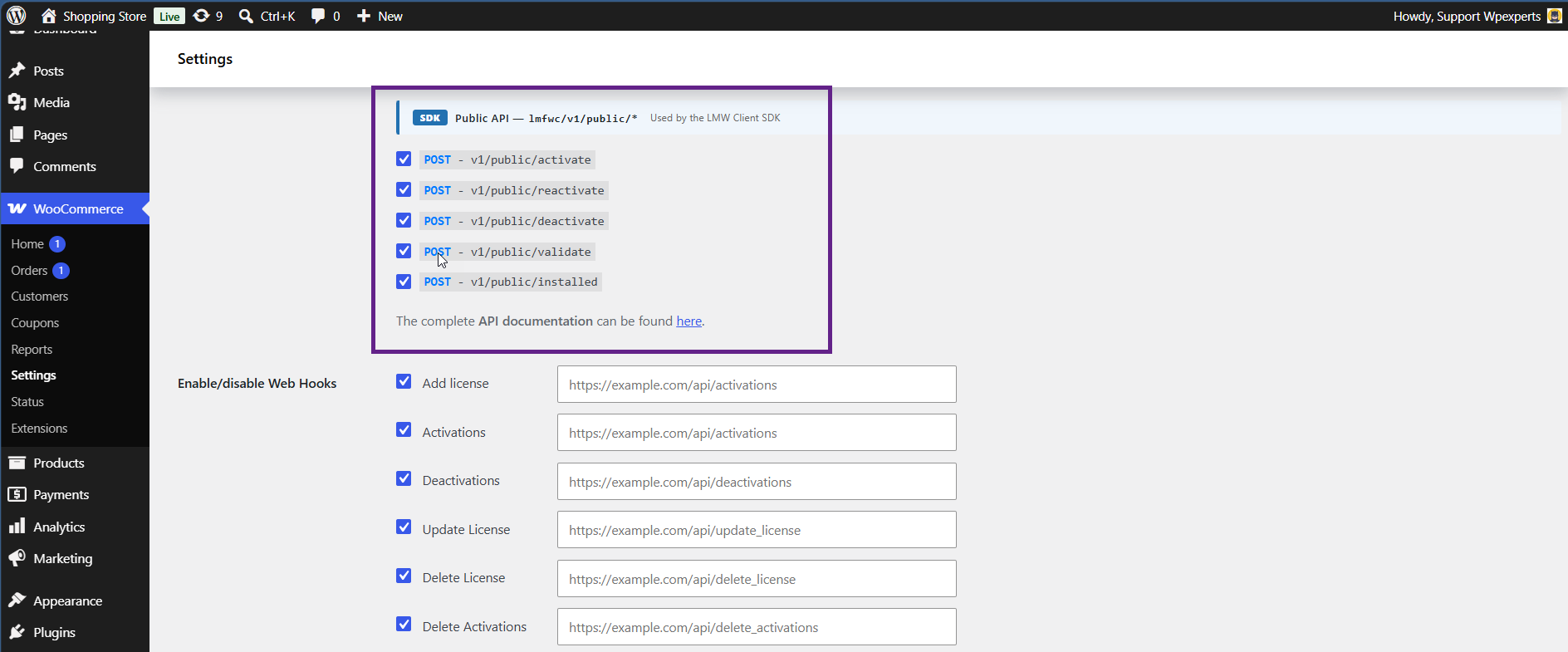
The License Manager SDK is explained in detail later in this documentation. Please refer to this section for more information.
Webhooks
- The License Manager now supports event-based management via REST APIs and webhooks, enabling real-time notifications for key actions such as license creation, activation, update, and deletion. Admins can configure webhook URLs, select specific event triggers, and automatically sync license data with third-party systems.
Please note: The webhook site URL is used here only for documentation purposes.
In a real environment, users should replace this with their own webhook endpoint (e.g., their application’s URL or a third-party system’s URL) where event data should be sent.
- Go to the webhook site.
- Copy your unique URL.

- Now, go to the Admin Dashboard > WooCommerce > Settings > License Manager.
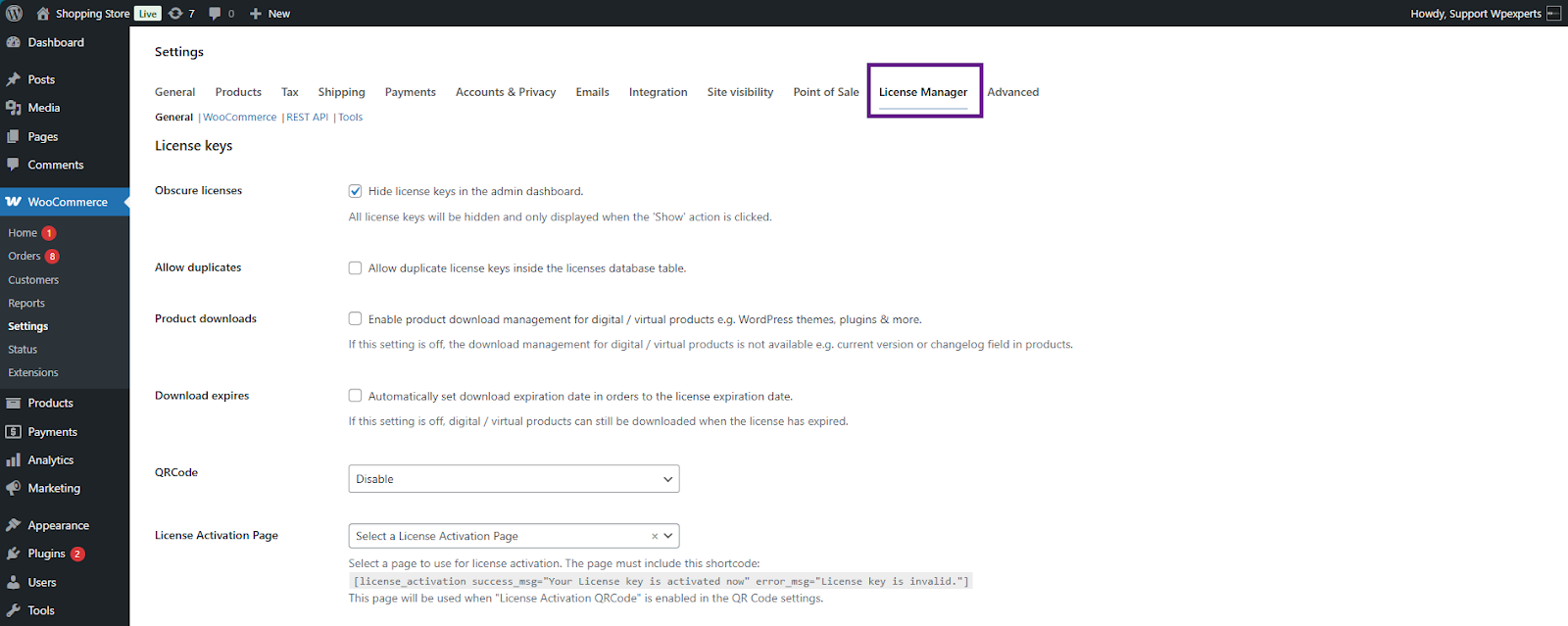
- Scroll down and check the Enable/Disable Webhooks options. Then paste the unique URL copied from the webhook site into the provided field.
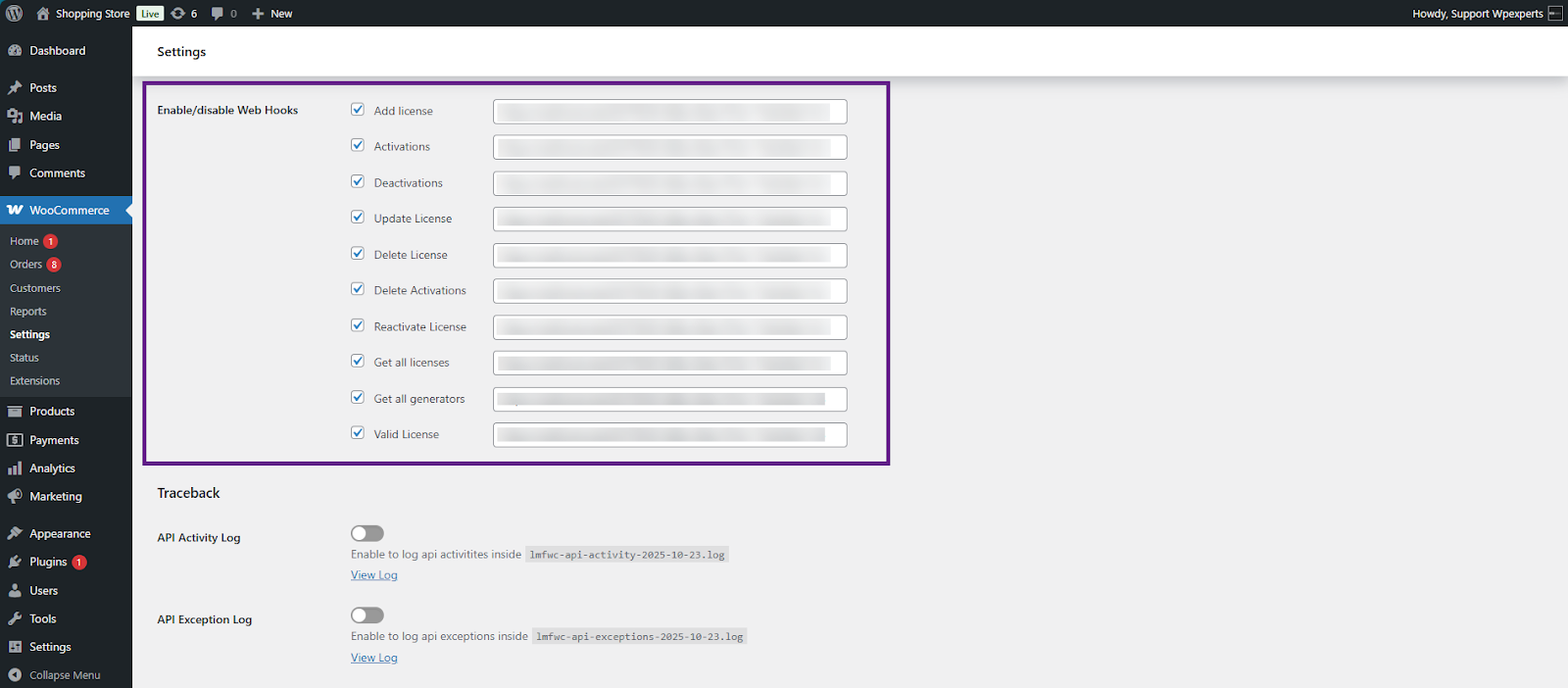
- Once done, click the Save Changes button.
- Now, go to Postman and set up the initials.
- Once done, trigger an event — for example, create or update a license through the API.
Note: In this case, we are using POST – v2/licenses API route

- Now, go to the webhook site.
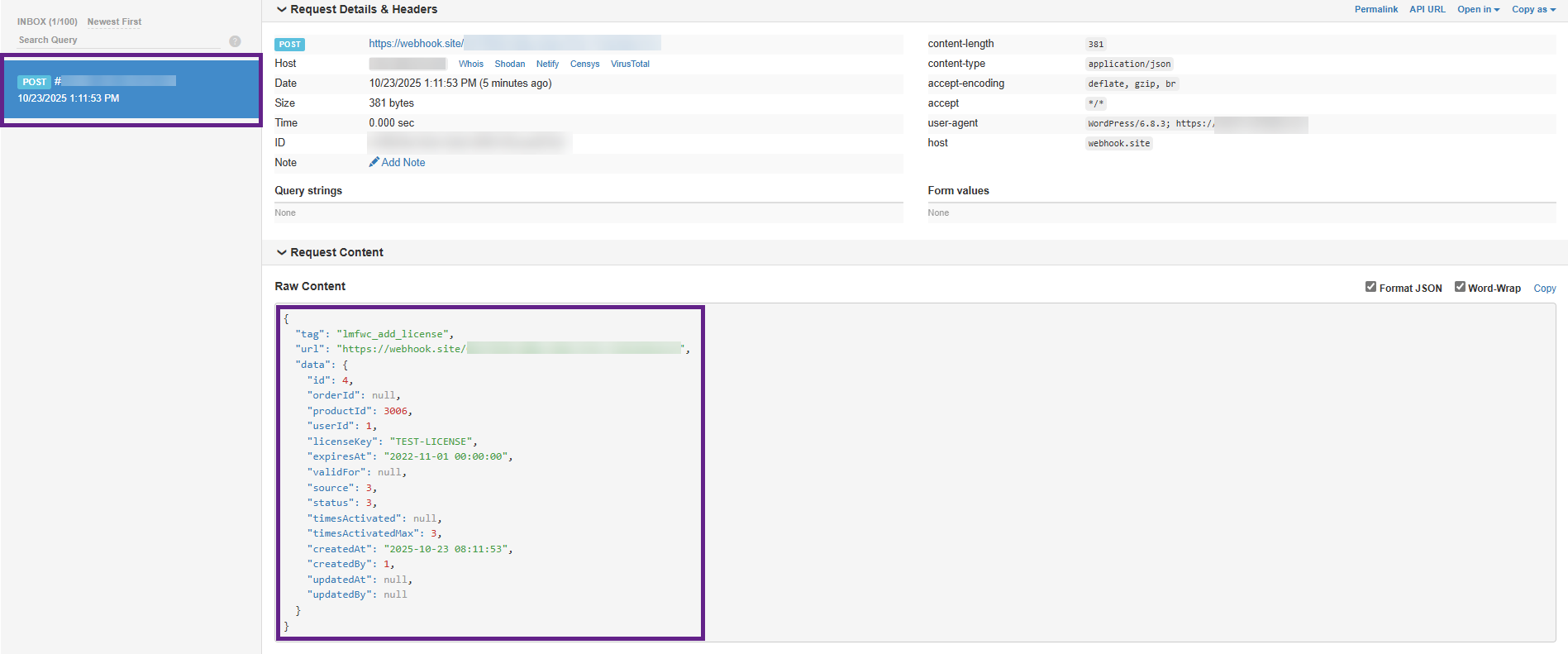
- As you can see, a JSON payload is being received, confirming that the webhook is active and functioning correctly.
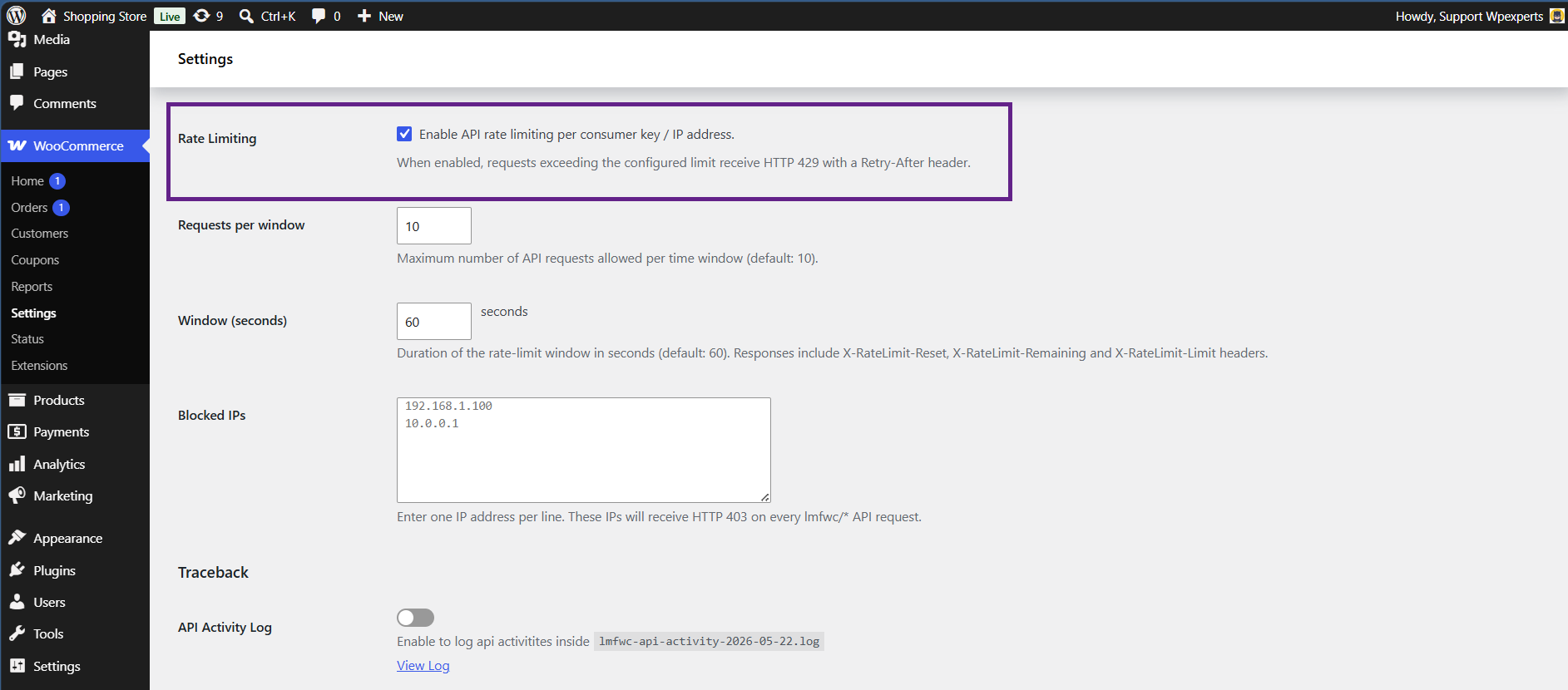
Rate Limiting
This option allows the admin to limit the number of API requests per consumer key or IP address.
Requests per Window
This option allows the admin to define the maximum number of API requests allowed within the configured time window.

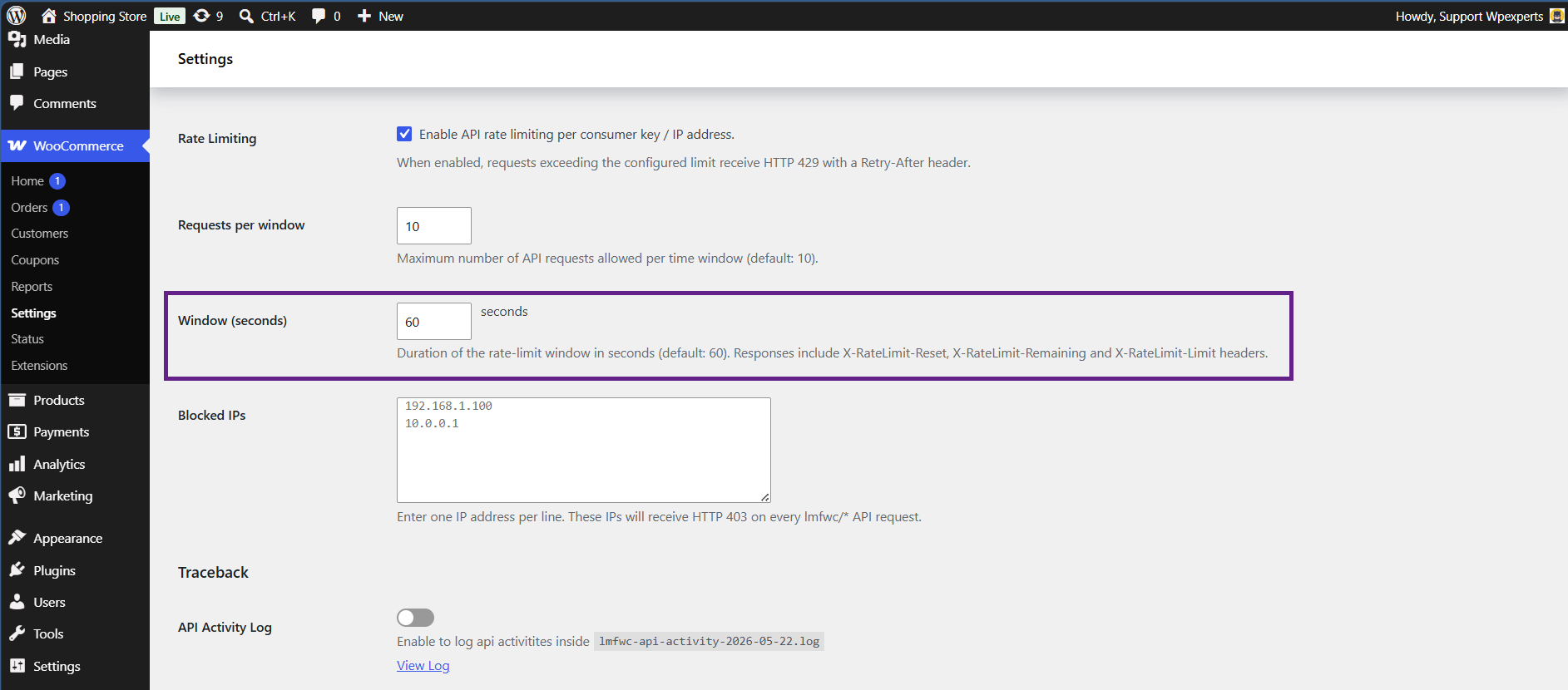
Window (Seconds)
This option allows the admin to set the duration of the rate limit window in seconds.
Blocked IPs
This option allows the admin to block specific IP addresses from accessing the API endpoints. Blocked IPs will receive an HTTP 403 Forbidden response.
