
Documentation
Getting Started
- Introduction
- Setup
- General Settings
- WooCommerce
- Tools
- Analytics Reports
- Dashboard
- License
- Generator
- Activations
- Applications
- Installed On
- API Logs
- WooCommerce Products
- Customer License Manager Flow
Integrations
For Developer
Create a Generator?
- To create a generator, click the Add Generator button.

- Enter the generator name.

- Next, set the Character Map to define which characters can be used to generate random license keys. For example, if you enter FGR234X, the system will strictly use characters from this specific map when generating keys.
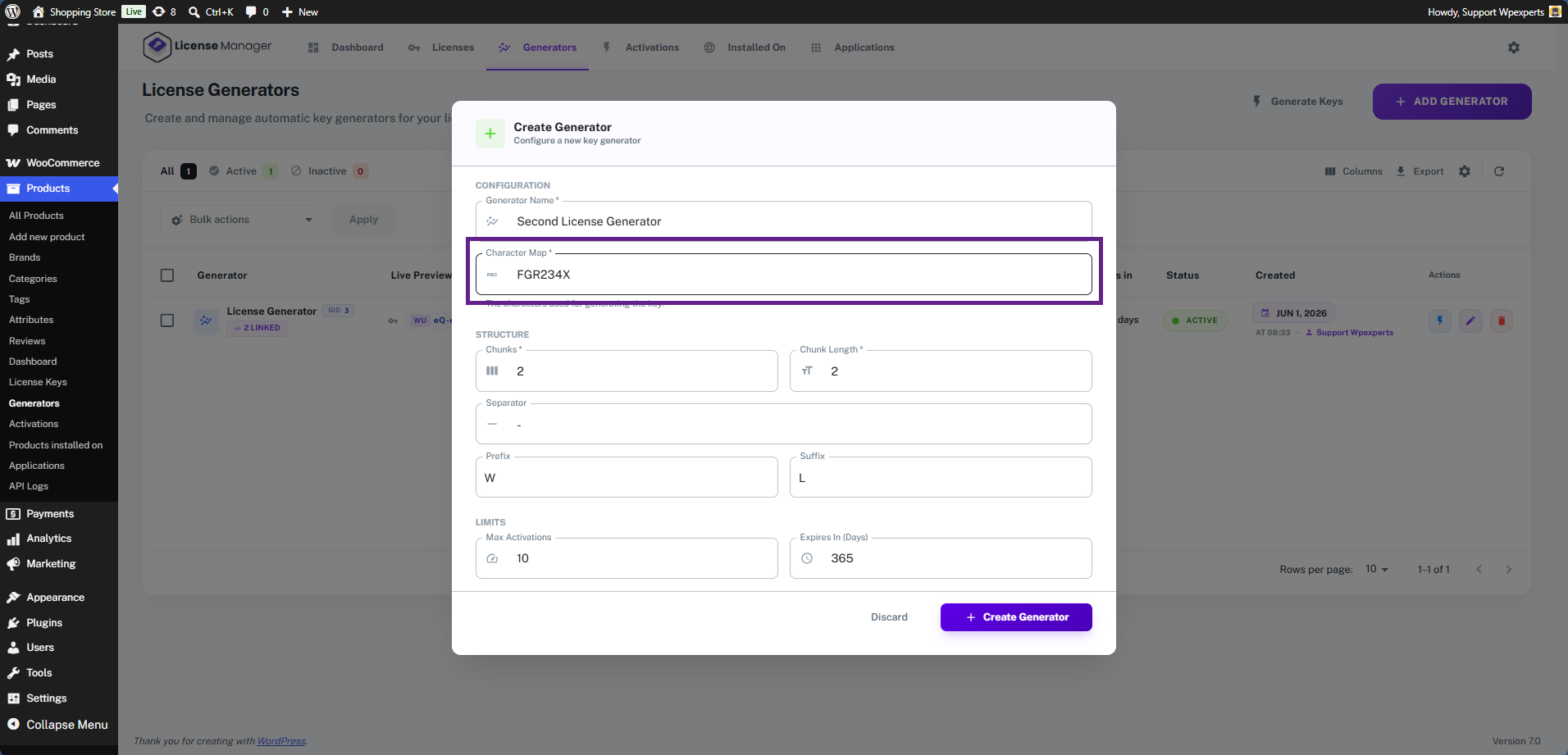
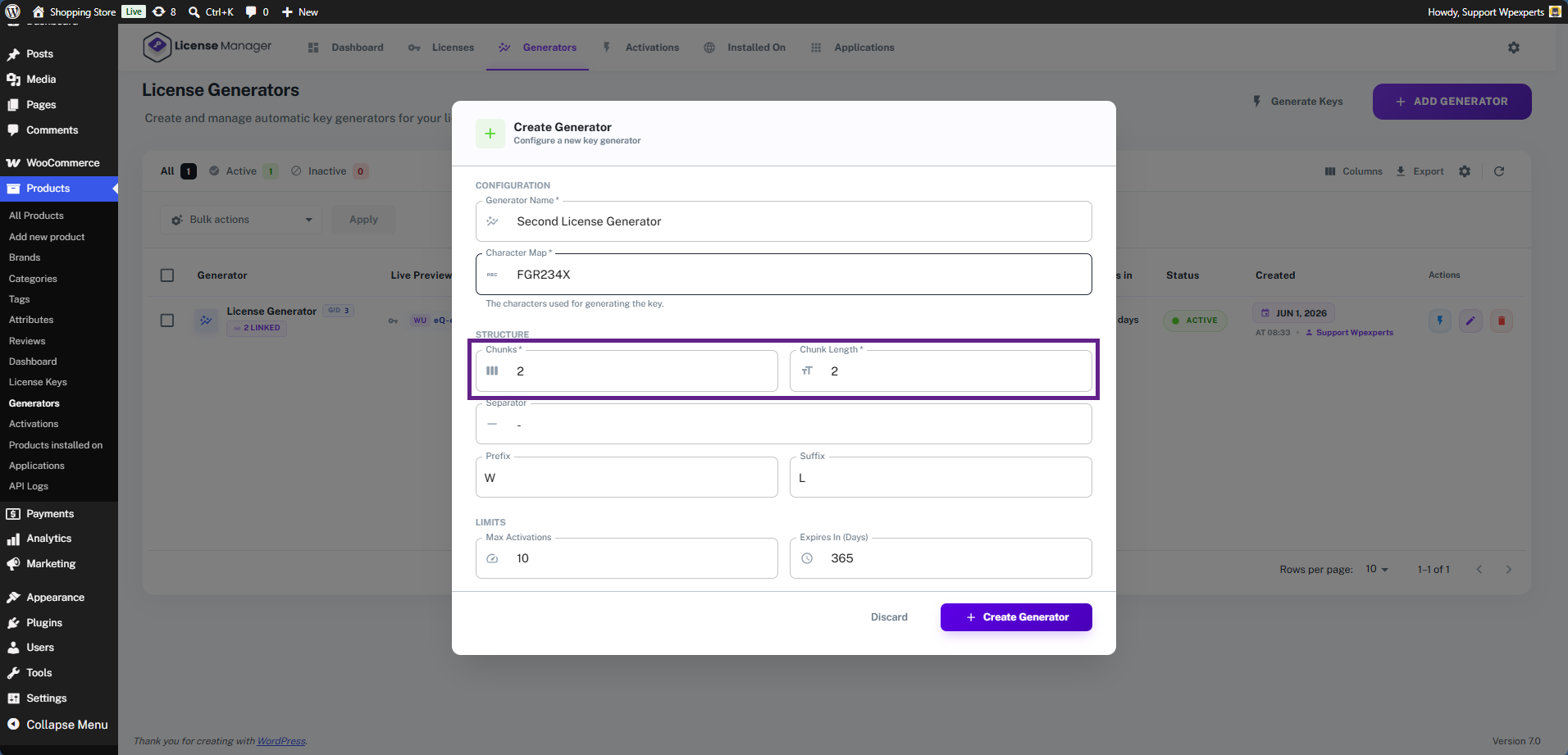
- Next, fill in the Chunks and Chunk Length fields. Chunks defines the number of sections the license key will have, while Chunk Length specifies the number of characters within each section.
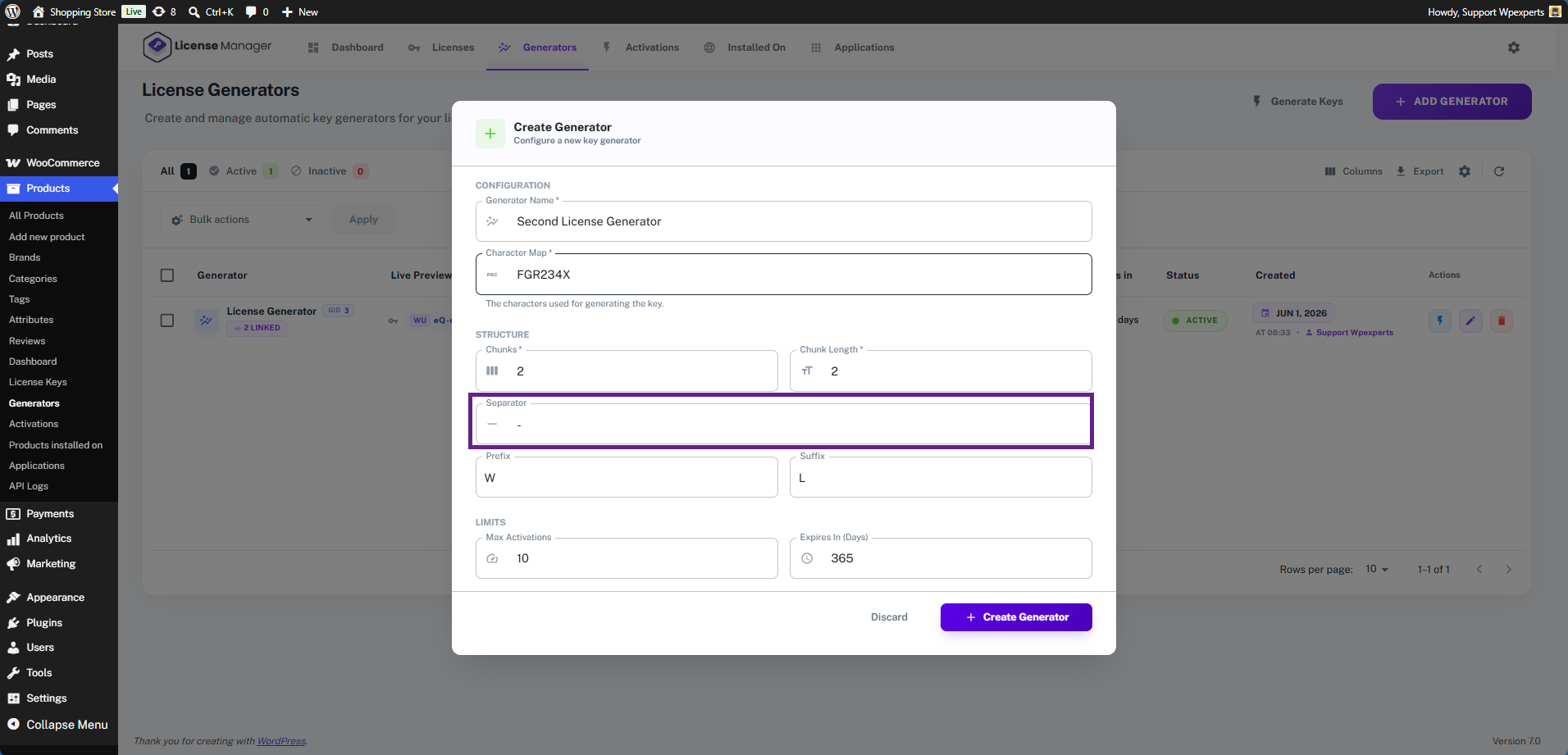
- Fill in the Separator field, which acts as the divider between the chunks of your license key.
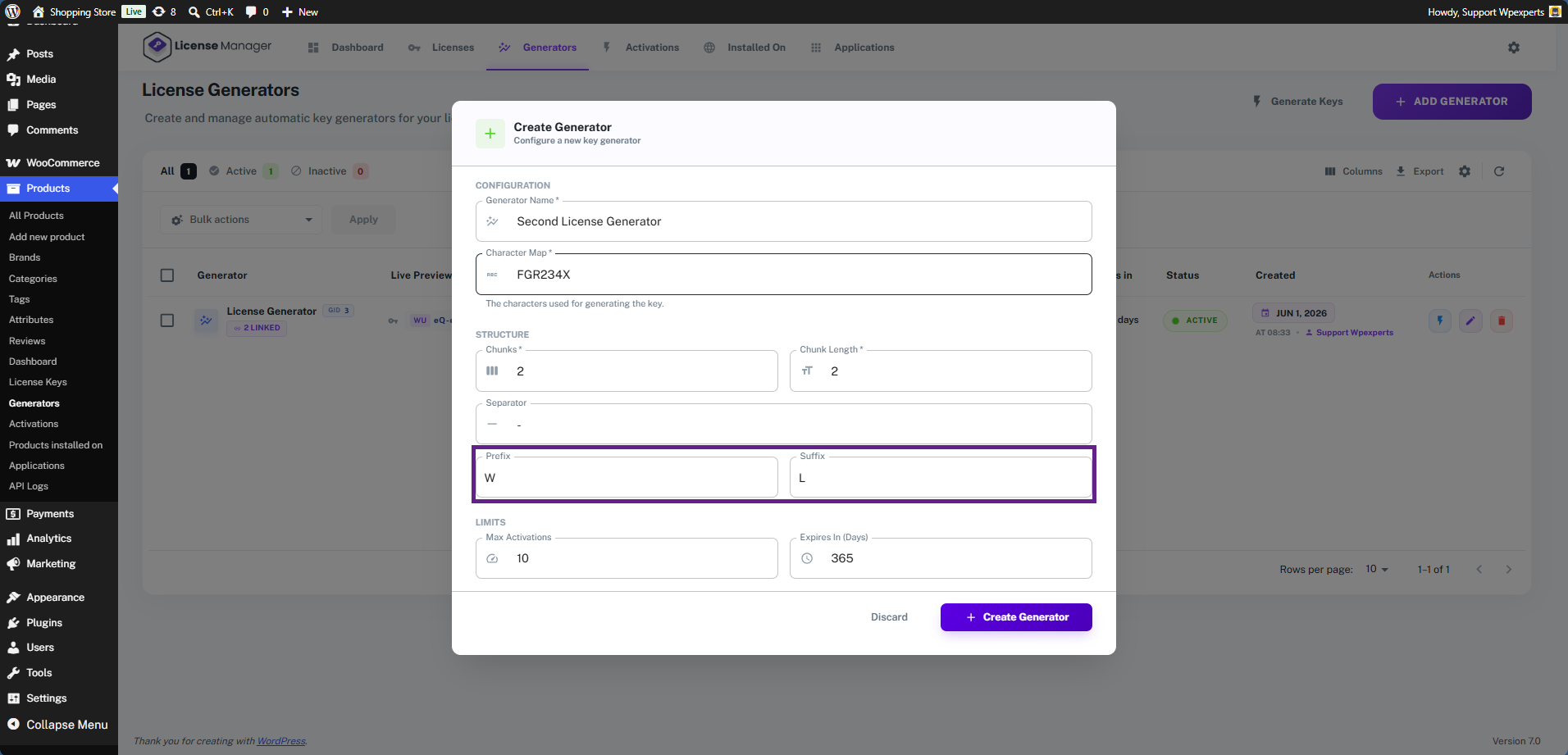
- Now, configure the Prefix and Suffix fields for the license key. The Prefix adds fixed text to the beginning of the key, while the Suffix appends fixed text to the very end.
- Finally, configure the Max Activation count and define the Expiry period (in days) for the license keys.
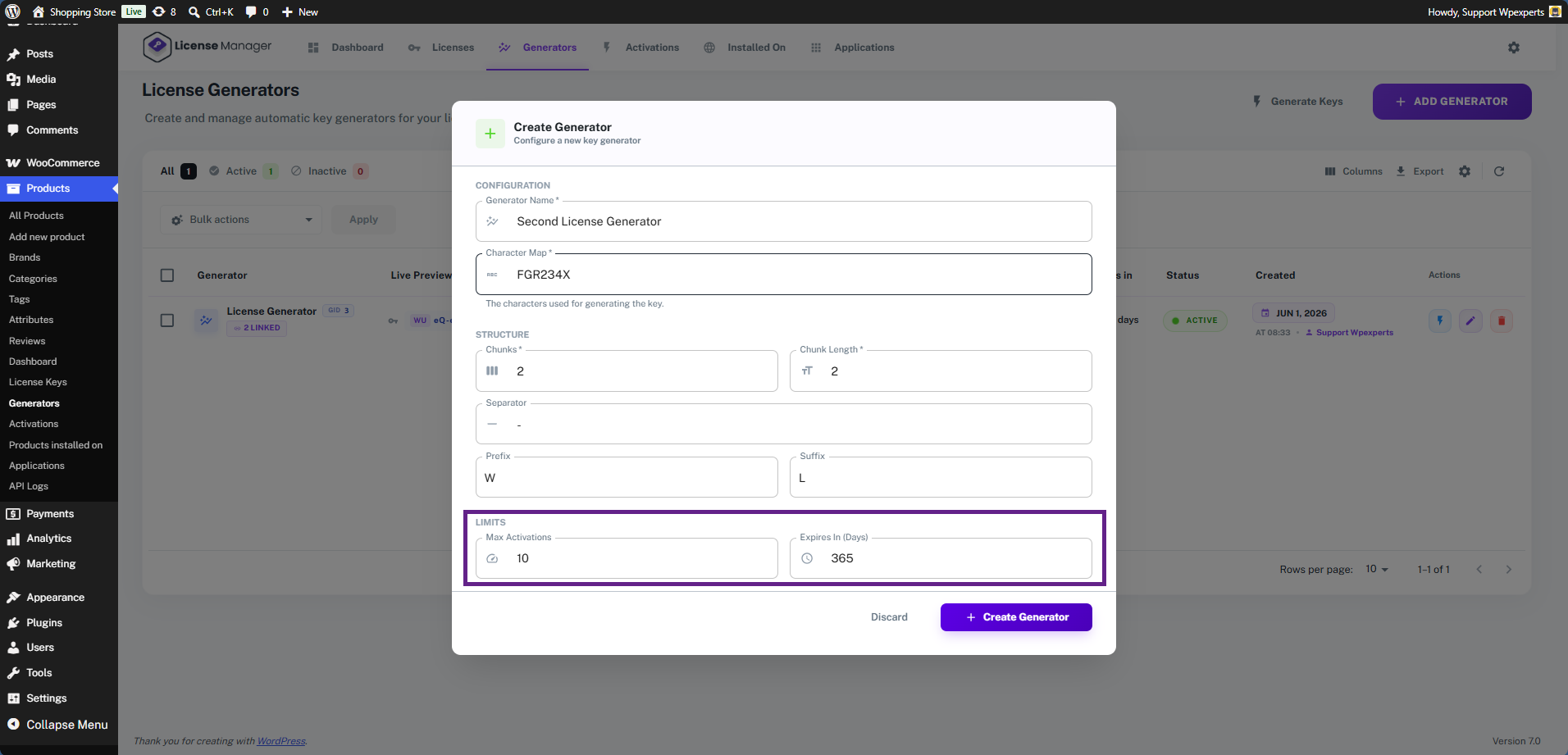
- Once done, click the Create Generator button.

- As you can see, our generator has been successfully created.
