
Documentation
Getting Started
- Introduction
- Setup
- General Settings
- WooCommerce
- Tools
- Analytics Reports
- Dashboard
- License
- Generator
- Activations
- Applications
- Installed On
- API Logs
- WooCommerce Products
- Customer License Manager Flow
Integrations
For Developer
AppSumo
The License Manager has been integrated with AppSumo to simplify the licensing and activation process for applications sold through the platform.
- Navigate to the Admin Dashboard > WooCommerce > License Manager > AppSumo.
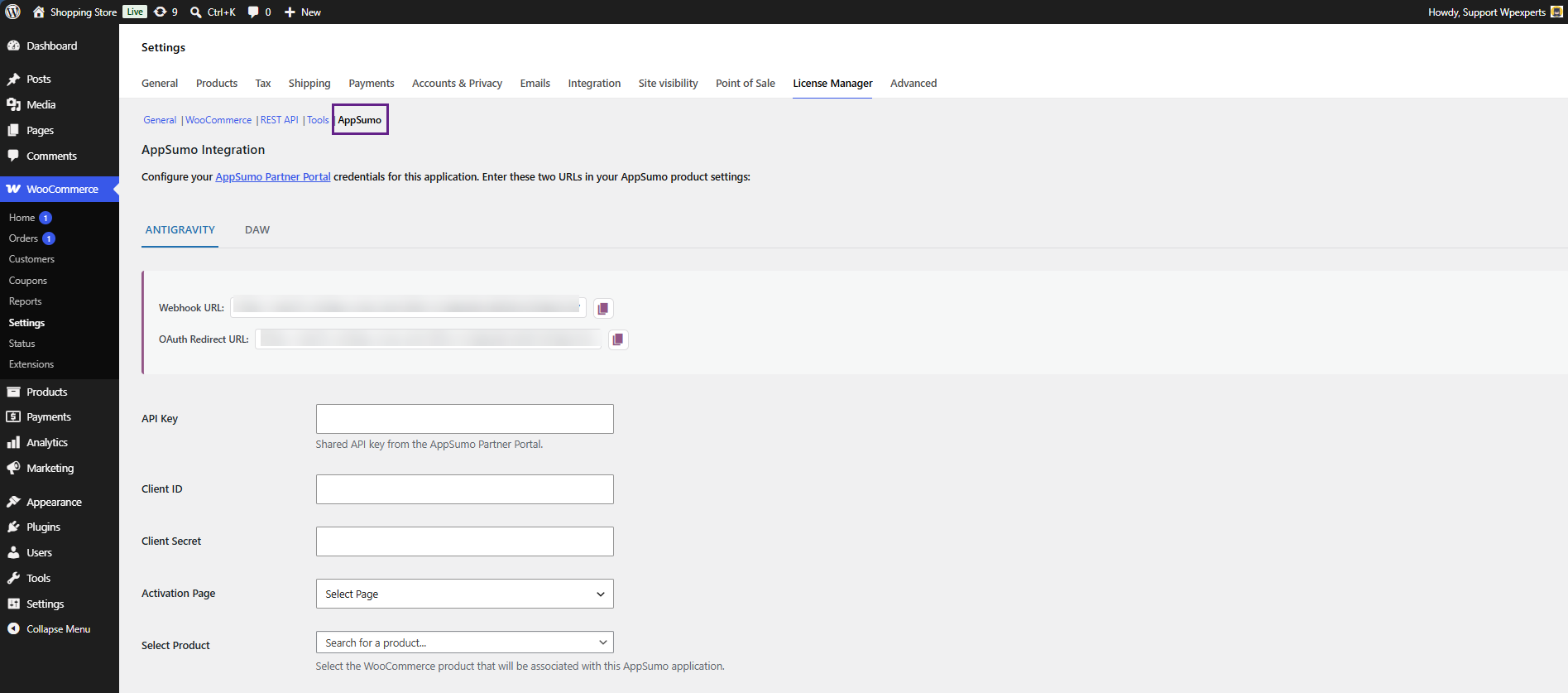
- In the AppSumo integration section of the License Manager, each application is managed separately. Every application listed inside the system has its own dedicated AppSumo configuration. For example, if multiple applications are created (such as Antigravity, DAW, etc.), each application will appear as a separate tab or section within the AppSumo settings.
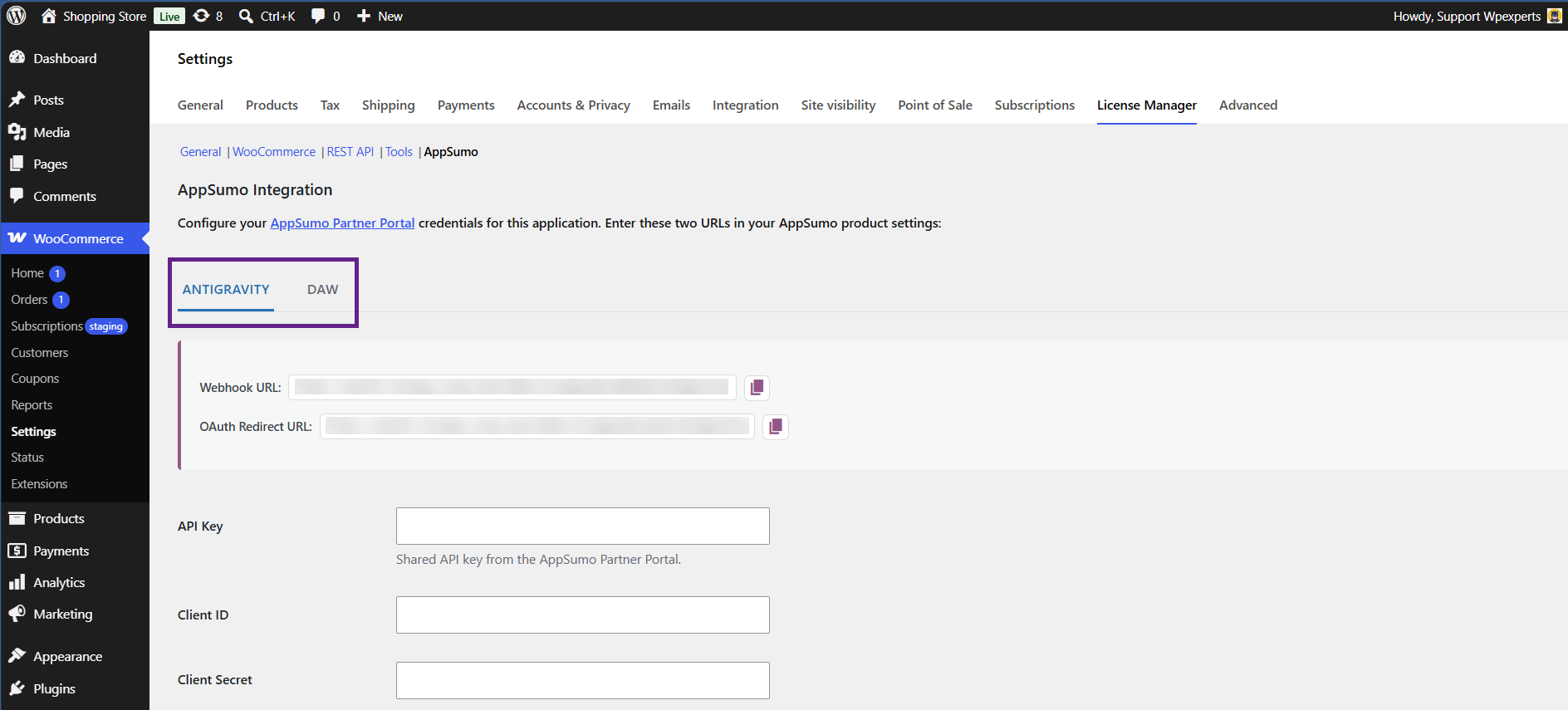
- Look at the top section under your product tab (e.g., ANTIGRAVITY or DAW) to find these two URLs:
- Webhook URL
- OAuth Redirect URL
- Copy the URLs and save them temporarily in a notepad.
- Log in to your AppSumo Partner Portal.
- From your dashboard, click on the Product / Application that is currently under review.
- Scroll down to the API Settings or Technical Integration section.
- Paste the copied links into their respective fields:
- Paste the Webhook URL into the Webhook URL field.
- Paste the OAuth Redirect URL into the OAuth Redirect URL field.
- Click the Validate or Test Connection button next to the fields.
(Note: AppSumo will send a test request to your site. Your server must return a 200 OK status for the system to let you save them). - Once AppSumo successfully validates your URLs, the system will automatically generate your credentials on that same page.
- Scroll down further to the Licensing OAuth Keys section on the AppSumo product page.
- You will see three fields:
- Shared API Key
- Client ID
- Client Secret
- These keys are masked for security. Click the Eye icon next to each key to reveal it, and copy all three.
- Return to your WordPress dashboard.
- Scroll down to the empty configuration fields and paste your keys:
- Paste the AppSumo Shared API Key into the API Key box.
- Paste the AppSumo Client ID into the Client ID box.
- Paste the AppSumo Client Secret into the Client Secret box.
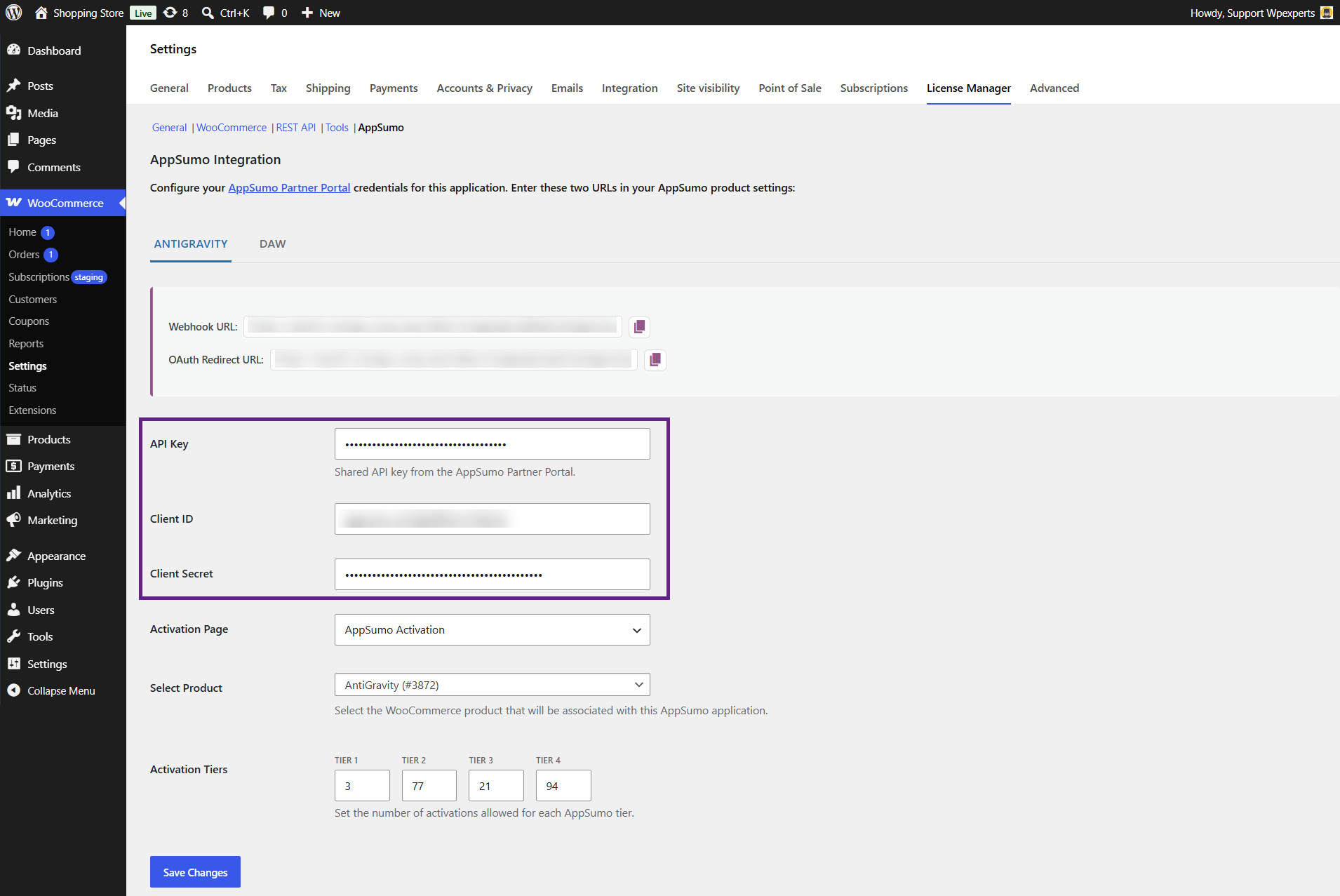
- Next, paste the shortcode [lmfwc_appsumo_activation] into a page and select that page in the Activation Page option.
- The purpose of this shortcode is to handle customer redirection after they click your product button on AppSumo after purchasing the product. If the customer is not registered on your website, they will be redirected to the registration page. If the customer is already registered and logged in, they will be redirected to the My Account page.

- Select the WooCommerce product that will be associated with this application.
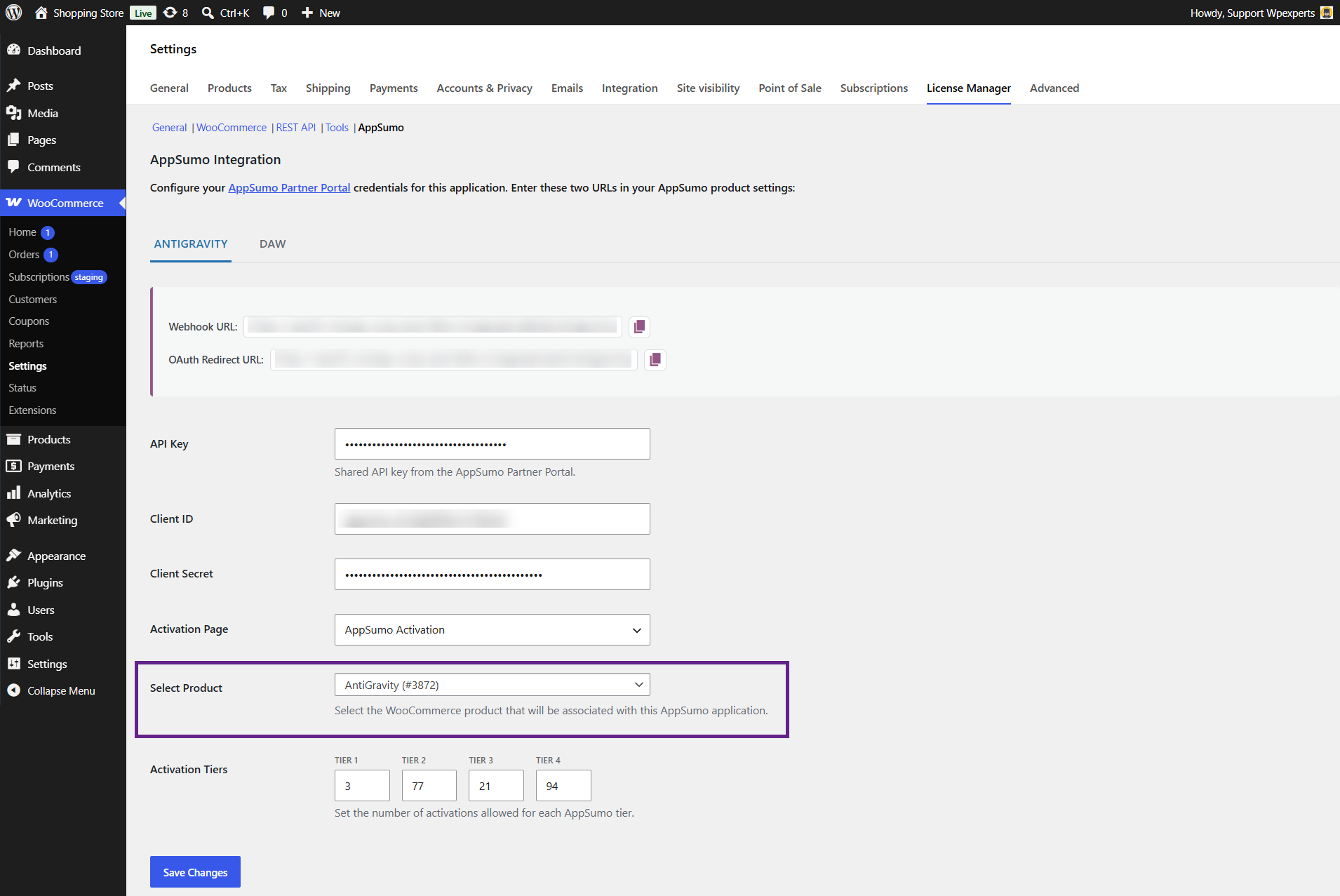
- Finally, set the number of activations for each AppSumo tier.
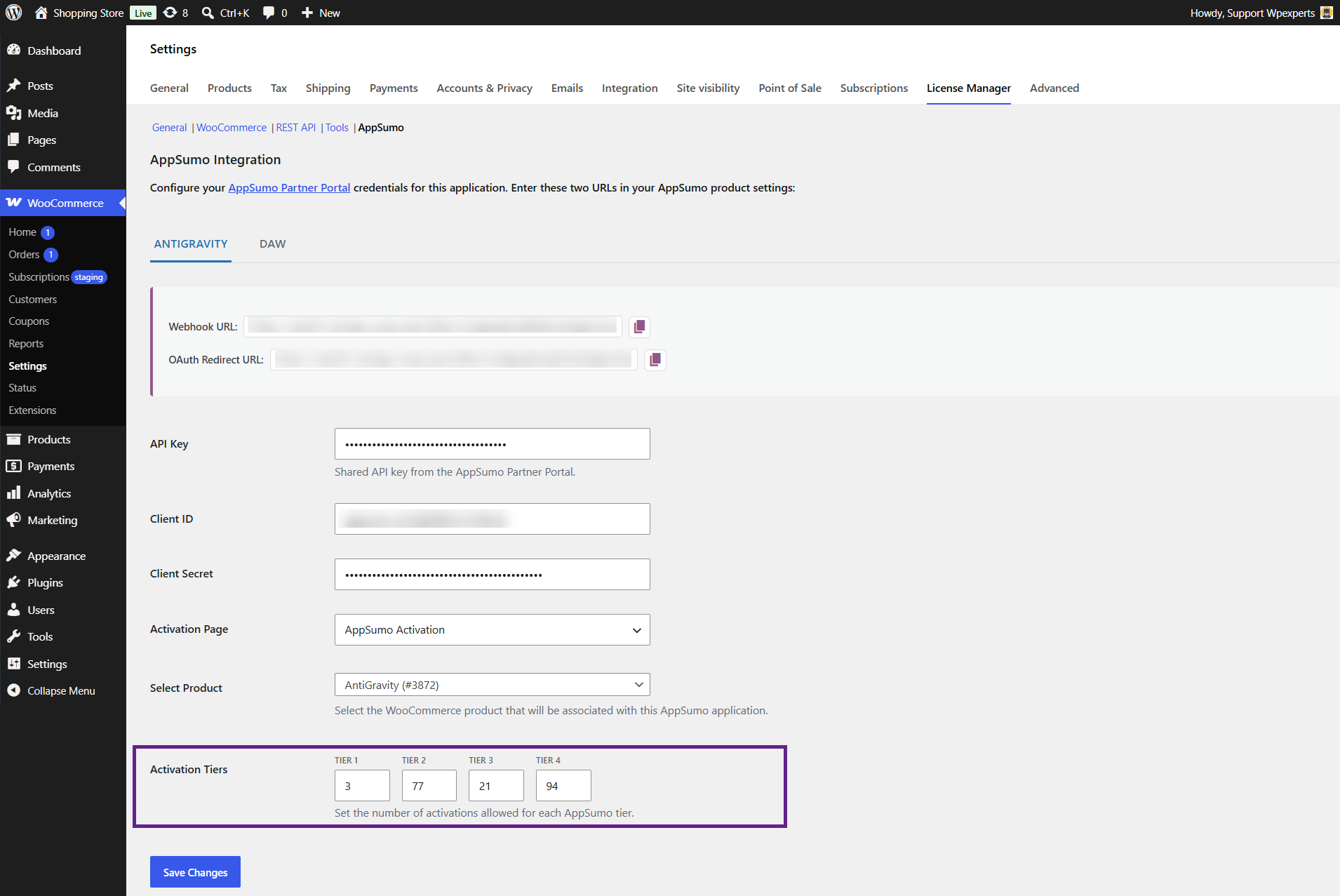
- Once done, click the Save Changes button.
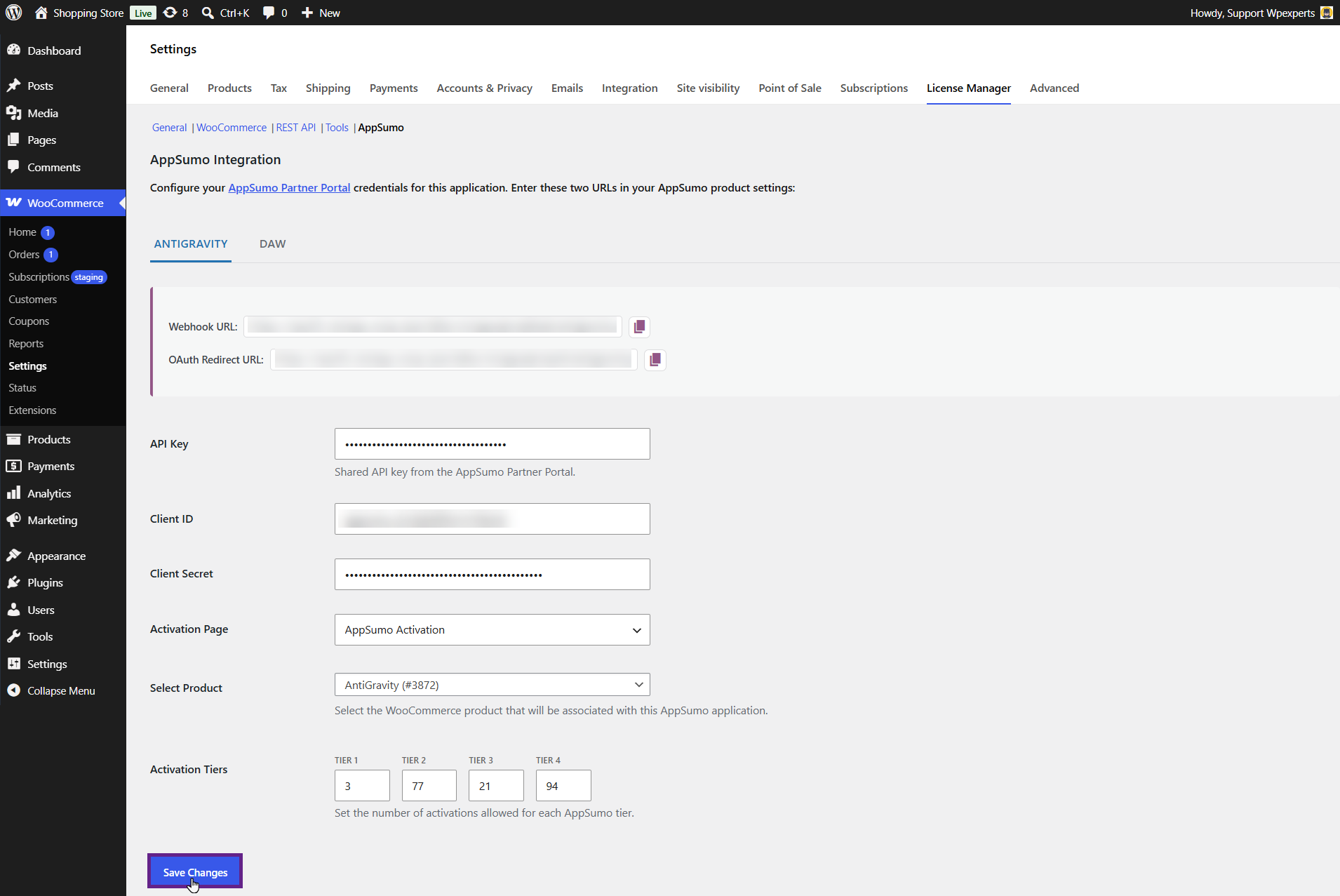
- Your integration is now active. When a user buys your product on AppSumo, your WordPress site will automatically handle the licensing flow.