Documentation
Getting Started
- Introduction
- Setup
- General Settings
- WooCommerce
- Tools
- Analytics Reports
- Dashboard
- License
- Generator
- Activations
- Applications
- Installed On
- API Logs
- WooCommerce Products
- Customer License Manager Flow
Integrations
For Developer
Overview
Imagine selling software and having to manually create and assign a license key every single time a customer makes a purchase. Sounds tedious and time-consuming, right? That’s exactly where the Generator comes in. By setting up a generator for your product, you can automatically handle multiple license keys. When that specific product is sold, the generator instantly creates and delivers the license key. No more manual creation, no more manual assignment—everything runs on autopilot.
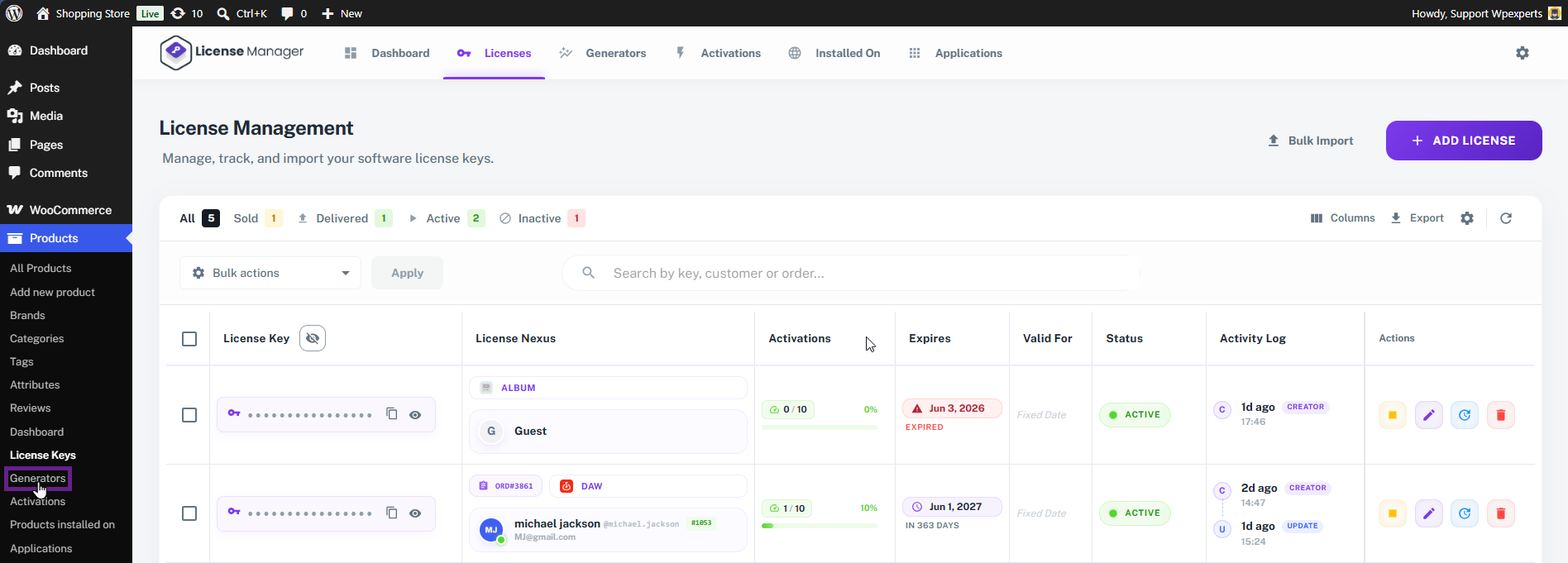
- Navigate to the Admin Dashboard > Products > Generators
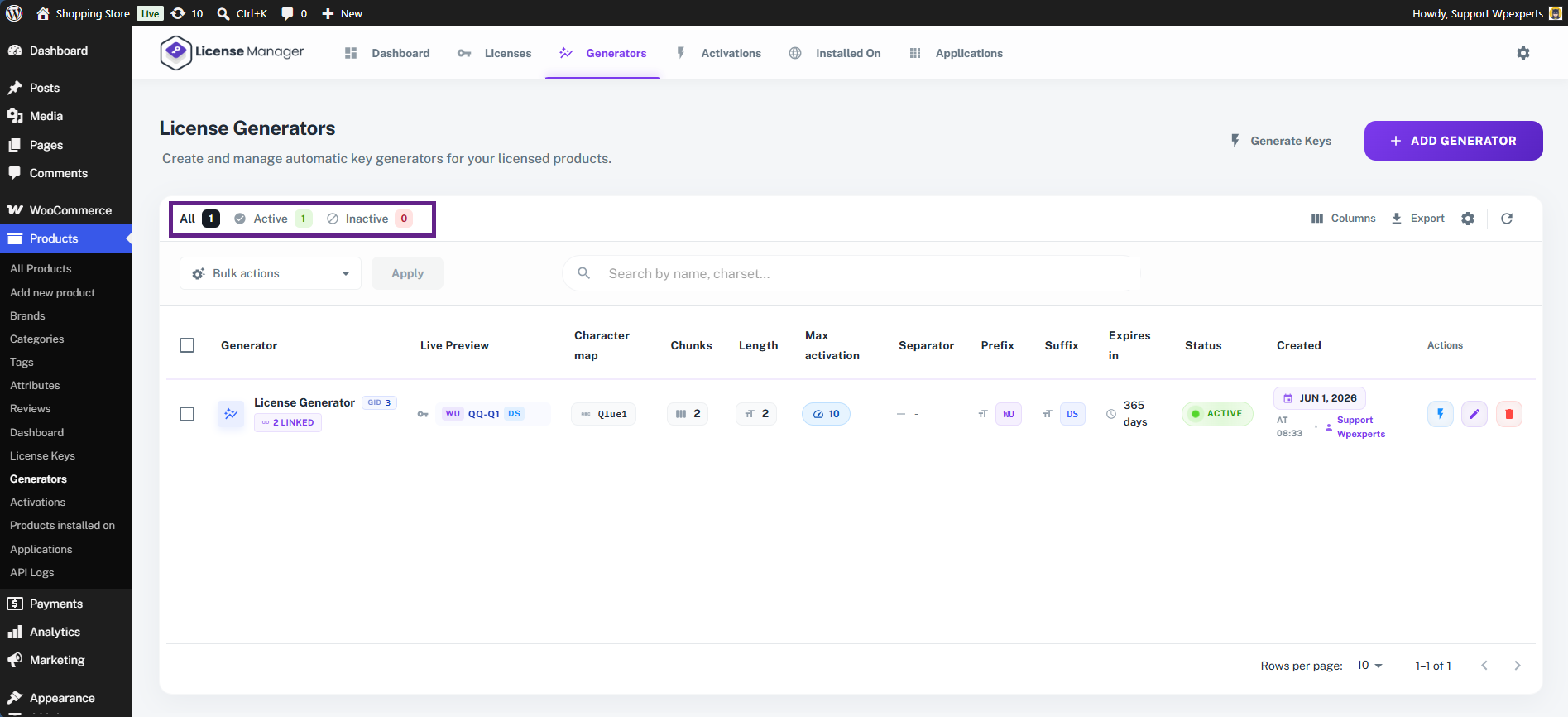
- The top of the screen displays the current status of the generators.
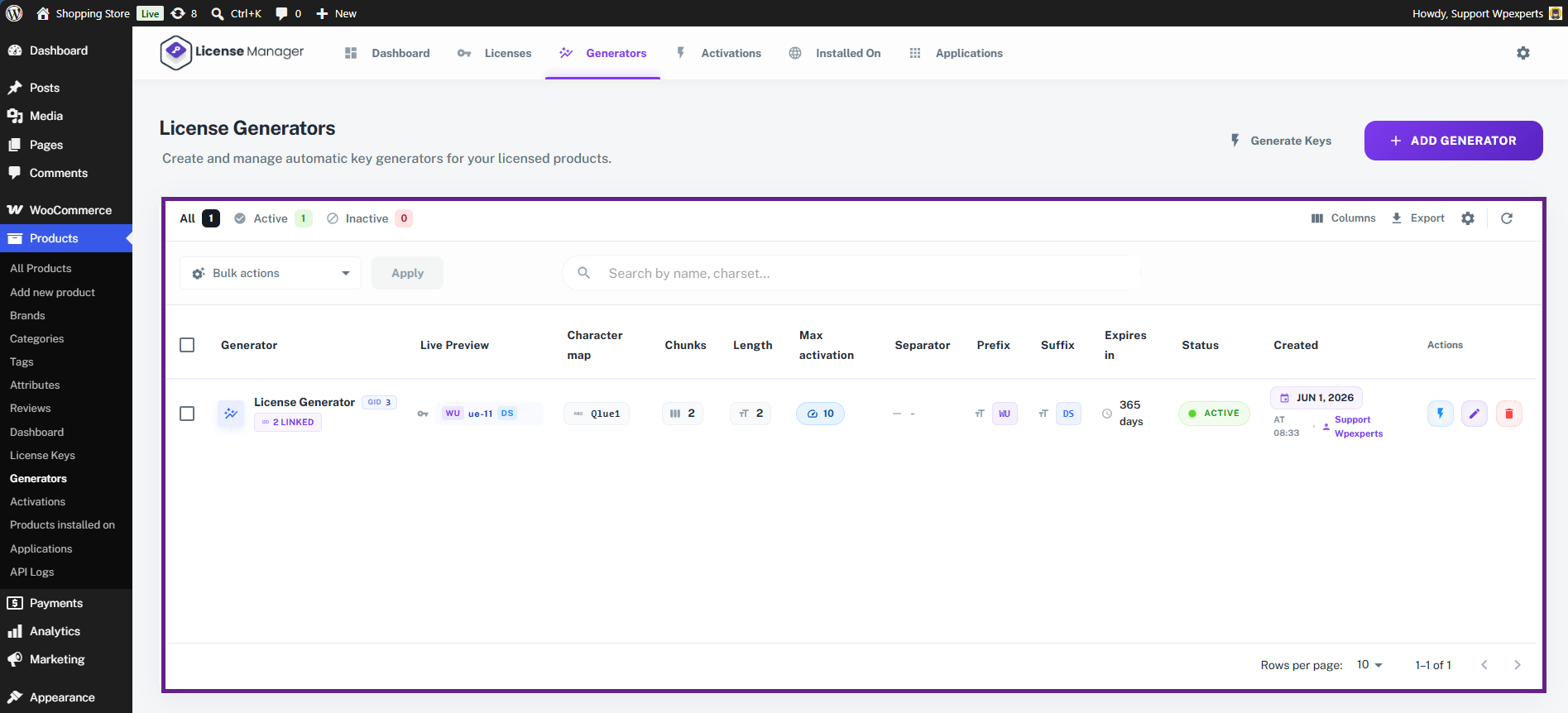
- This table shows all generators and their details.
- Using bulk actions, the admin can delete multiple generators at once.
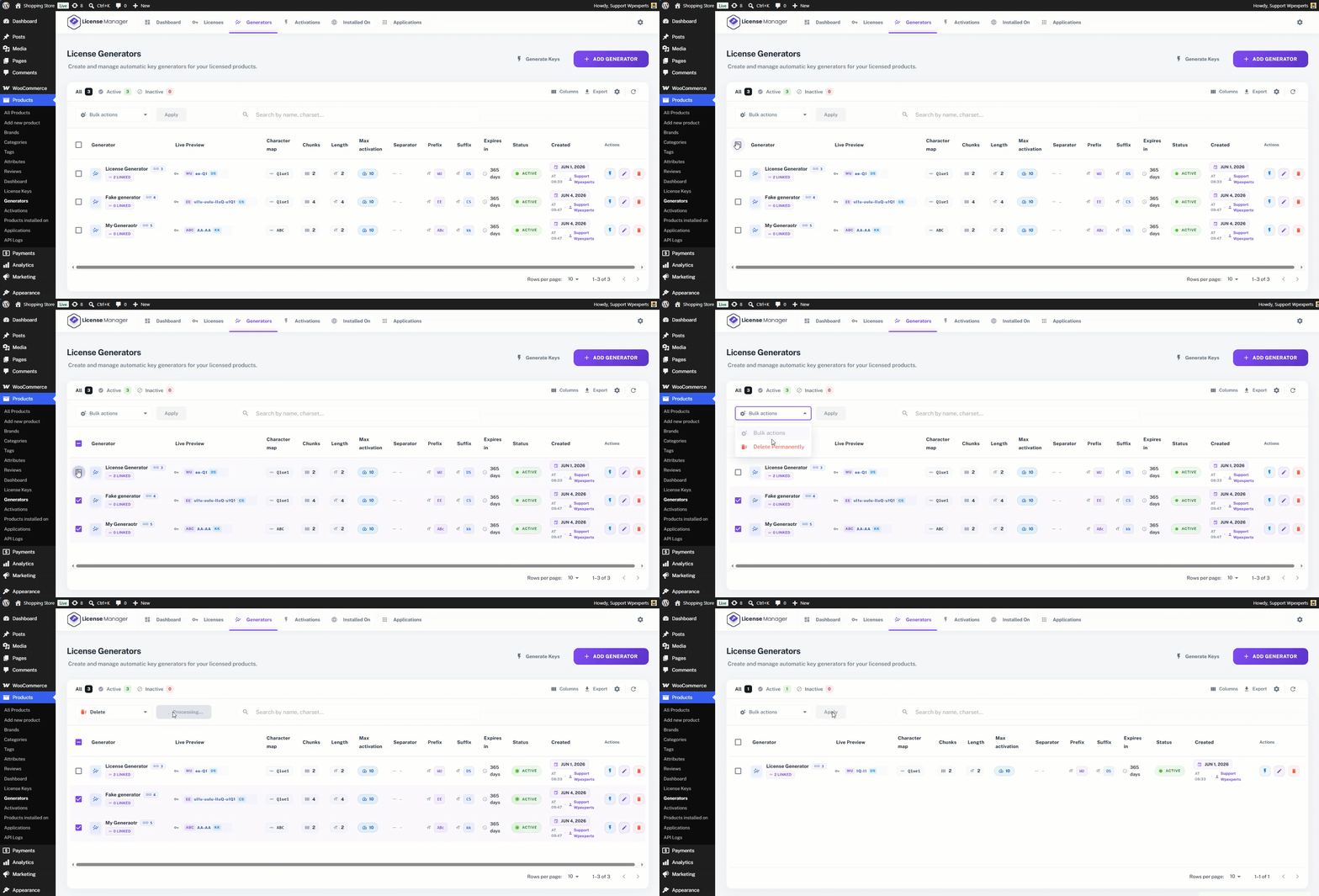
- Similar to the license manager search field, this field can be used to search for a specific generator.

- Admins can decide which columns to show or hide through the Columns section.

- Admins can export all generator details into a CSV file using the Export button.
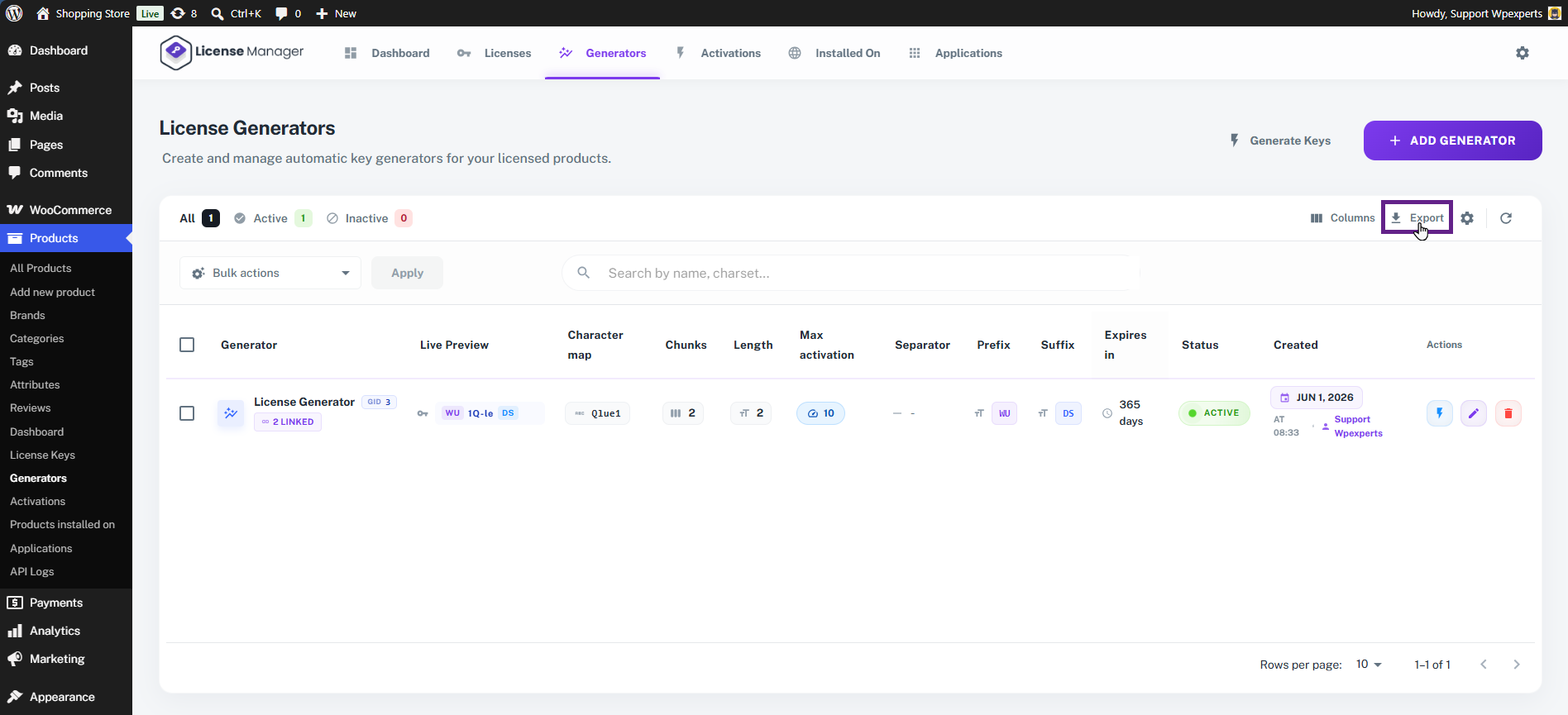
- As you can see, all the columns have been successfully exported into a CSV file.

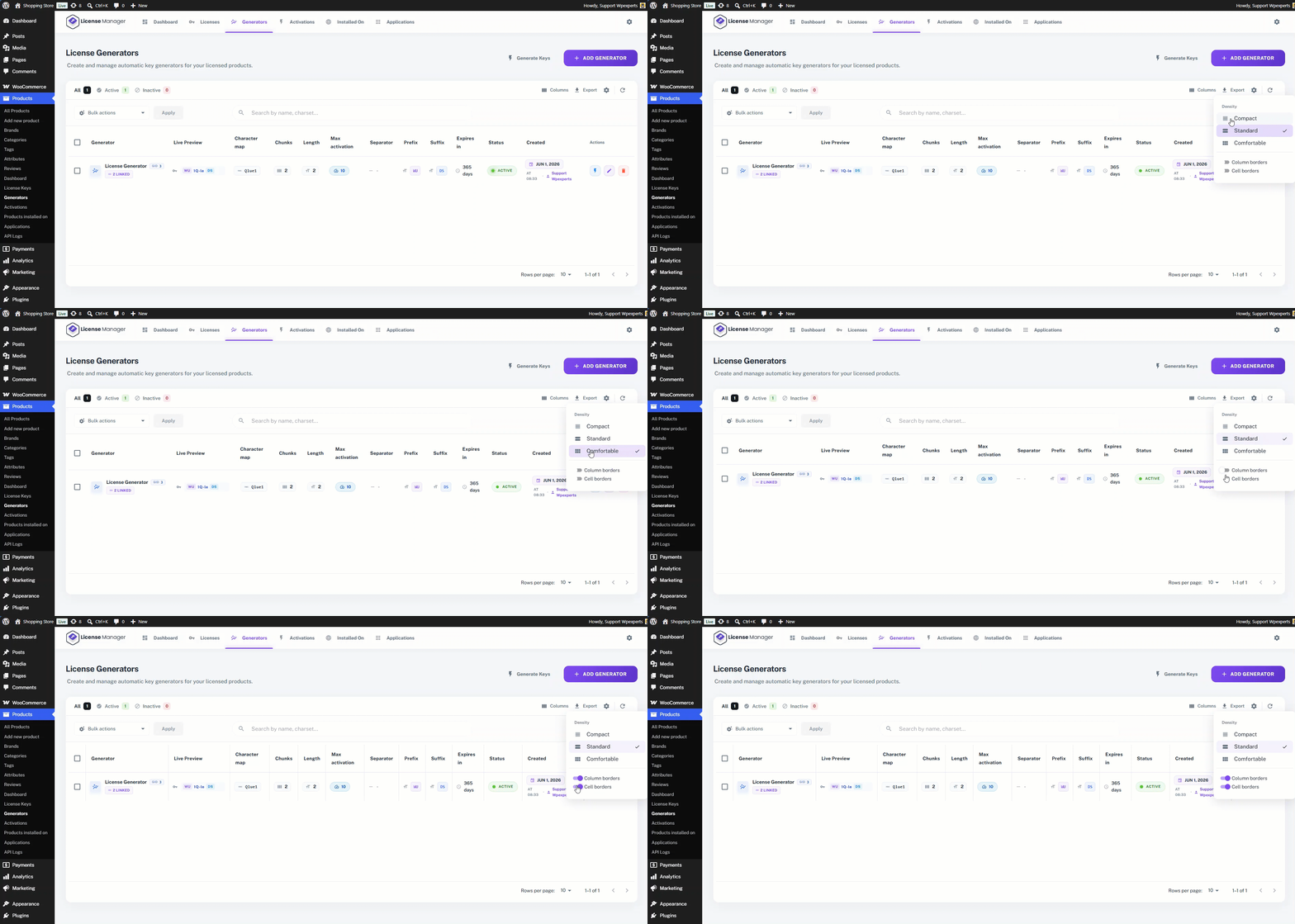
- Just like the license key screen, admins can use the table settings to change the density and add cell or column borders.
- Admins can instantly sync the generators table with a single click using the sync button.
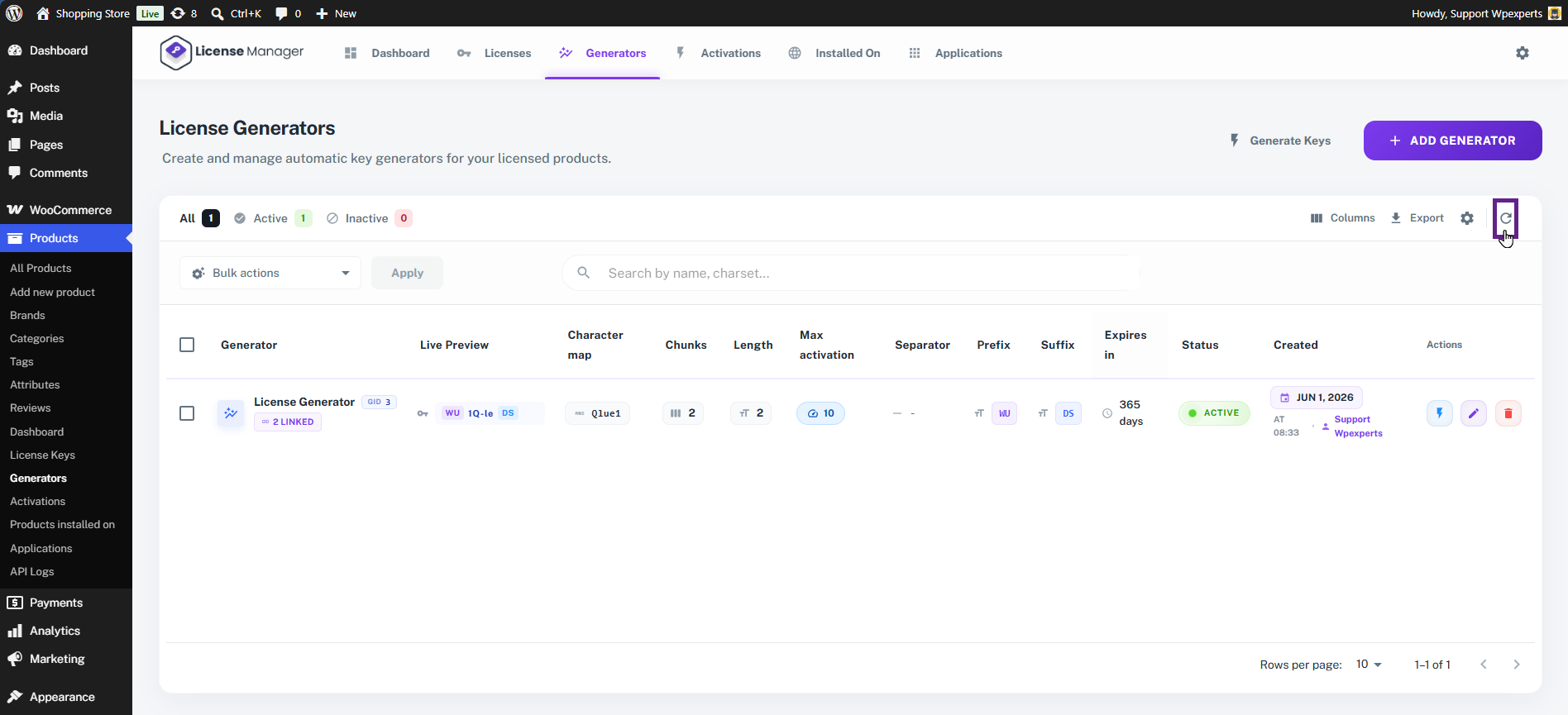
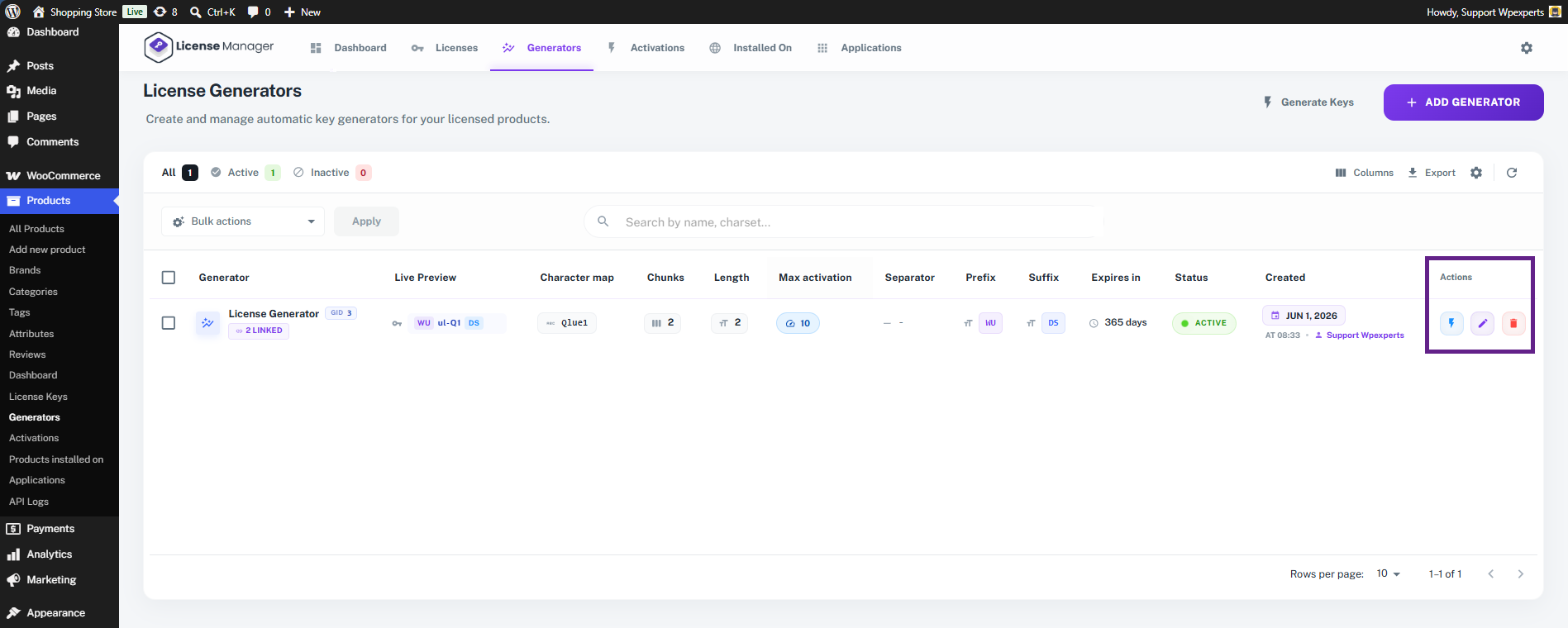
- The Actions column allows the admin to edit, delete, or manage each generator.